FAQs
Explore common eBay questions, practical tips, and troubleshooting guidance to help you manage your eBay channel more effectively in LitCommerce.
To accommodate selling flexibility, LitCommerce supports linking and listing Main Store products with channel listings that use a different product format. Refer below for more details.
Link a simple eBay channel listing to a Main Store variation
By default, the LitCommerce eBay channel only allows linking a channel listing with a Main Store product that shares the same product format (simple - simple, variant - variant). This also applies to automatic linking during import.
However, you can manually link a simple channel listing (without variations) to a Main Store variation. Follow the steps below to proceed:
-
Go to the eBay channel and locate the simple listing you want to link.
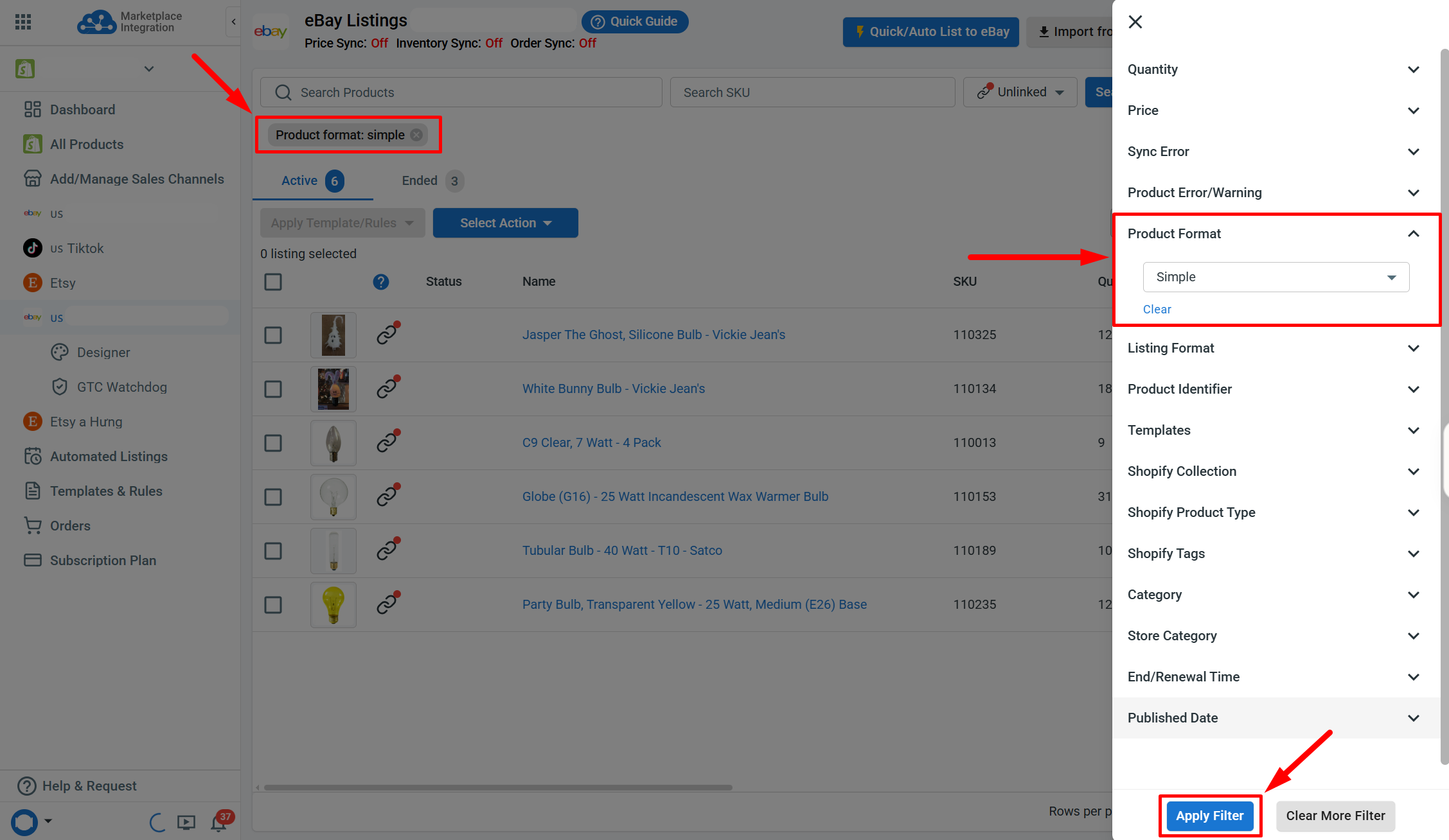
[!SUCCESS] Utilize the
UnlinkedandSimple Product Formatfilter for easier identification.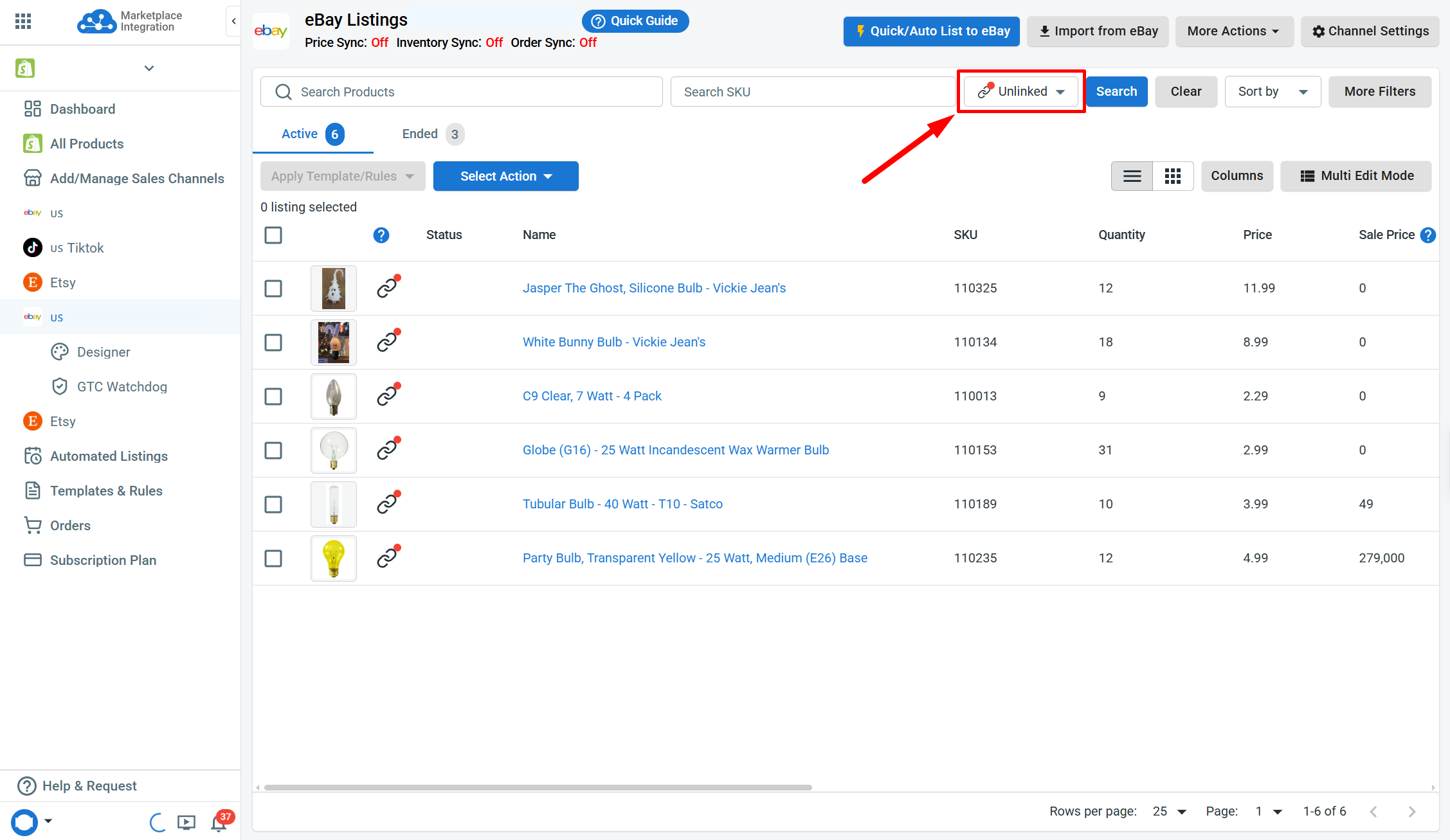
-
Hover over the red-dot chain icon and click on
Link To A Product.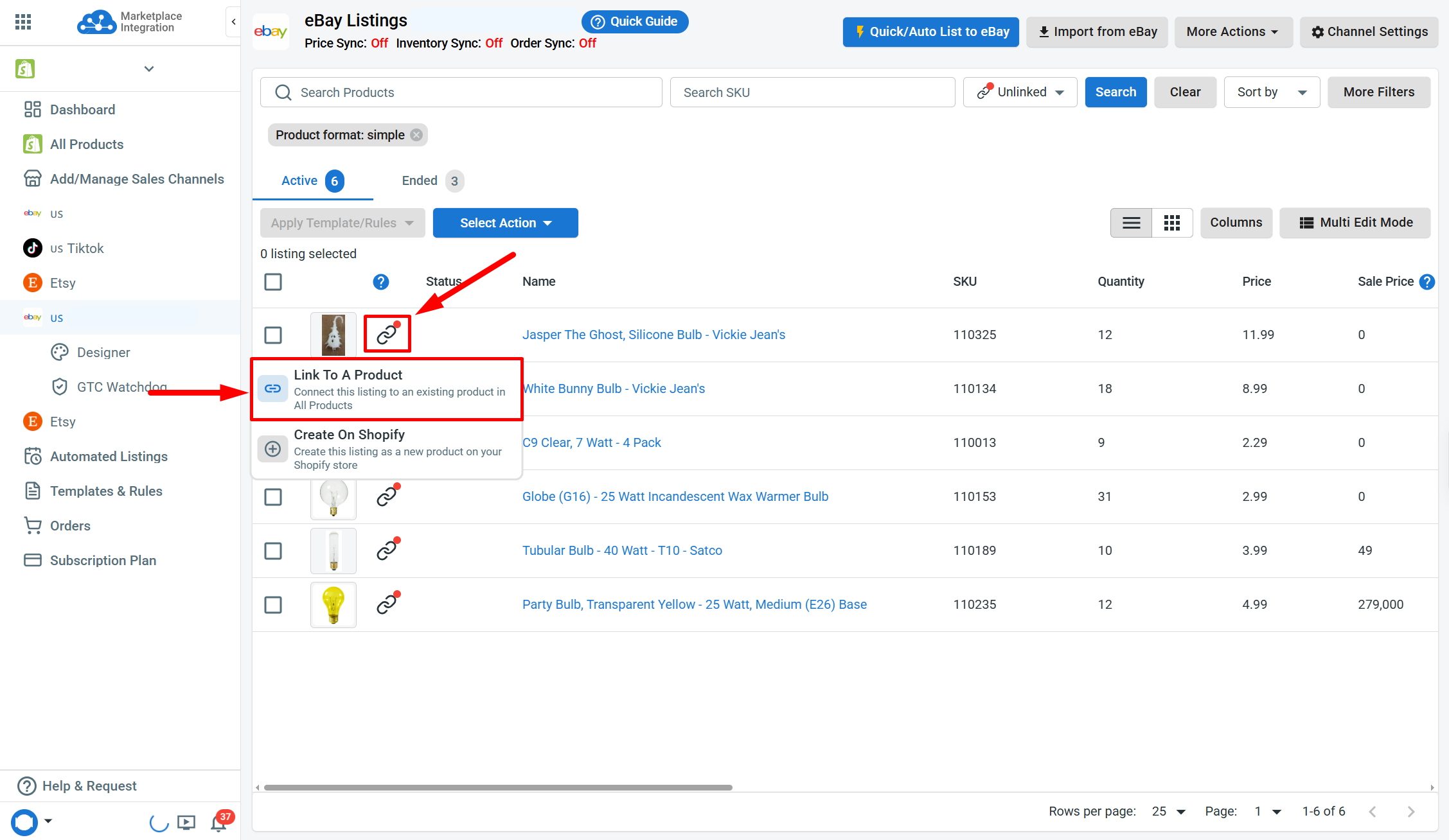
-
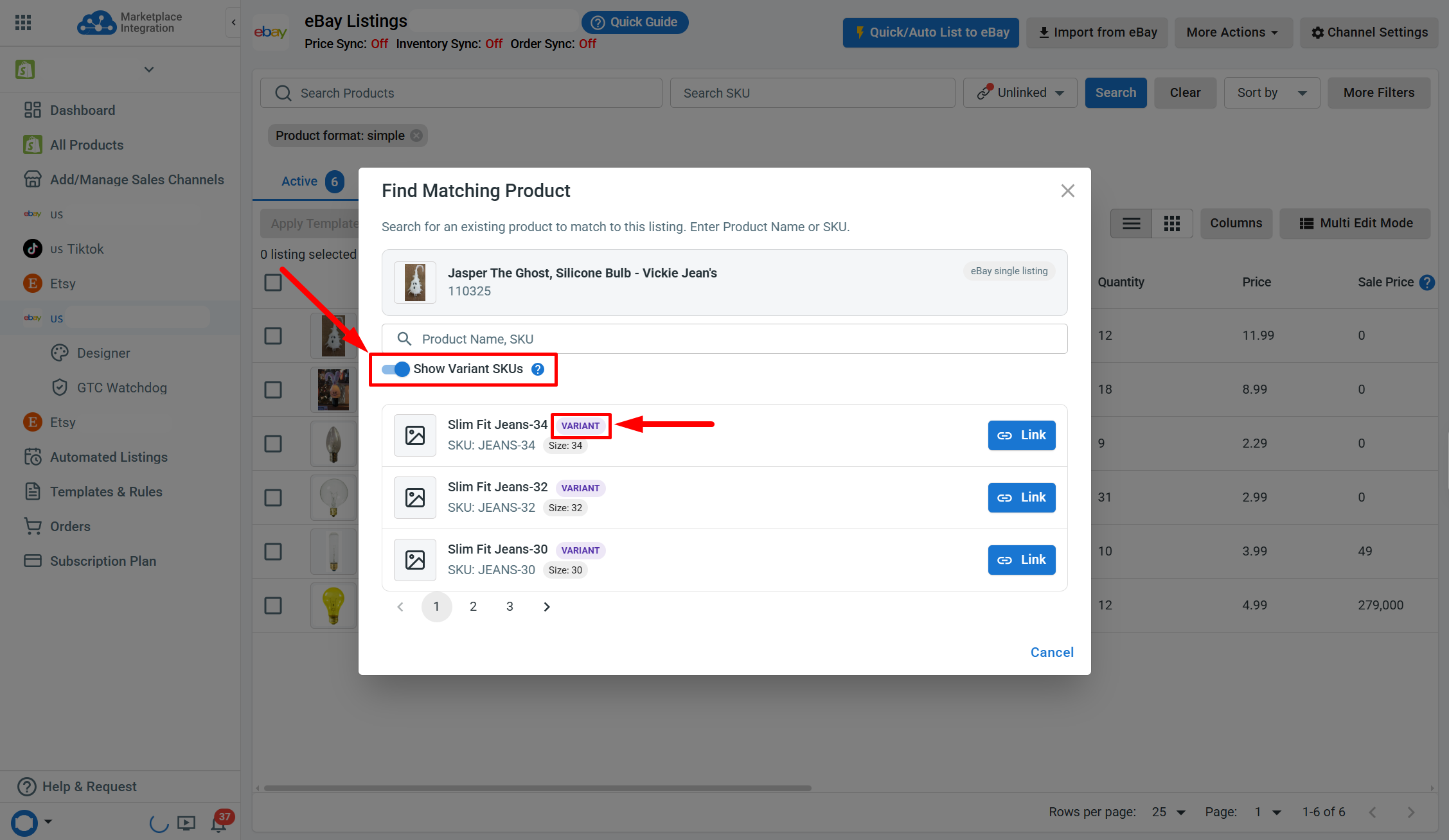
Enable the
Show Variant SKUstoggle on the Find Matching Product page.This will include all possible linking Main Store variations in the lookup.
-
Click the
Linkbutton next to the desired Main Store variation.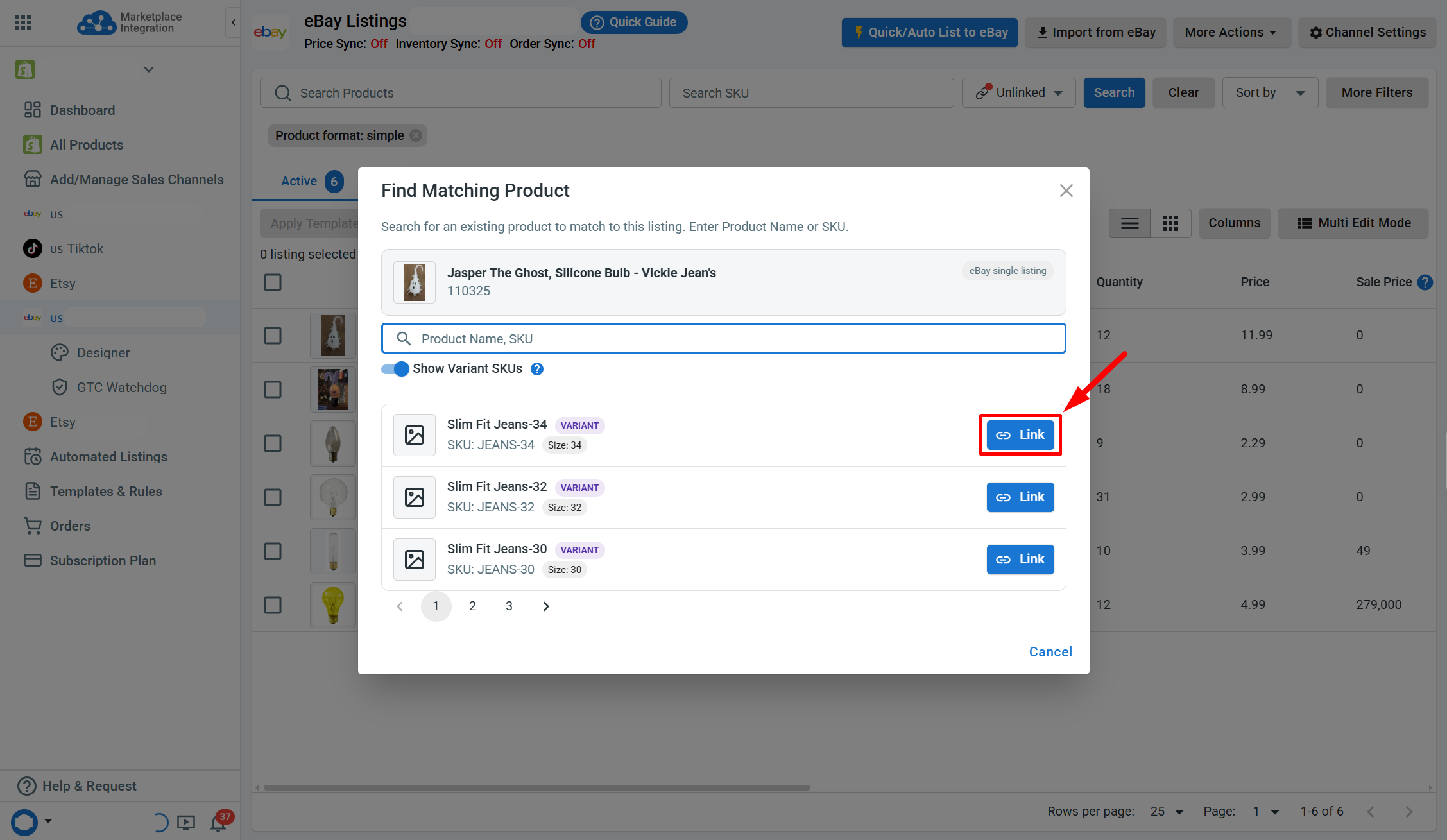
-
Choose
Link As Variantto complete the linking process.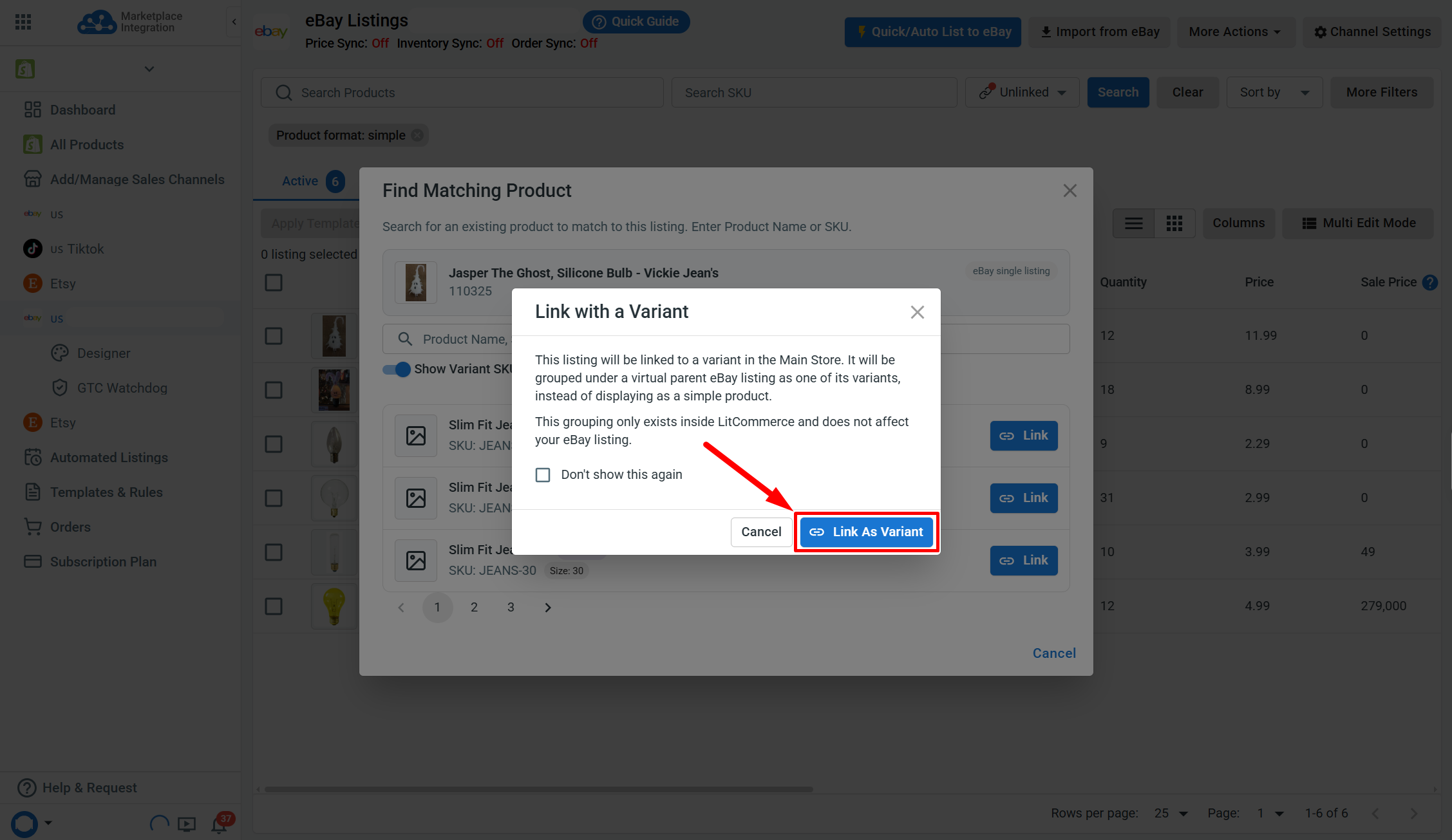
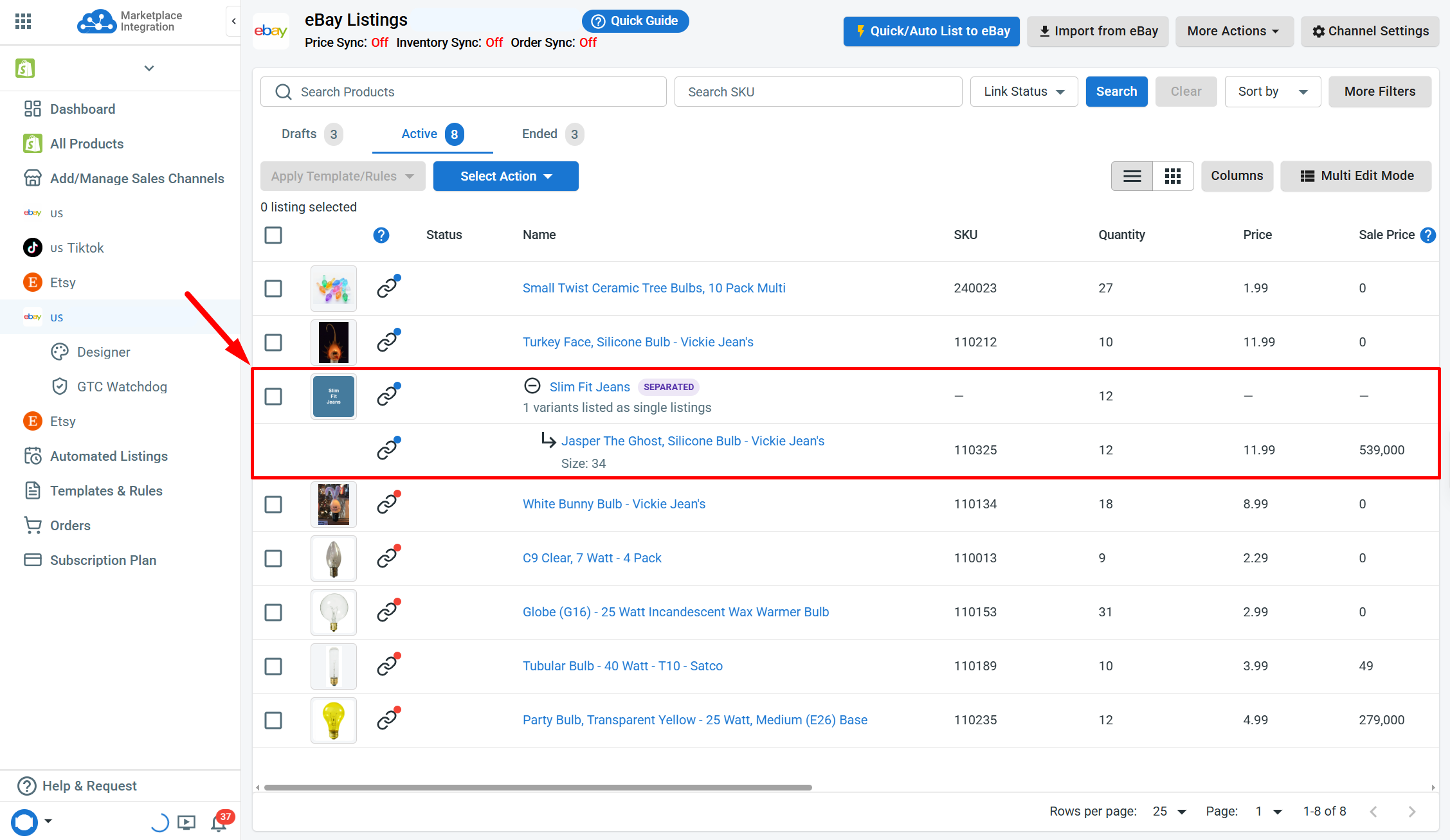
Once a simple listing is linked to a Main Store variation, LitCommerce groups it under a virtual parent listing based on the corresponding Main Store parent product. Other simple listings linked to variations under that same parent product are grouped under the same virtual parent.
[!INFO]
- If one variation of a Main Store product is linked to a simple channel listing, the remaining variations of that product can only be linked to simple listings.
- eBay simple listings linked this way support editing and syncing only price and quantity. SKUs can be synced but not edited.
List a variant as separate simple listings on eBay
Depending on your needs, you can publish each variation of a variant listing as a separate simple listing on eBay. Achieve this by taking the following steps:
-
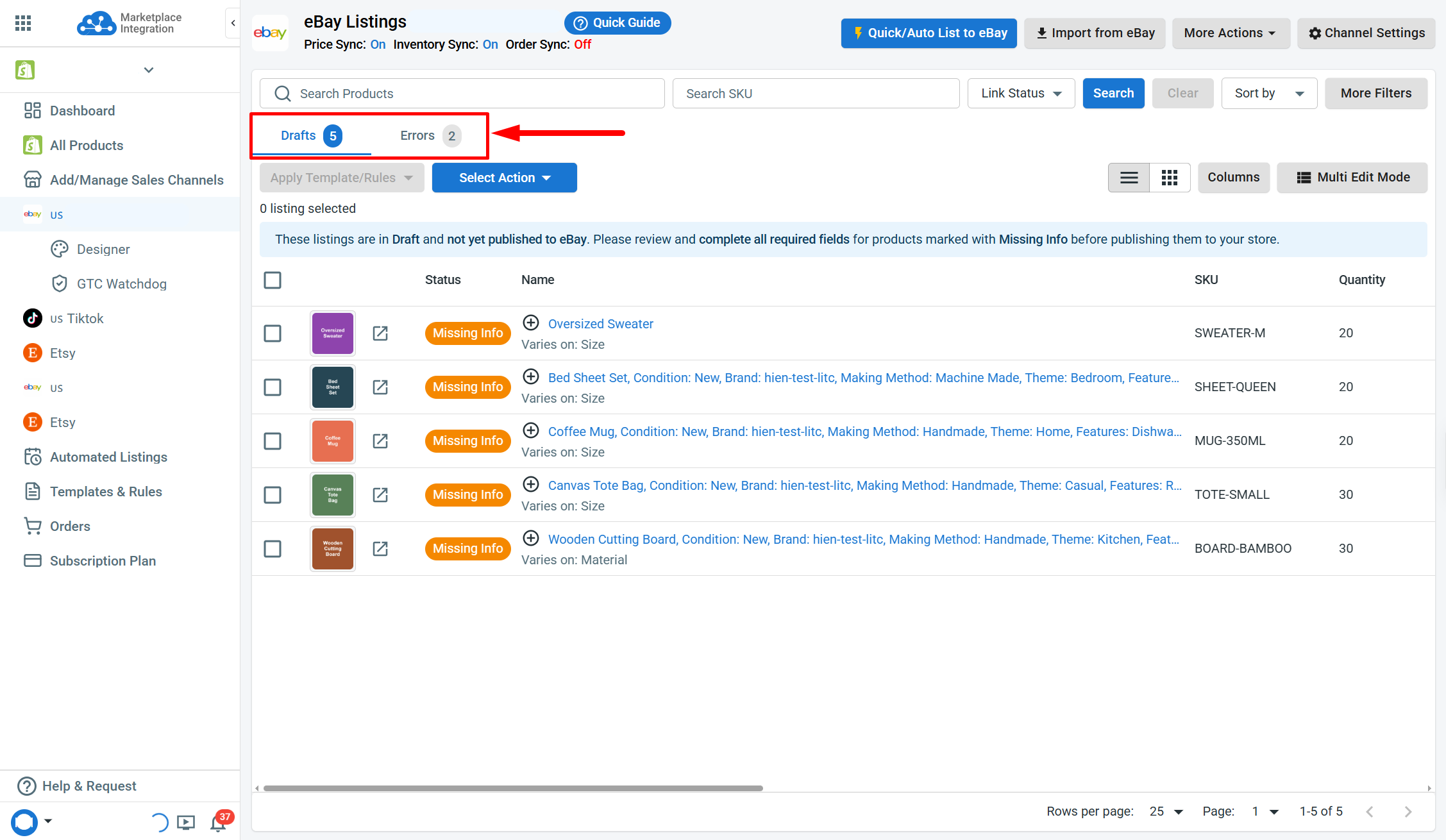
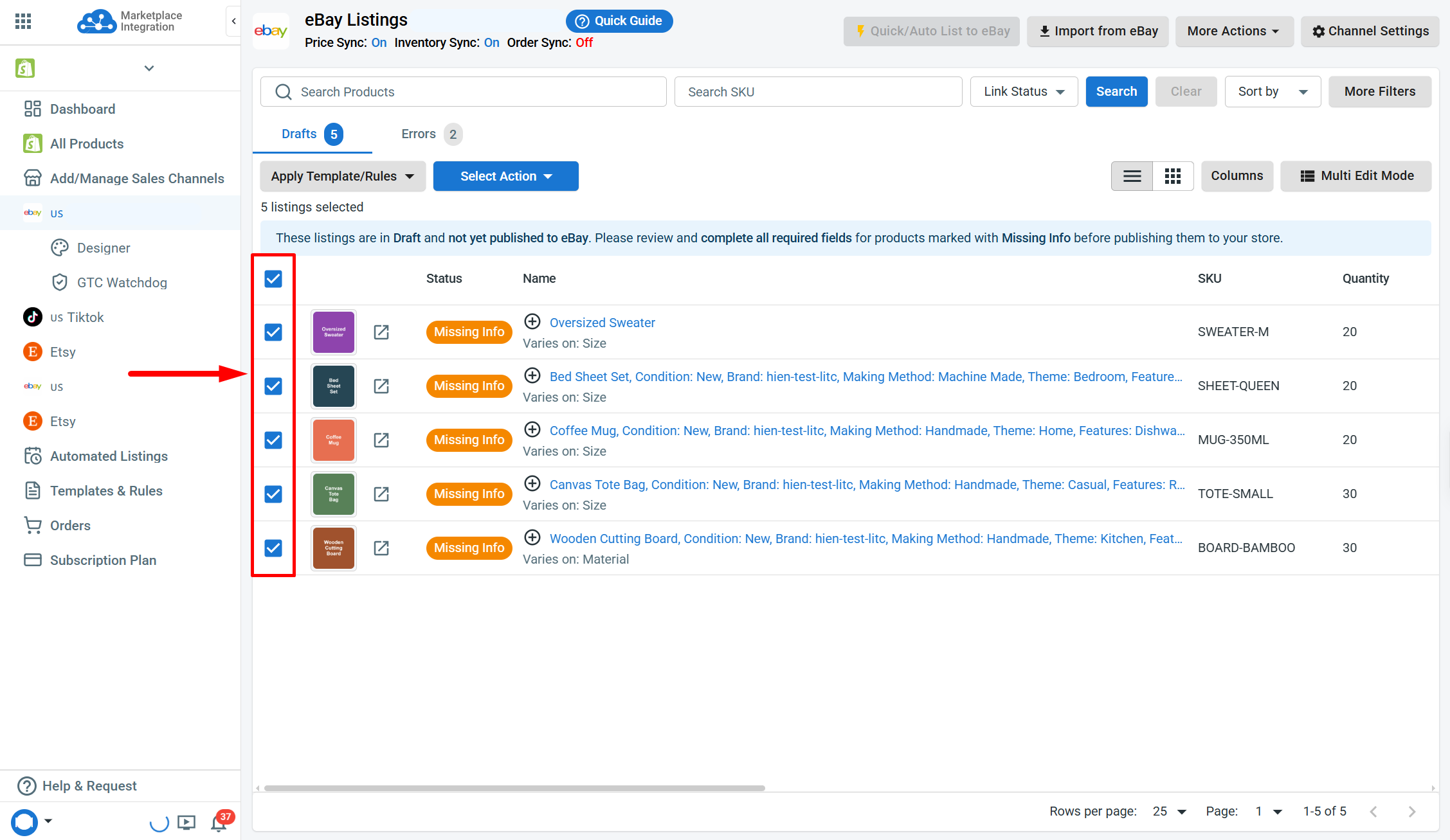
Go to the Draft (or Error) tab on the LitCommerce eBay channel.
-
Select the listings you want to publish.
[!SUCCESS] Ensure all required fields are filled in before publishing.
-
Click on
Select Actionand choosePublish Variants as Separate Listings.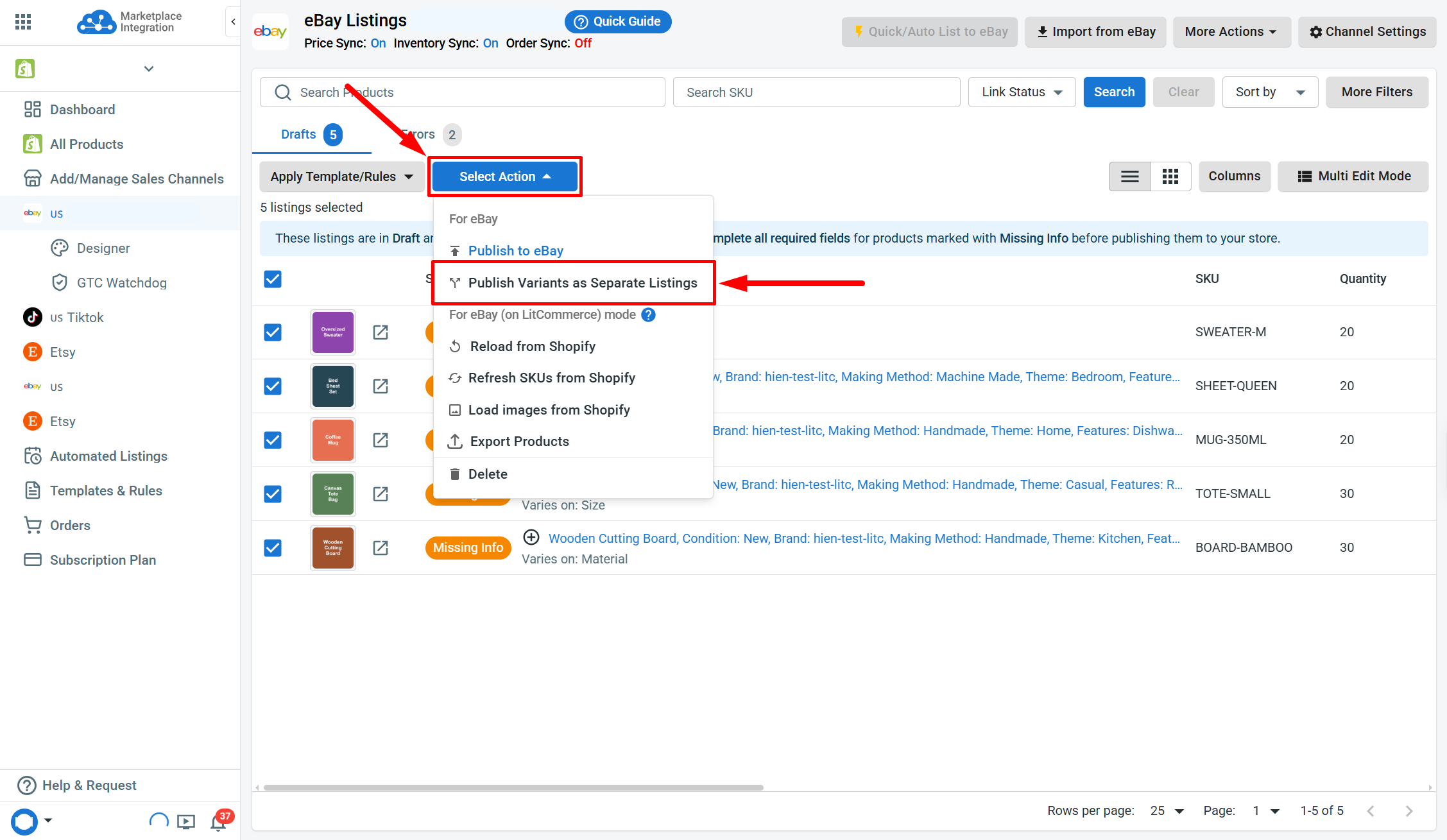
The title of each published simple listing will follow this format: + .
[!INFO] Listings published using this method cannot have additional simple listings linked to the same Main Store product.
However, if new variations are added to the linked Main Store product, you can manually add them from the LitCommerce All Products to the listing afterward. See HERE for how to proceed. The variations will be published on eBay as simple listings but managed under the same parent in LitCommerce.
← eBay Messages: Communicate with your customers through LitCommerce