Feed Management Settings
This article walks you through the Settings section in the LitCommerce Feed Management app. Located in the sidebar menu, this section controls how your Main Store product data is imported and synced with your feeds.
More information is provided below.
Store Settings
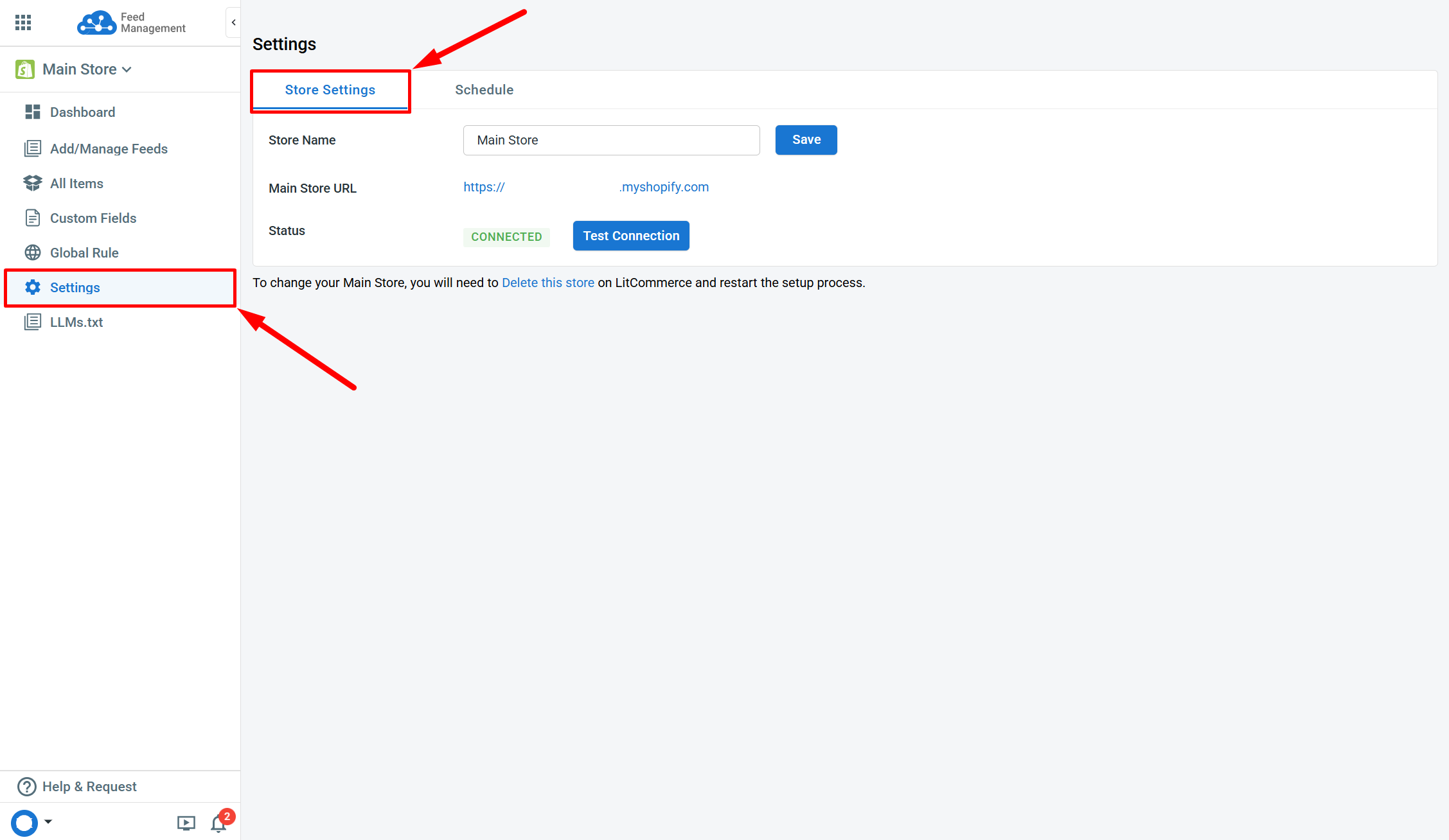
Store Name
Use this box to give the Main Store any name you prefer. This helps distinguish it from other Main Stores connected under the same login.
Main Store URL
This field displays the URL retrieved during the Main Store connection process.
Status
This field shows the connection status between your Main Store and LitCommerce.
[!SUCCESS] Click on the
Test Connectionbutton to verify whether the connection is still valid.
[!INFO] You can choose
Delete this storeto remove the Main Store and all connected channels. This action will reset the current store setup. Refer to this article for further details.
Schedule
Update Item Changes
This section lets you manage which types of product data are updated during the hourly sync or when you manually run specific feeds. It contains three toggles:
-
Update item changes from Main Store to feed: Enable it to sync any product adjustments (title, price, stock, images, etc.) to the feeds.
-
Import new items from Main Store to feed: Enable it to add newly created products in your Main Store to the feeds.
-
Import unpublished items from Main Store to feed: Enable it to add hidden/unpublished products in your Main Store to the feeds.
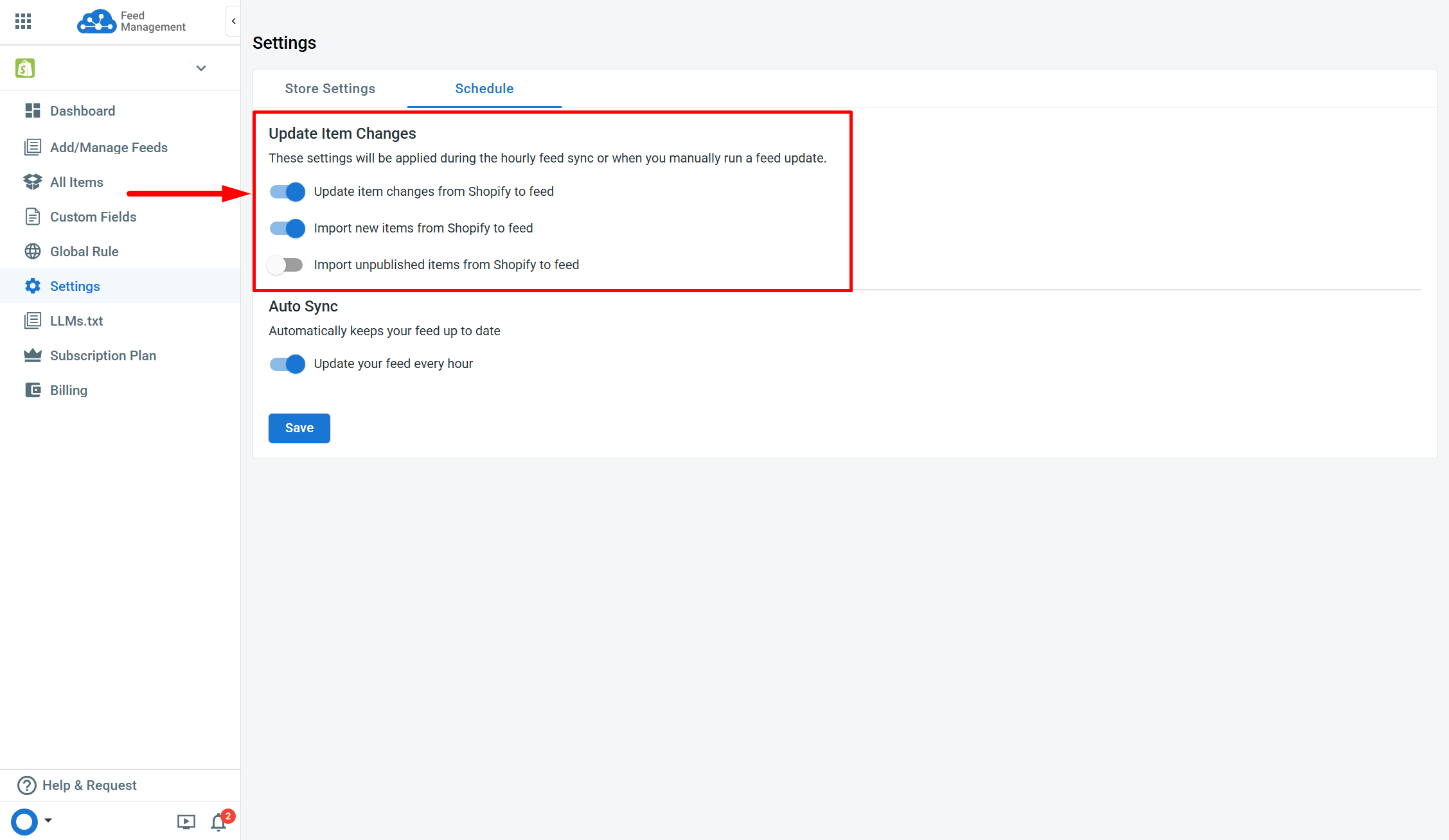
[!SUCCESS] More than one toggle can be activated at once as needed.
Auto Sync
You can use this section to enable data sync every hour. This triggers automatic updates from your Main Store to the connected feeds, keeping your feed data up to date without manual intervention.
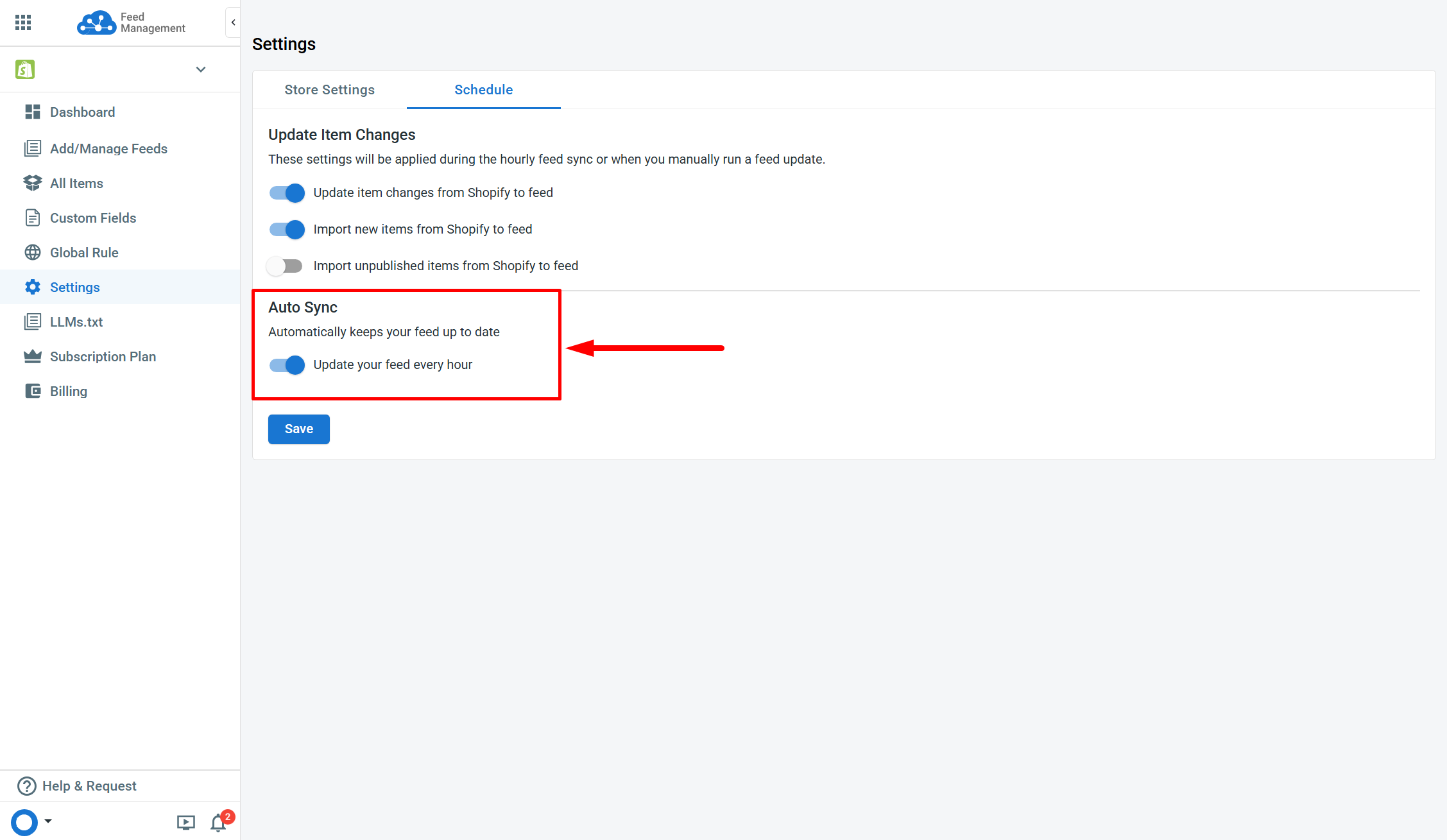
[!INFO] The Auto Sync feature only updates active feeds.
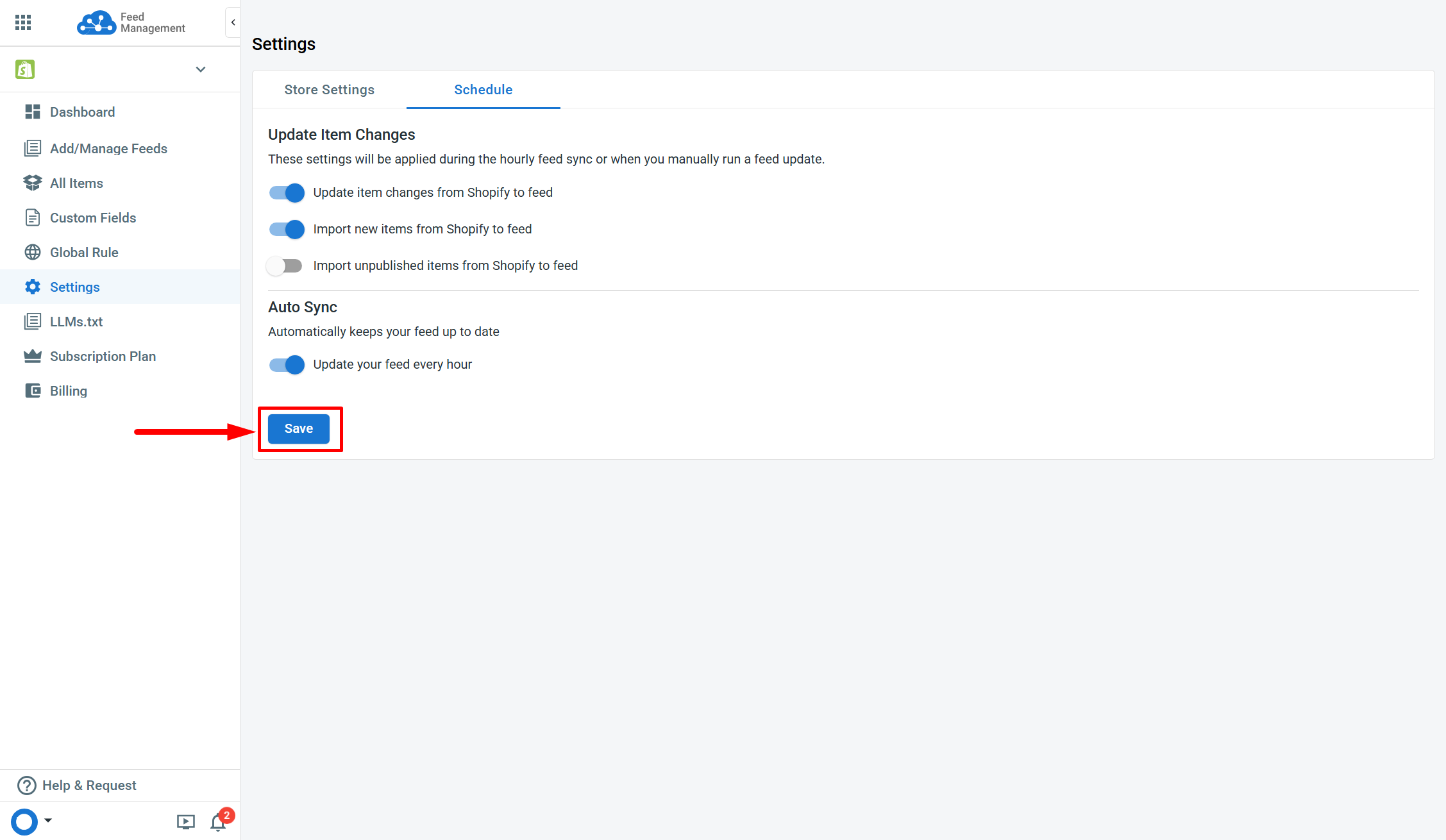
After making changes on each tab, be sure to click Save before moving on to the next one.
If you have any questions, let us know via the Chat Box in the bottom-right corner of our Help Center.