Feed: Create & set up your feed
Aside from the Marketplace Integration app, the LitCommerce Feed Management app helps you generate, manage, and optimize product data feeds for various platforms.
This article outlines the instructions for creating and setting up a new feed in your LitCommerce account.
Create a new feed
Step 1: Connect your Main Store
-
Log in to your LitCommerce account.
If you don’t have one, sign up HERE and select the Feed Management app.
-
Select a Main Store and click
Connect.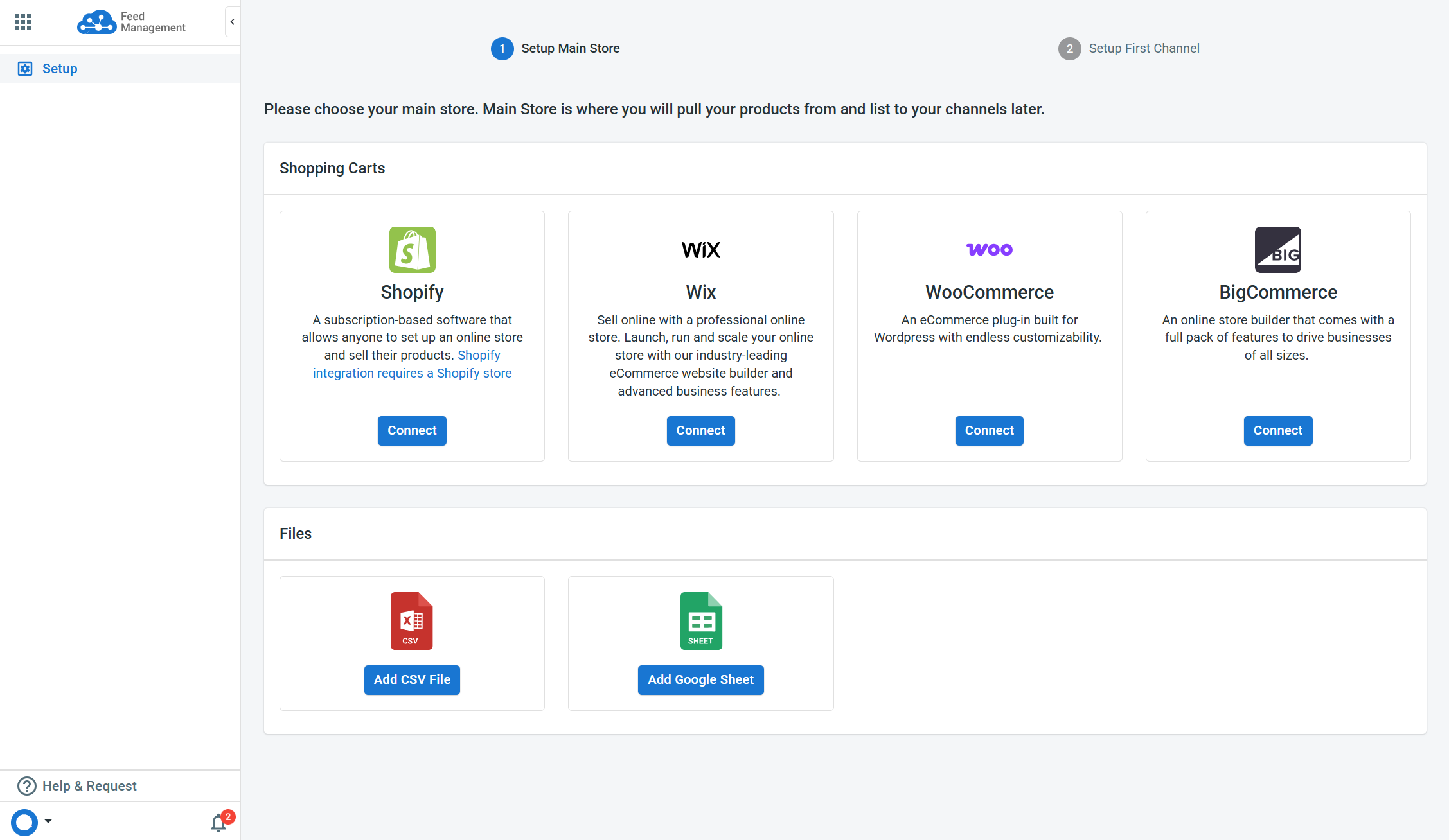
After that, make sure to follow our app’s instructions to connect to the corresponding platform.
[!INFO] The LitCommerce Feed Management app is limited to the following Main Stores: Shopify, Wix, WooCommerce, BigCommerce, and Files.
Alternatively, you can find and install the LitCommerce app or plugin directly from eCommerce app stores (such as Shopify, Wix, etc.). You will then be redirected to the LitCommerce dashboard and have the Main Store automatically connected.
Step 2: Add your first feed
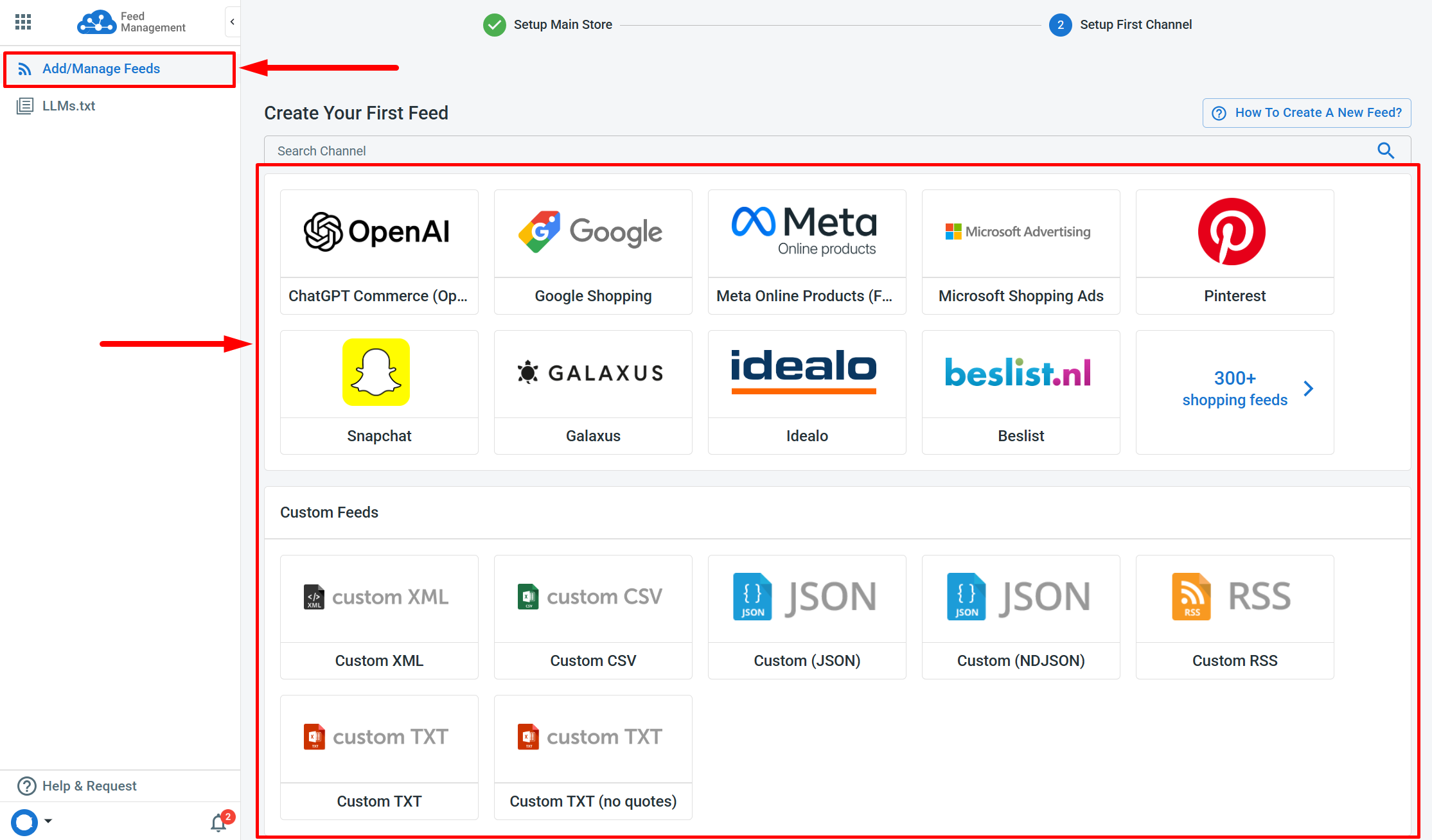
Next, select a platform in the Add/Manage Feeds section to add your first feed.
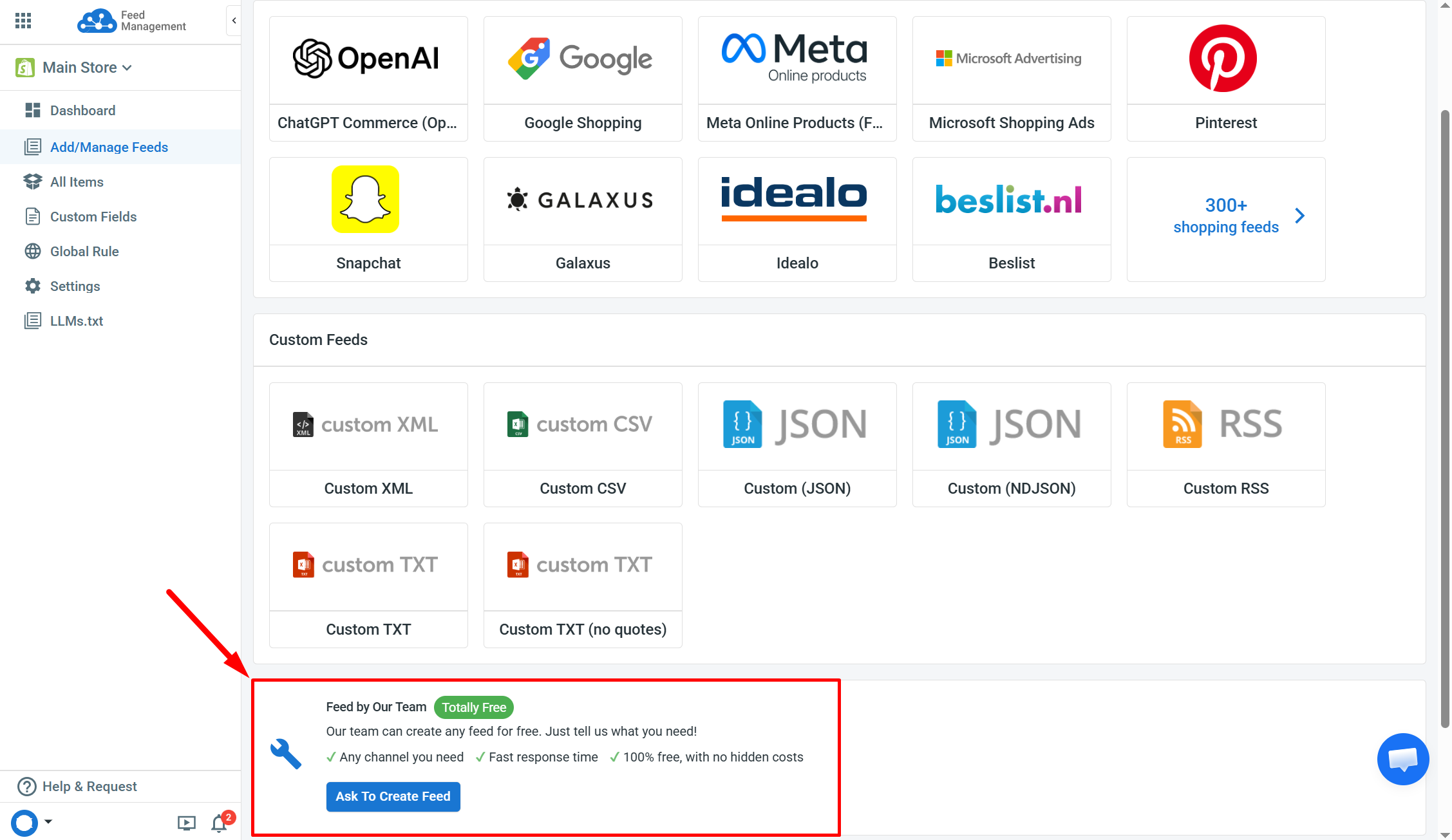
[!SUCCESS] Use the
Feed by Our Teamfeature to let us help you set up your feed.
Step 3: Configure the feed
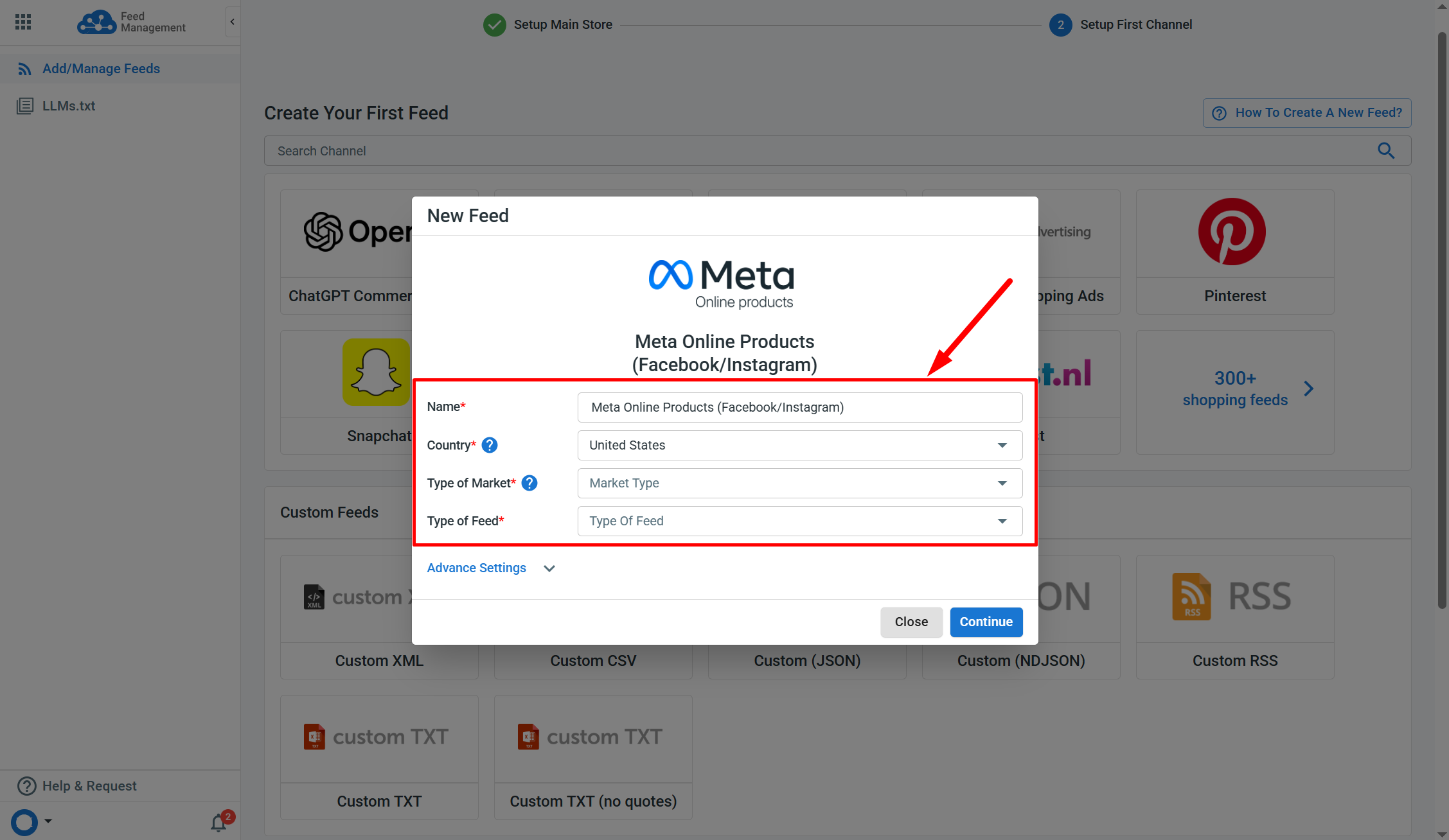
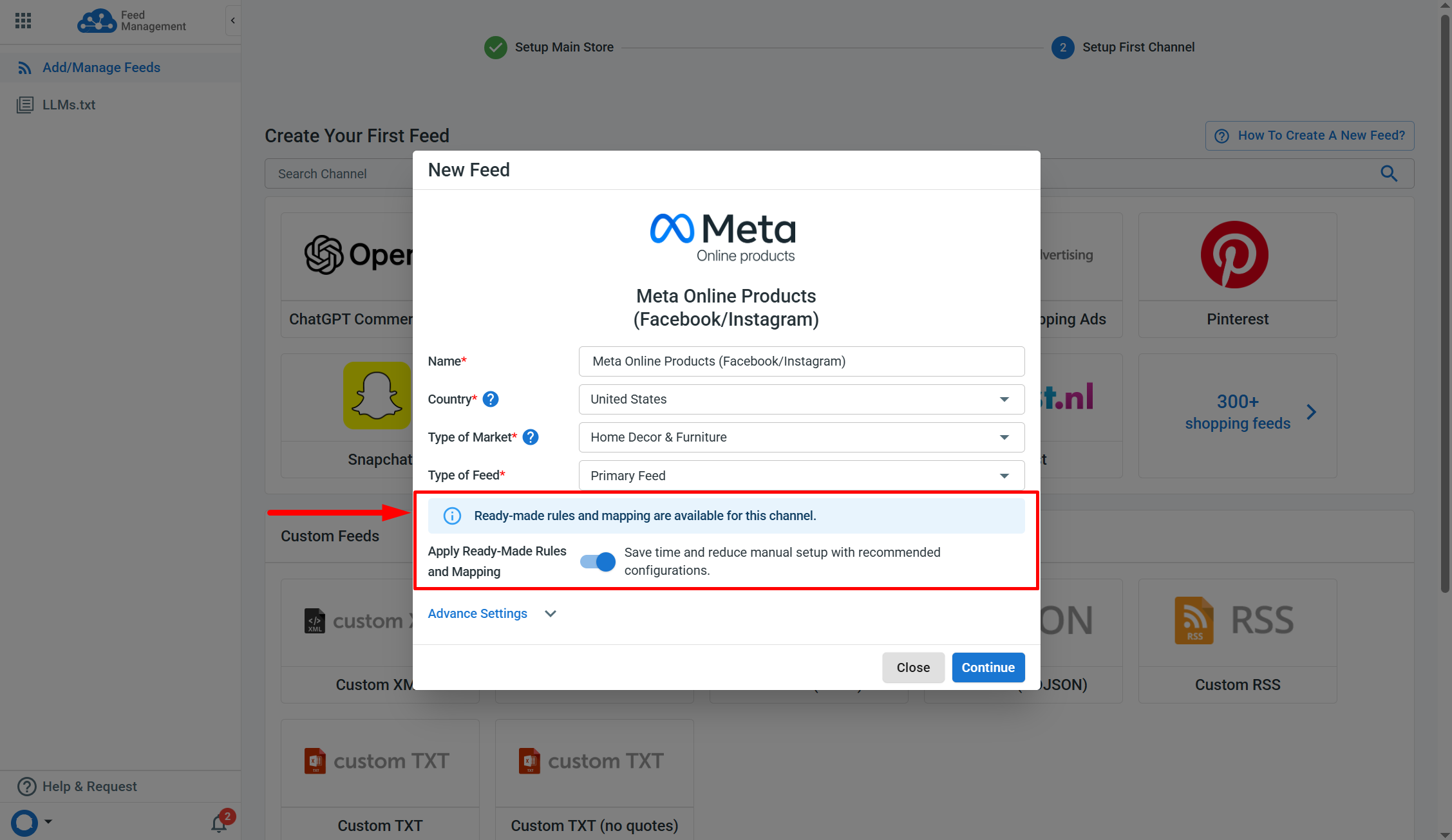
When adding the new feed, input the following required information.
-
Name: The name of your feed.
-
Country: The country your feed products are advertised in. To sell in multiple countries, please create a separate feed for each one.
-
Type of Market: This option helps correctly classify your items (e.g., Baby & Kids, Electronics) and ensure the appropriate export format. Different market types may require distinct fields and product categorization.
-
Type of Feed: Specify the feed’s purpose in your product catalog using this option. It is only available on certain platforms.
[!SUCCESS] Depending on the feed and Type of Market (or Type of Feed), you can enable the
Apply Ready-Made Rules and Mappingfeature. It will automatically set rules for required fields and create necessary custom fields for the Mapping section.
Additionally, open Advanced Settings to view other possible data settings.
-
Stock Locations: Select at least one Main Store location from which LitCommerce retrieves product quantity and stock status to update your feed.
-
Feed Language: Select the Main Store language LitCommerce should use for the feed. LitCommerce will pull product data from that language (including title, description, product type, metafields, and options). If unavailable, the default Main Store language will be used.
-
Currency Conversion: Enable Price and Sale Price conversion from your Main Store currency to the target currency.
-
Google Analytics: Add UTM parameters (Campaign, Source, and Medium) to track advertising performance in Google Analytics and analyze traffic from the platform where the feed is submitted.
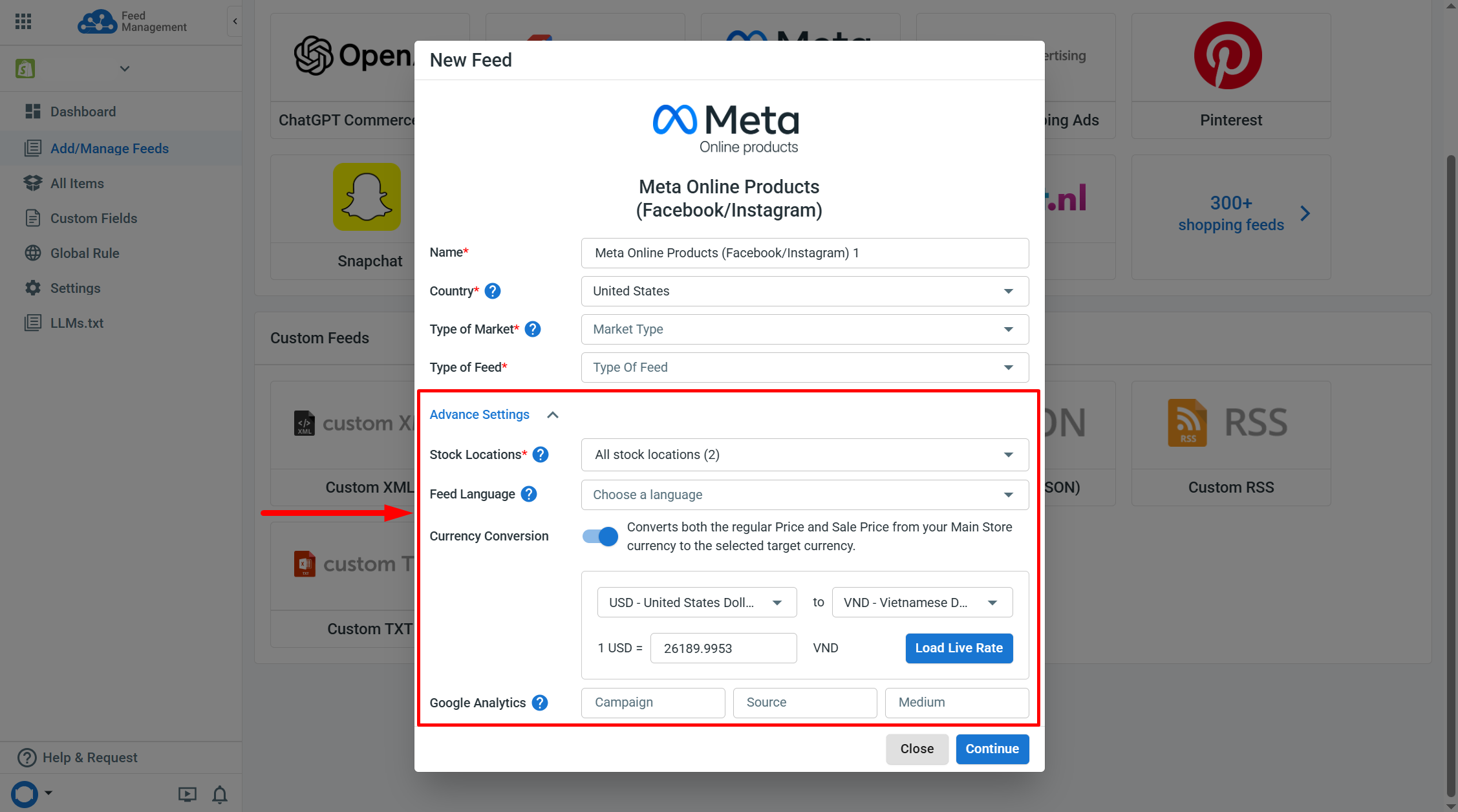
[!INFO] The Feed Language option is only available for Shopify Main Stores with a multi-language setup.
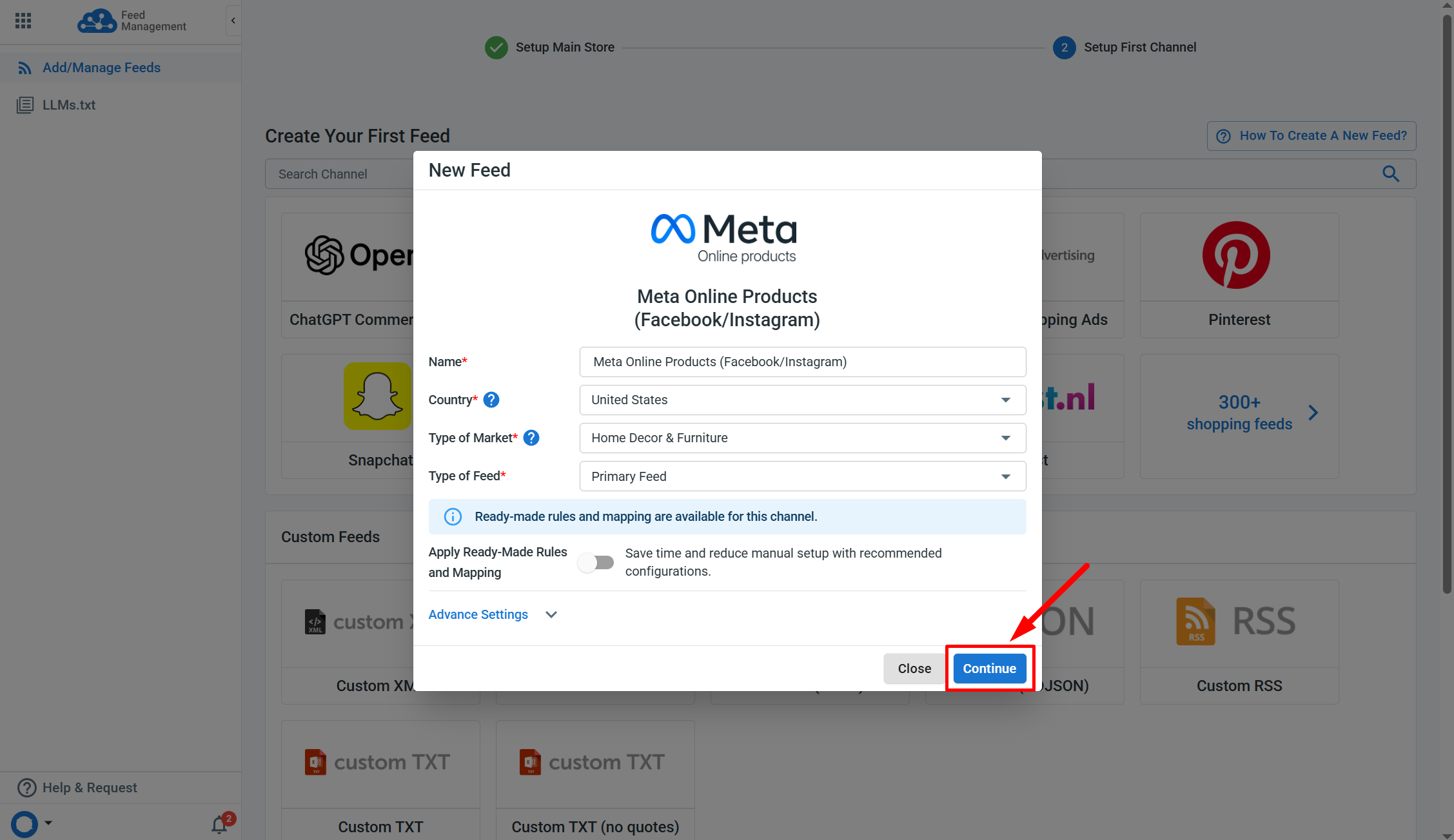
Then, click Continue to proceed to the next stage.
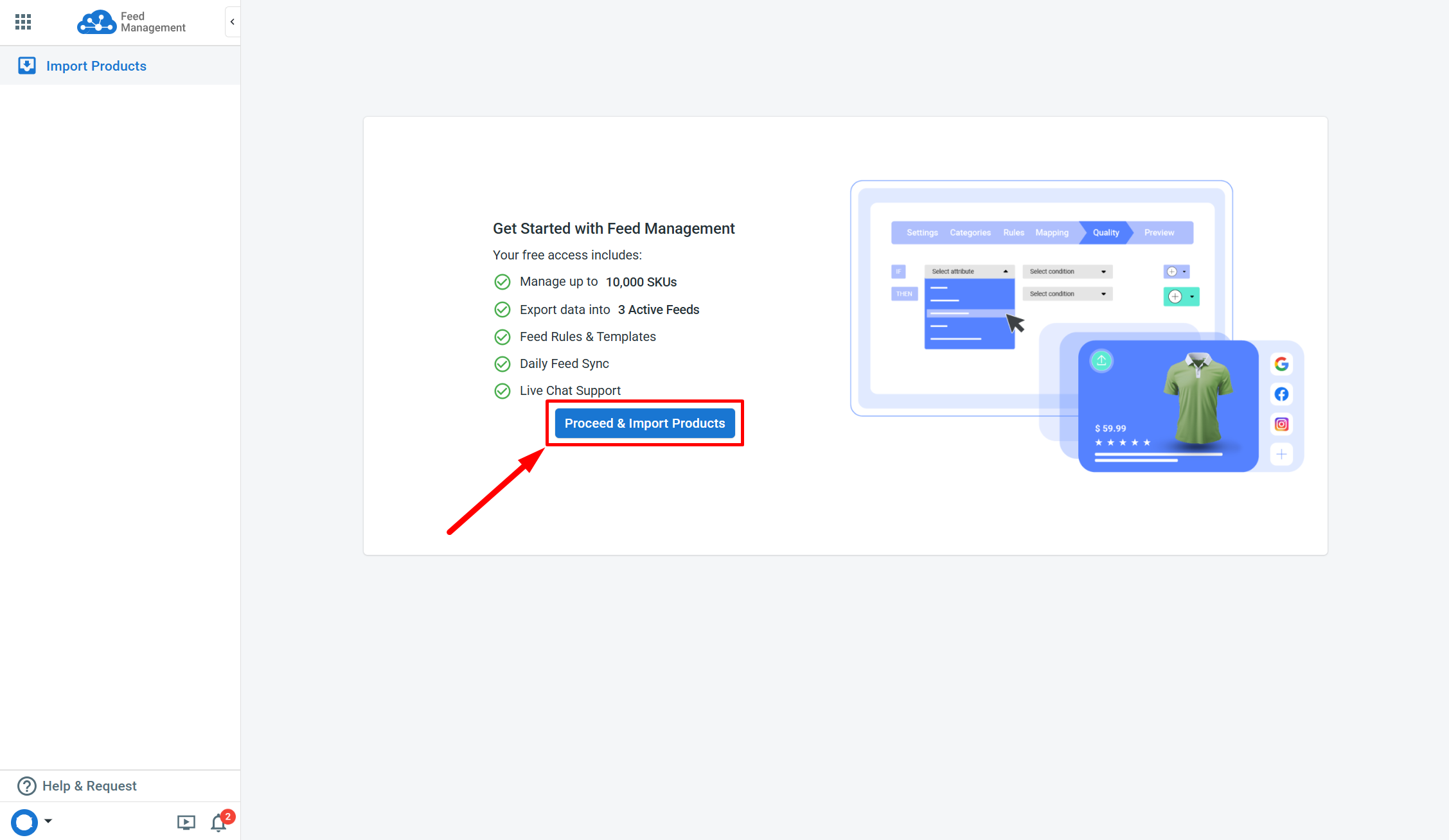
Set up your feed
Once reaching the next stage, click on the Proceed & Import Products to start importing products from your Main Store to LitCommerce and creating a feed.
After a feed is created in LitCommerce, you will find all the tabs (Settings, Categories, Rules, Mapping, Quality, and Export) for setting up your feed.

Step 1: Set up settings
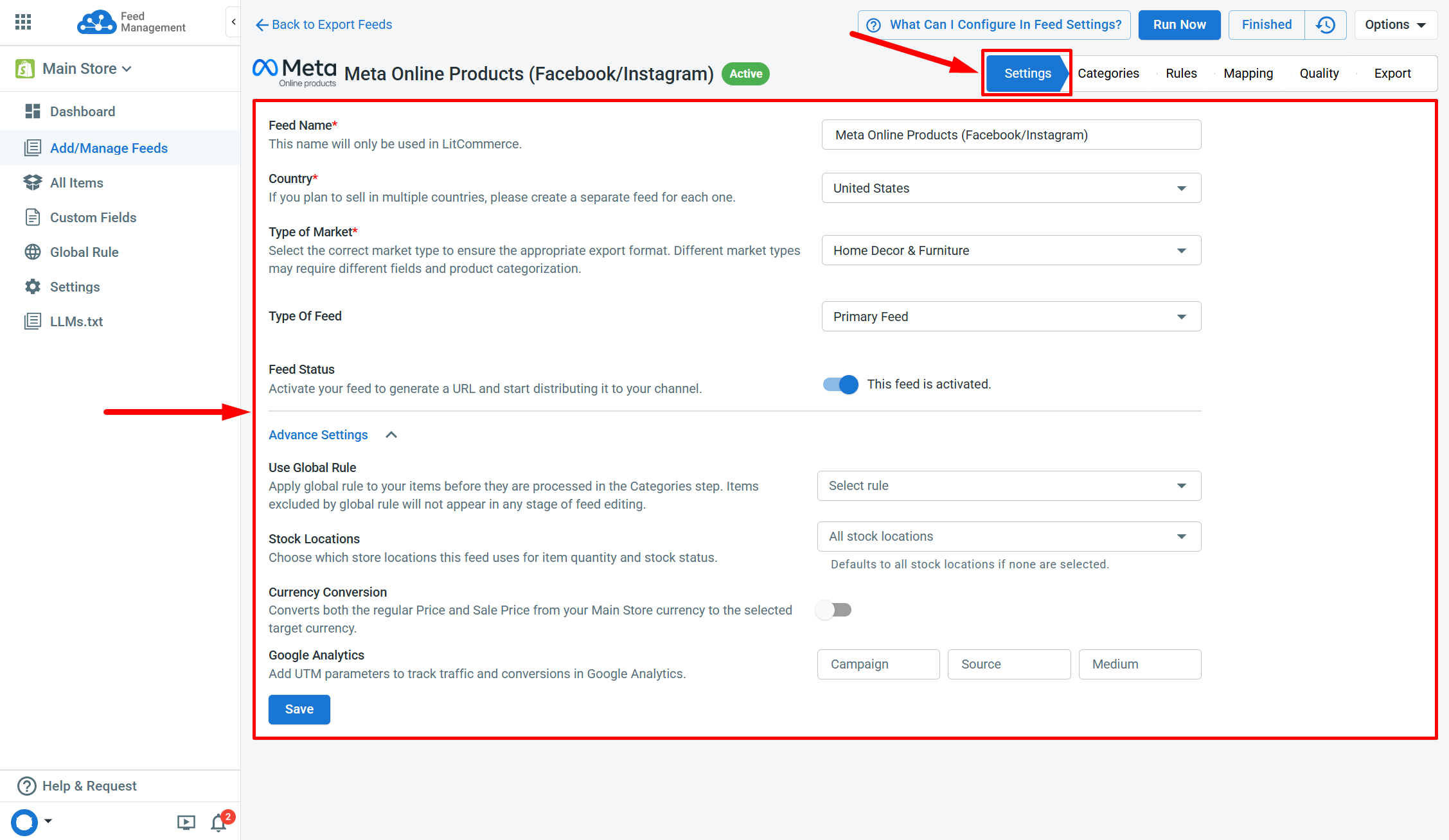
The Settings tab includes the configured fields from the previous stage that can be updated anytime.
[!SUCCESS] Use the
Use Global Rulesto apply your commonly used rules to the feed. Only one set of Global Rules can be selected per feed.
In addition, you can use the Feed Status toggle to activate and deactivate the feed.
Step 2: Set up categories
Categories in product feeds help classify your items into specific groups, allowing better engagement from buyers.
The Categories tab only supports Meta and platforms that share Google’s taxonomy. Use the Categorization and Uncategorized Items tabs to check which products have already been categorized for your feed.
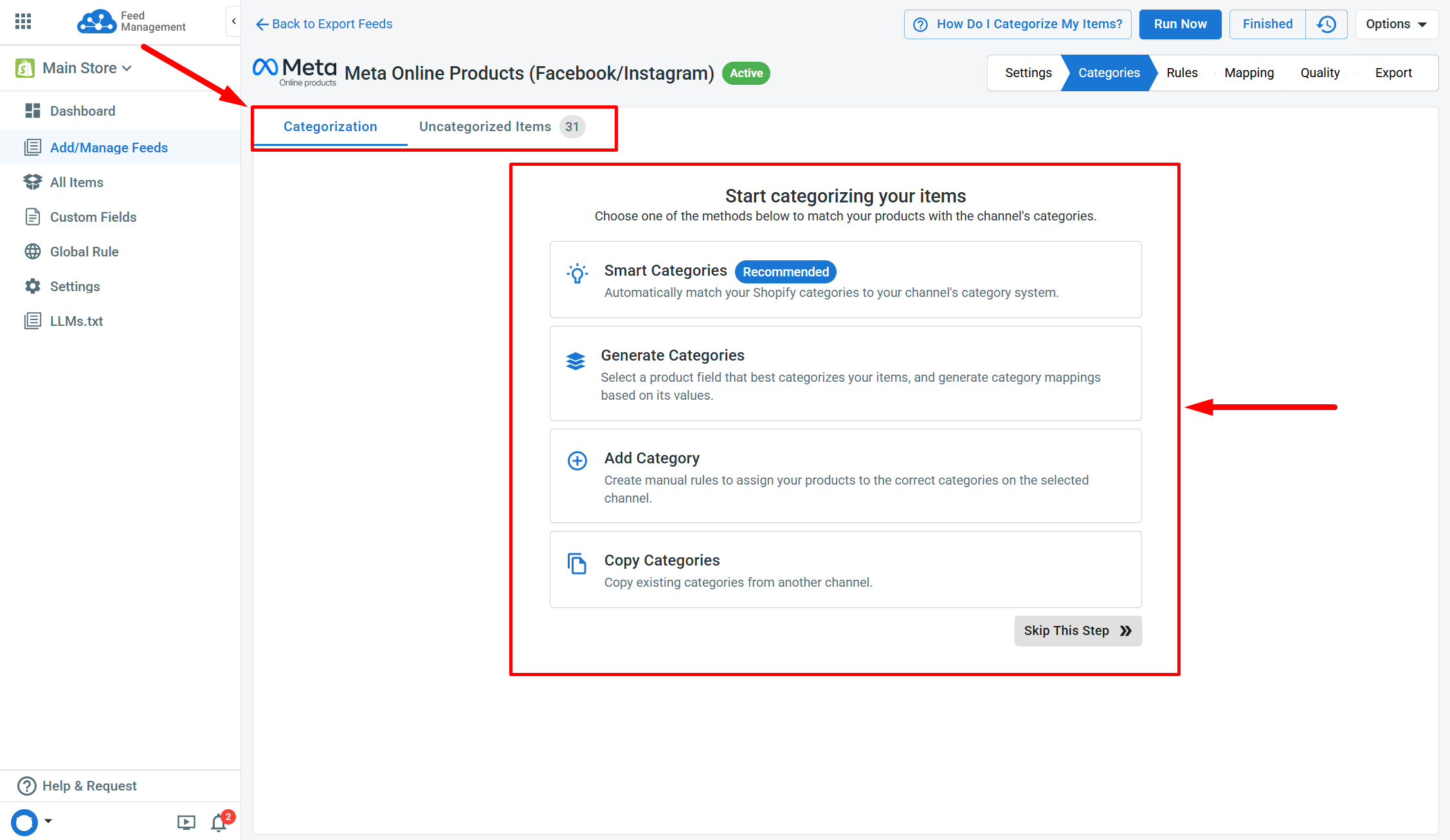
For categorization, multiple options are available:
-
Smart Categories: This option automatically matches your Main Store categories (Shopify only) to the Google category system.
-
Generate Categories: Generating category mappings based on a product field of your choice (that best categorizes your items).
-
Add Category: You can create manual rules to assign your products to the correct categories on the selected platform.
-
Copy Categories: This option allows copying existing categories from another feed to the current one.
To learn more about how to set up your feed categories, check out the article Feed: Categorization.
[!INFO] The Categorization step can be skipped by clicking on the
Skip This Stepbutton.
Step 3: Set up rules
The Rules tab allows you to modify and optimize your product feed data. This ensures the final export feed meets the specific requirements of your selected platform.
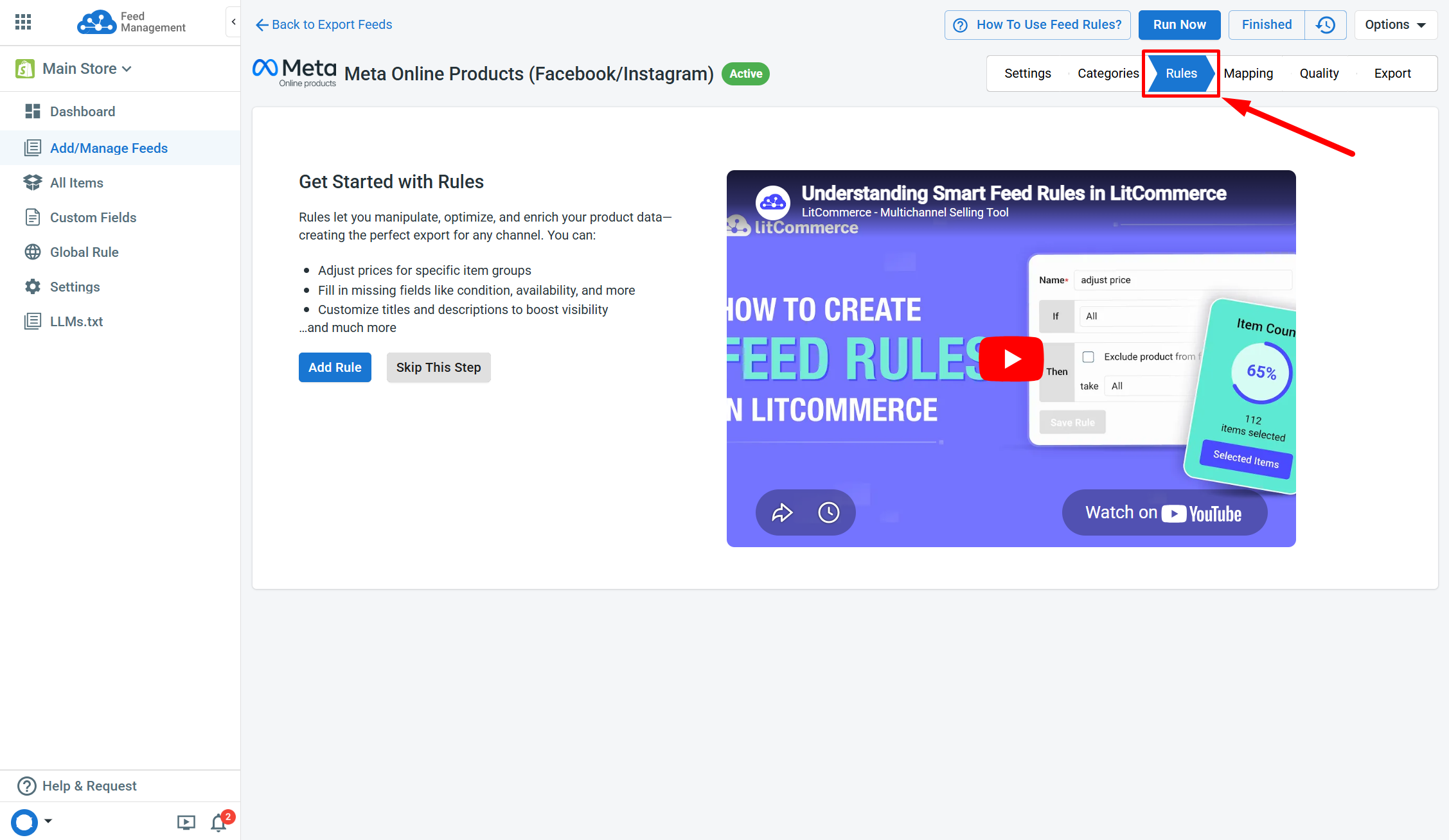
[!INFO] This step can be skipped by using the
Skip This Stepbutton.
If the Ready-Made Rules and Mapping were enabled during configuration, you will find them in this tab.
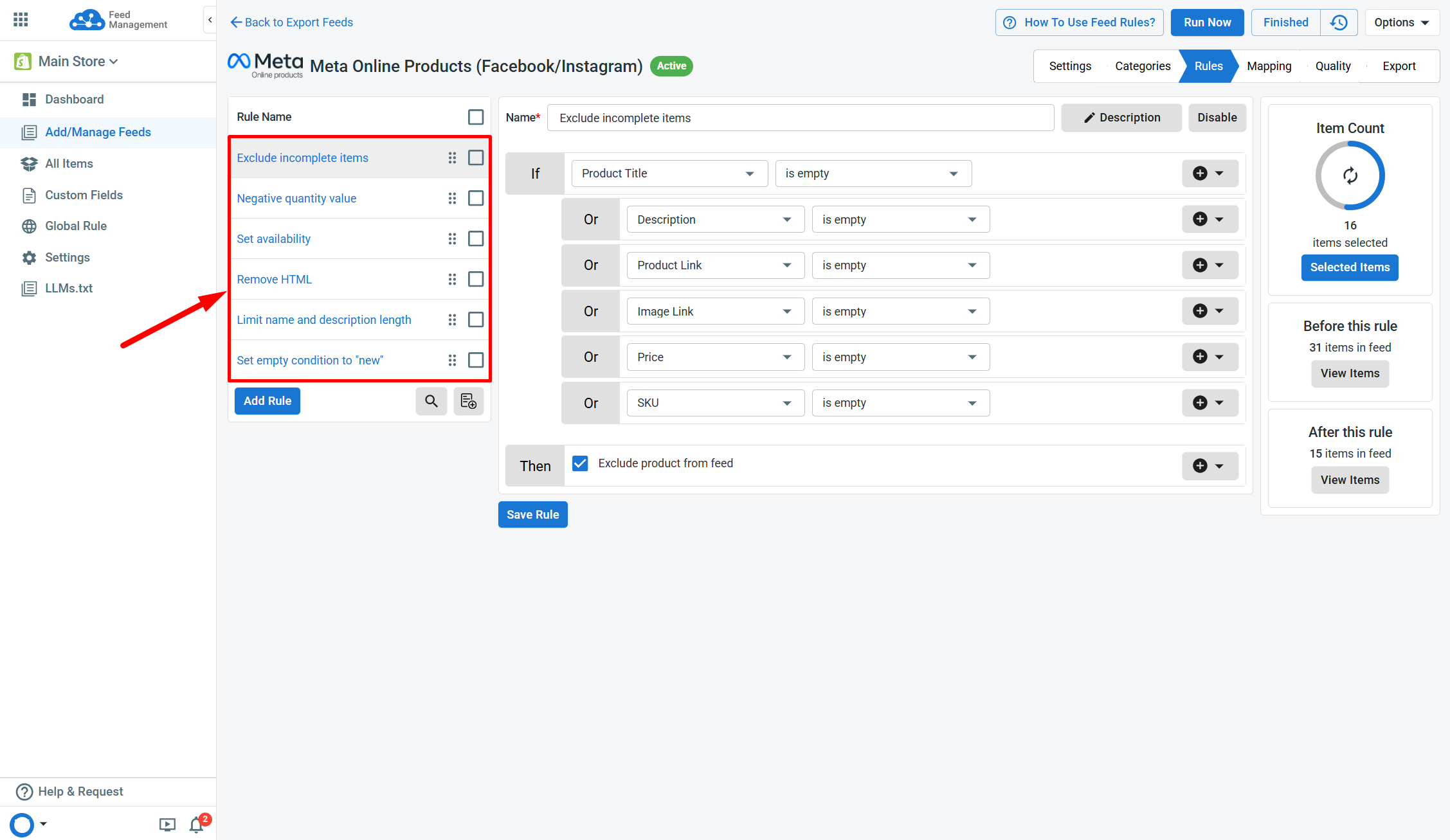
Additional rules can also be added aside from the existing ones. If no Ready-Made rules are available, simply add your own by clicking Add Rule.
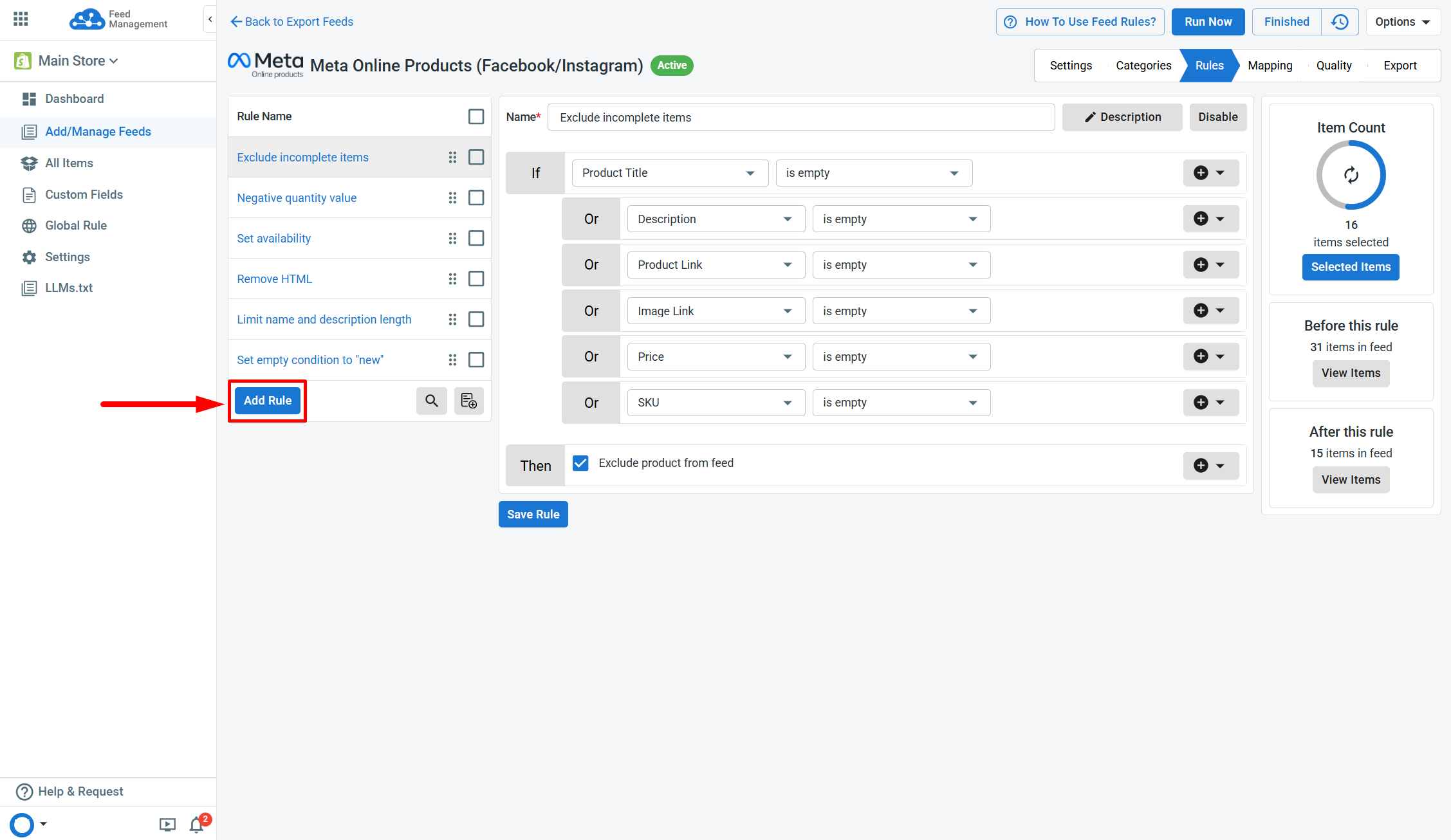
Add Rule
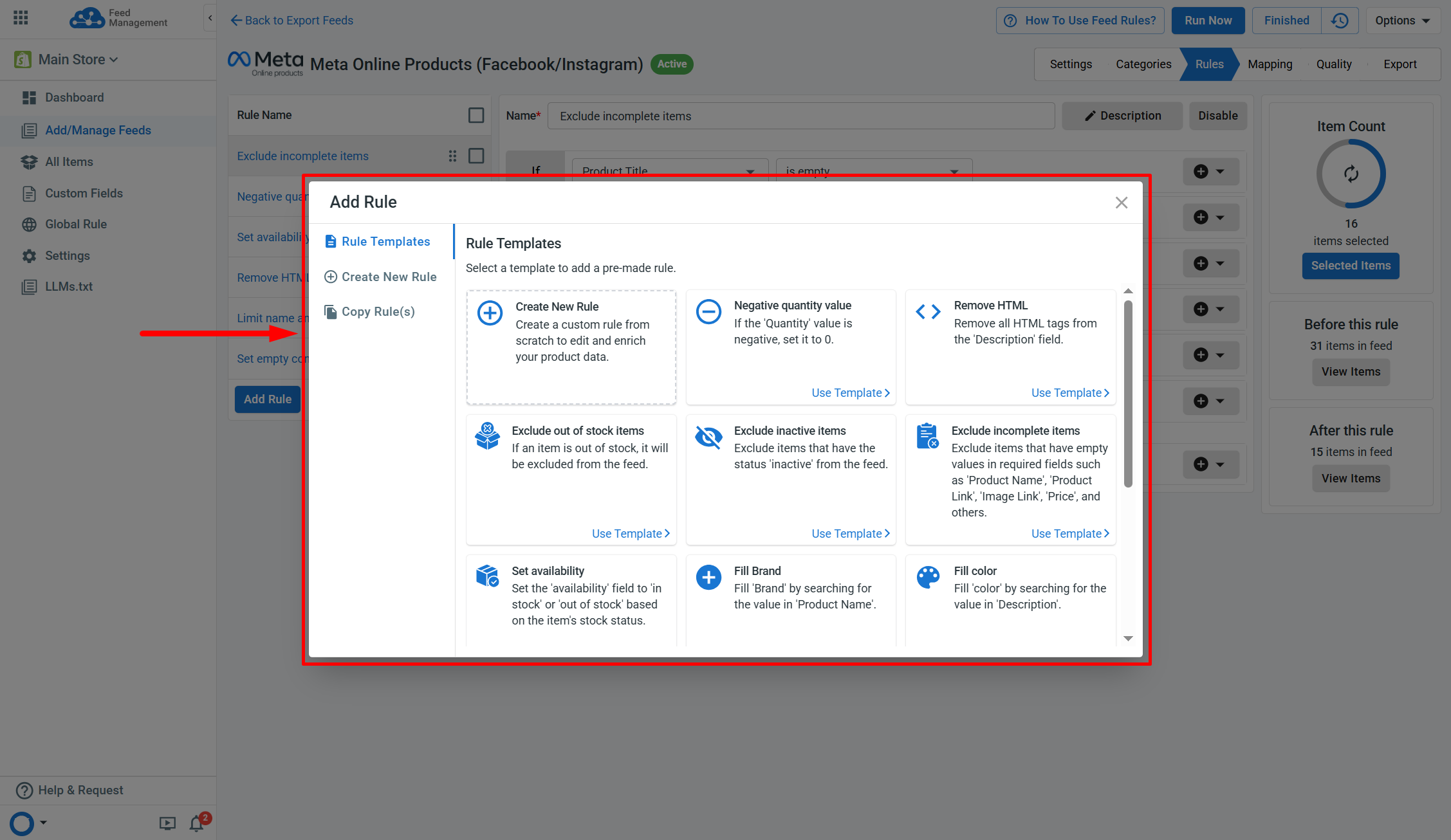
There are three options for creating a new rule for your feed.
-
Rule Templates: Use pre-made rules to save time on manual setup.
-
Create New Rule: Add a completely new rule to your feed. This requires setting up individual conditions for the rule.
-
Copy Rule(s): Copy existing rule(s) from another feed or global rule to this feed.
Additionally, you may utilize the following features to optimize the rules creation process.
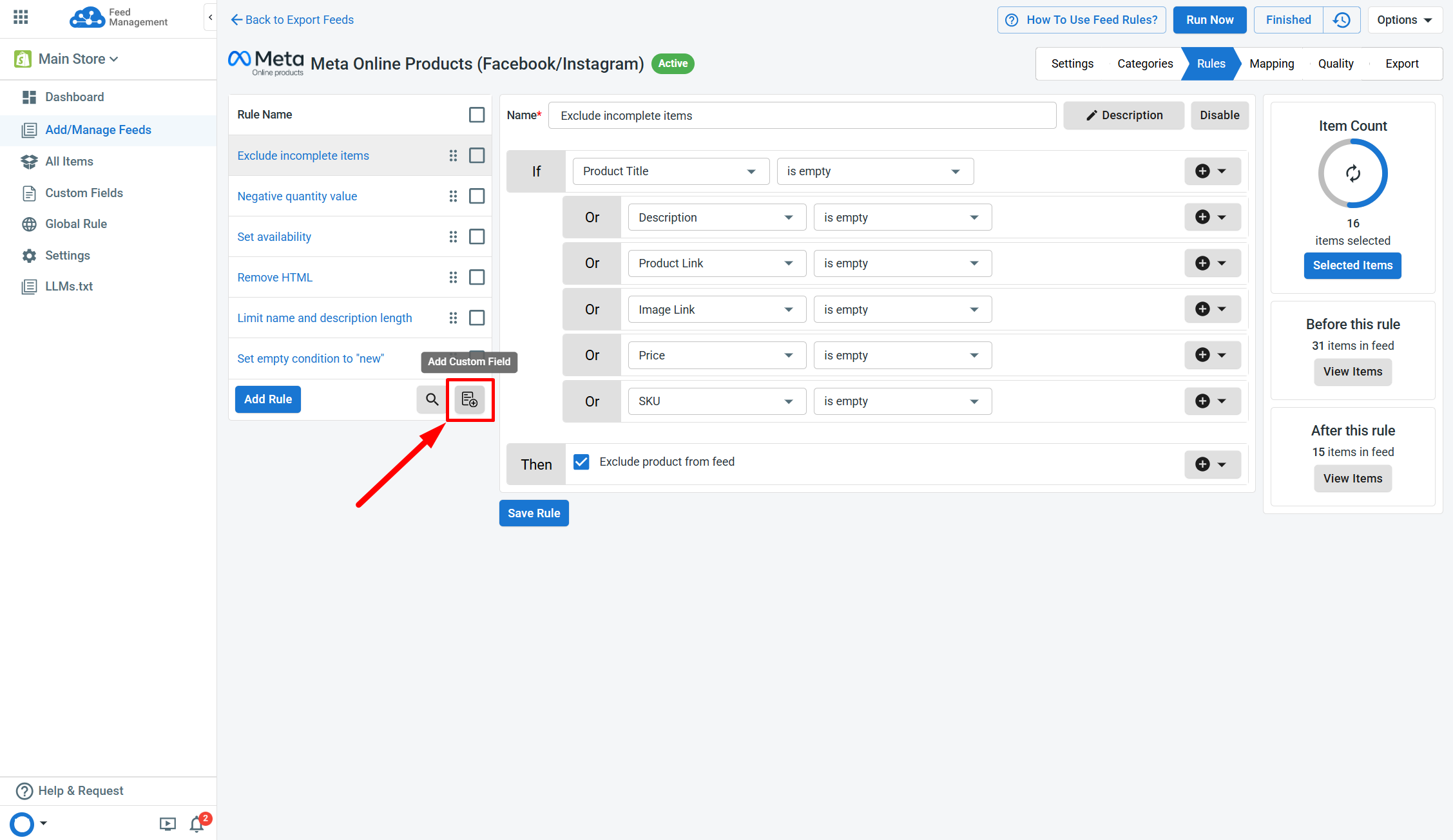
Create Custom fields to add values for fields that are not available in your Main Store. Custom fields are created only in LitCommerce and will not be added to your Main Store.
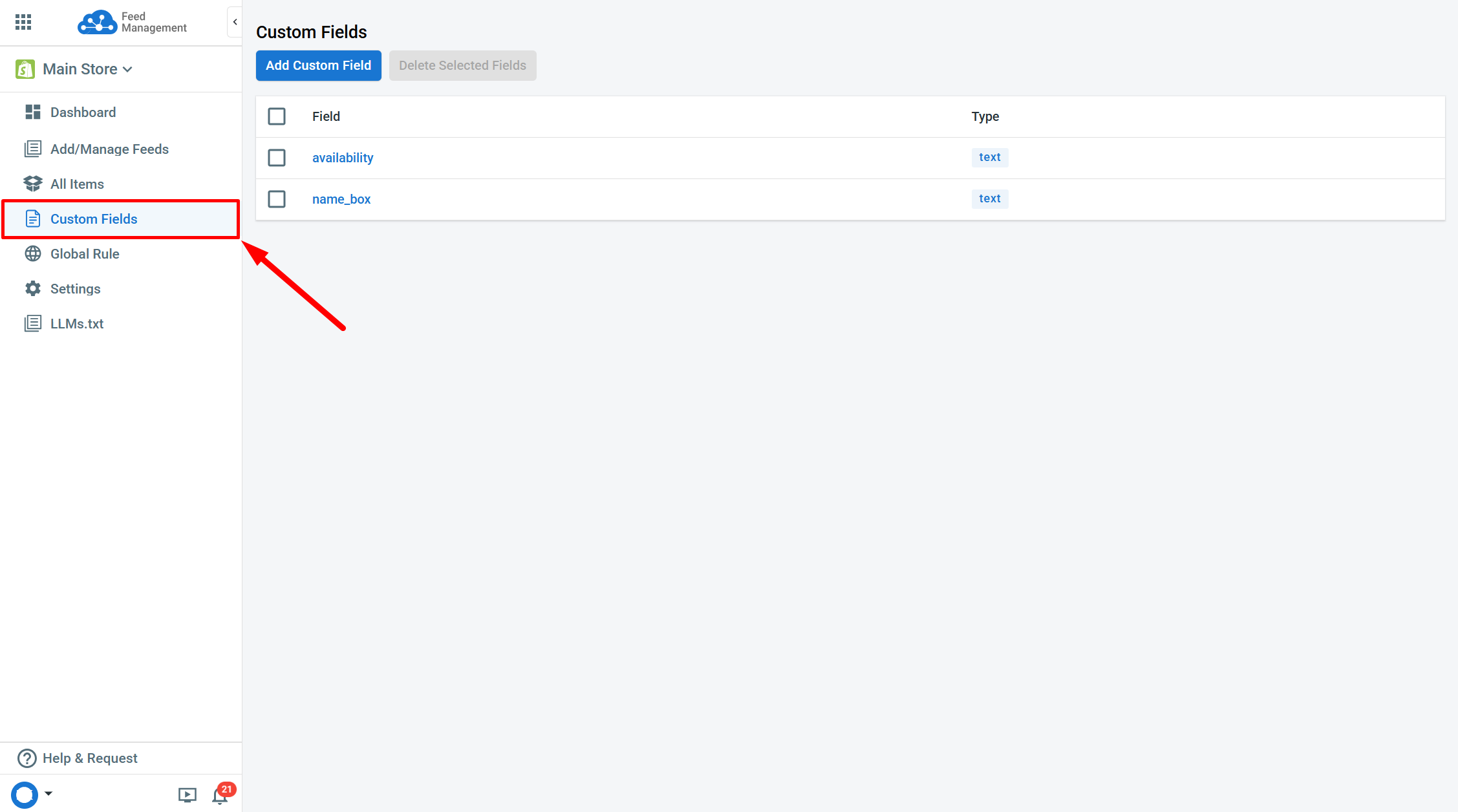
The Global Rules feature is also used to speed up the rule setup stage.
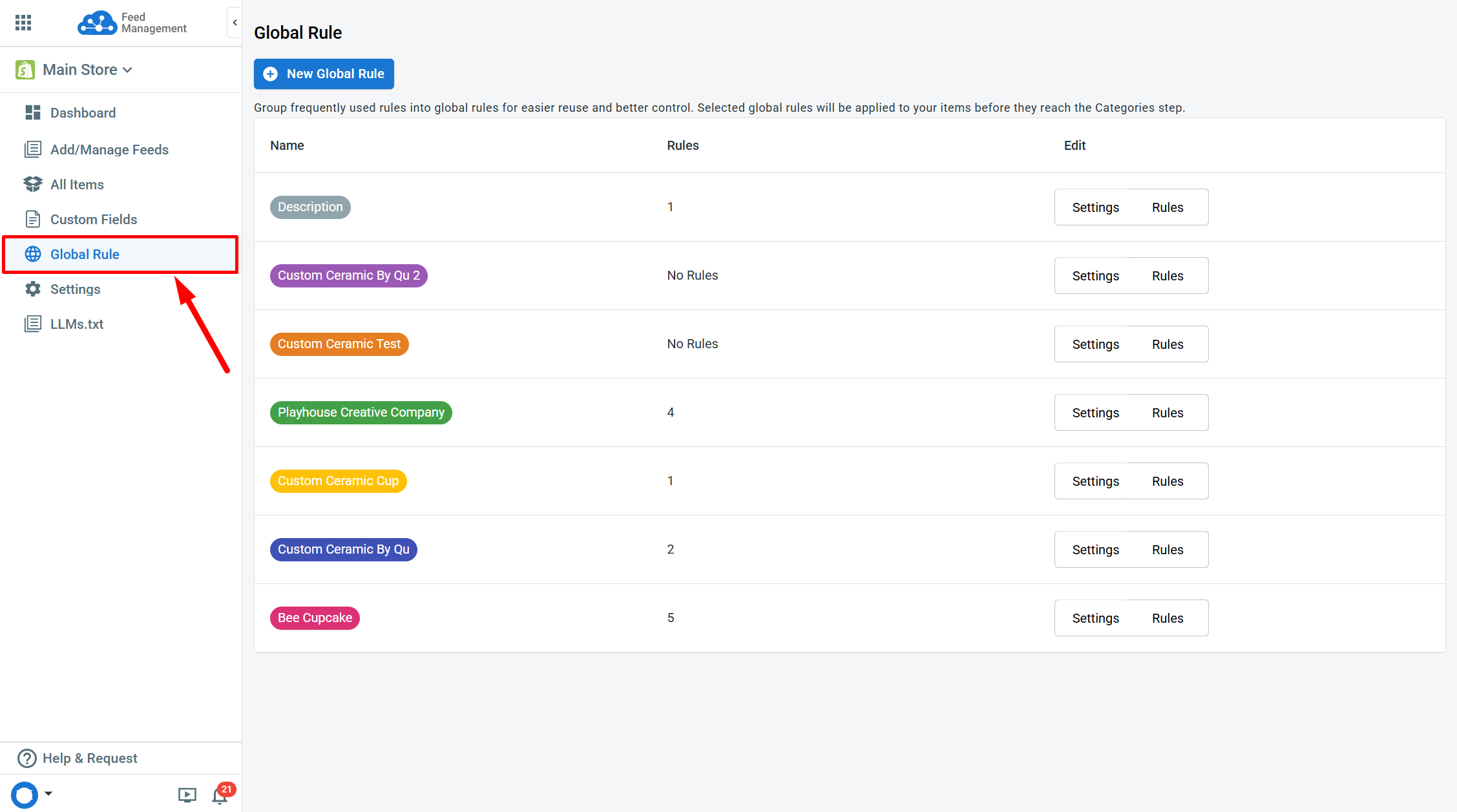
For detailed guidance in setting up your rules, please refer to Feed: Rules.
Item Count
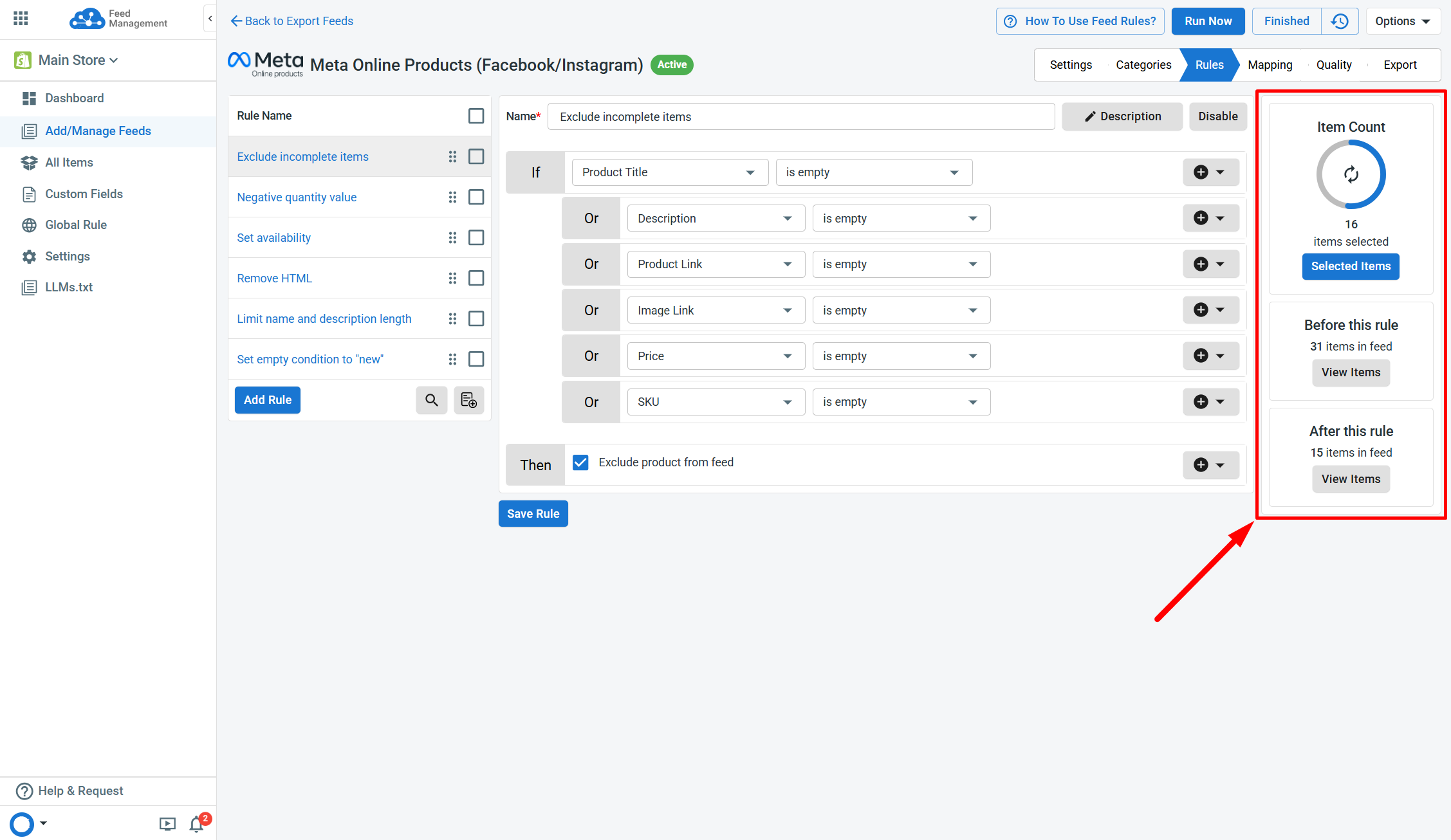
Use this section to get an overview of valid products in each rule. This allows you to see the final state of products’ data (e.g., price, title, category) after applying that rule.
-
Item Count: Display products that meet the rule's conditions.
-
Before this rule: The number of valid products before the rule applied.
-
After this rule: The remaining products in the feed after applying the rule.
[!INFO] Rules are applied sequentially, from top to bottom, to update or filter products.
Step 4: Set up mapping
Mapping refers to the essential process of connecting data fields after having the rules applied to the feeds so that product information flows correctly to our system and platforms.
In the Mapping tab, you will find the following field types:
-
Required: These fields are necessary to ensure your products meet platform requirements.
-
Recommended: These fields are not mandatory, but including them can significantly improve your feed's visibility and overall quality.
-
Optional: These fields are optional and can be added based on your preference.
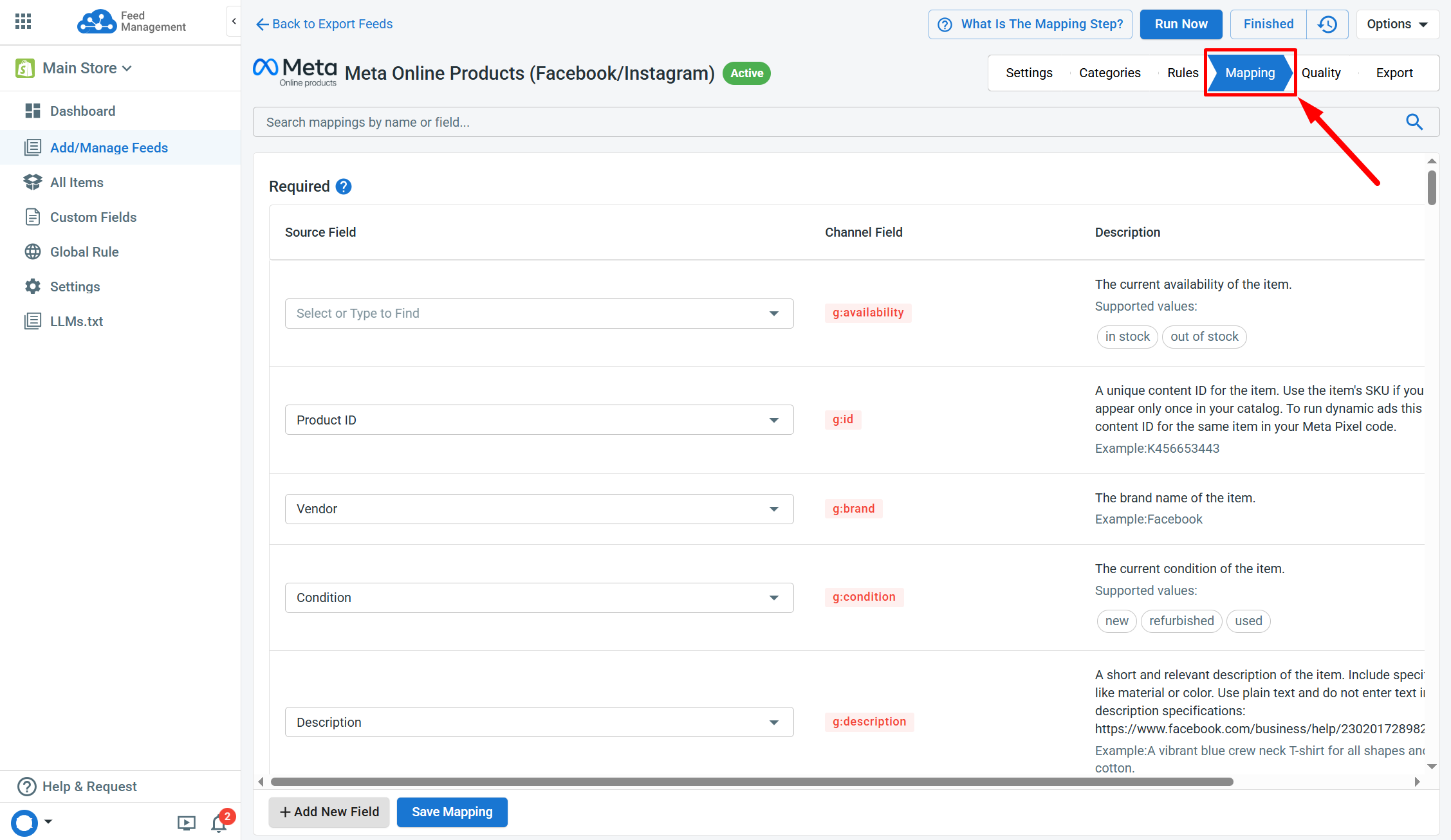
Each platform has its own unique set of requirements, so required fields may vary between feeds.
LitCommerce automatically maps the required fields when finding corresponding matches in your Main Store. Even so, you can edit existing mappings or add new fields manually using the Add New Field and Save Mapping actions.
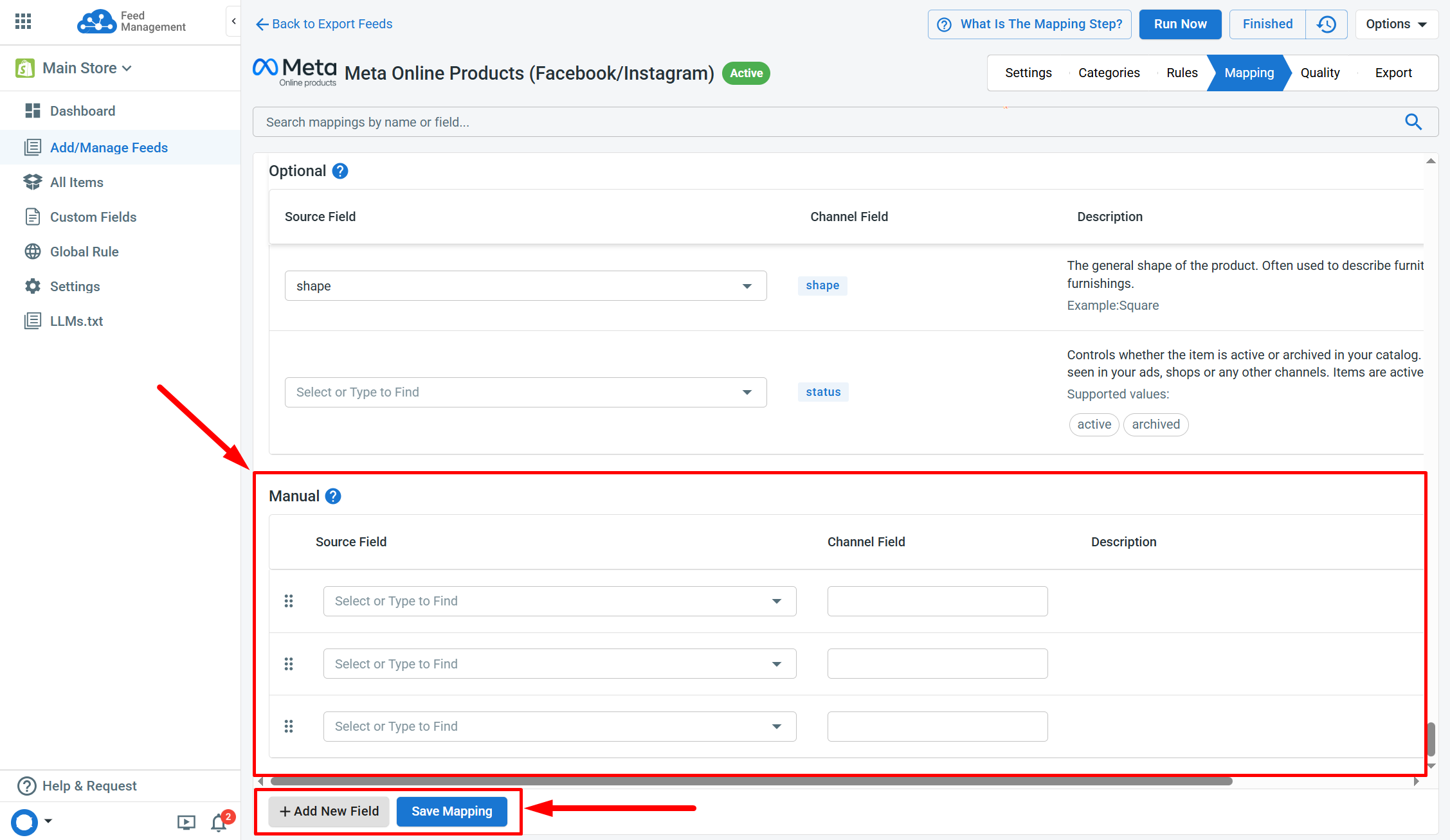
Step 5: Quality check
The Quality tab assesses whether your feed meets the platform’s requirements. It highlights missing data, points out where adjustments are needed, and suggests recommended additions.
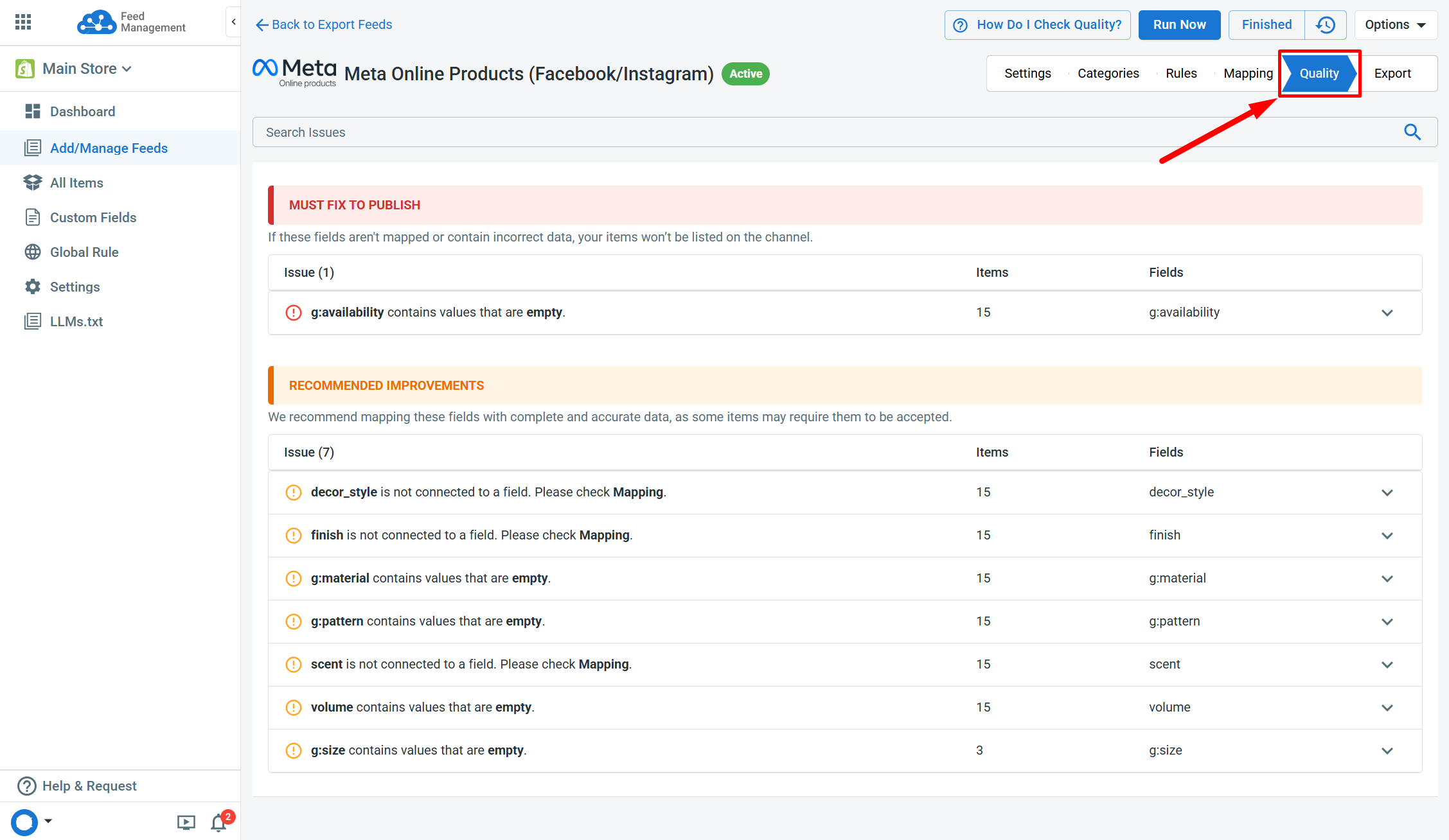
Based on this information, you may double-check the products to update the feed (rules, mappings, etc.) accordingly.
Step 6: Preview & Export
Once all the previous stages are completed, go to the Export tab to preview your data and export it.
Overview
This tab contains the following sections:
-
Activate Feed: Activate your feed to receive the feed URL.
-
Feed URL: Display your feed URL for exporting and downloading.
-
How to connect your feed to the platform: This section (only available on certain platforms) gives step-by-step instructions on how to make your export feed work on the selected platform.
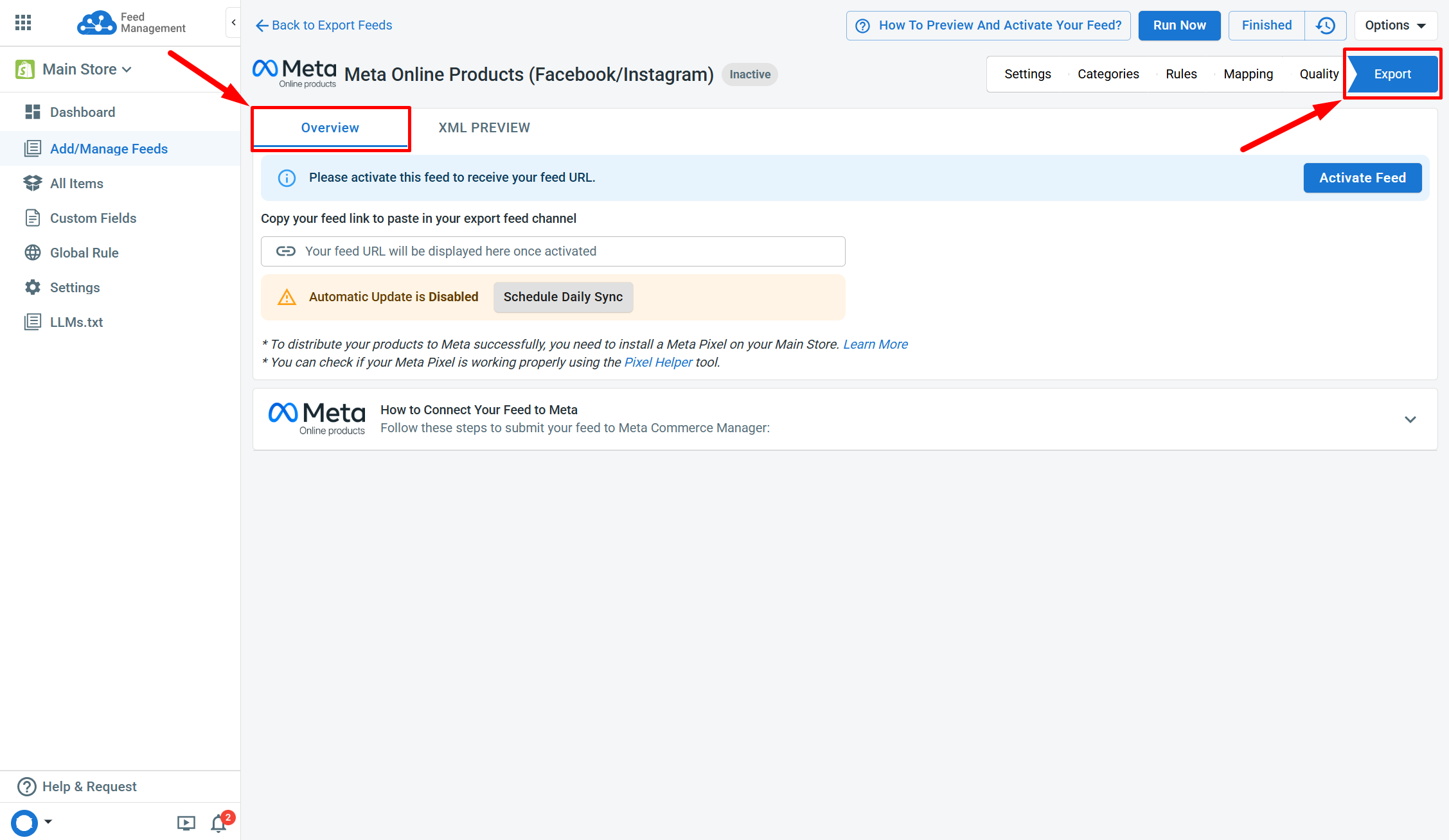
When ready, retrieve the feed URL by copying it. Then, paste the URL to your feed platform for exporting data. You also have the option to download the feed file.
[!SUCCESS] Set up a Daily Sync schedule to automatically update your feed with new Main Store data.
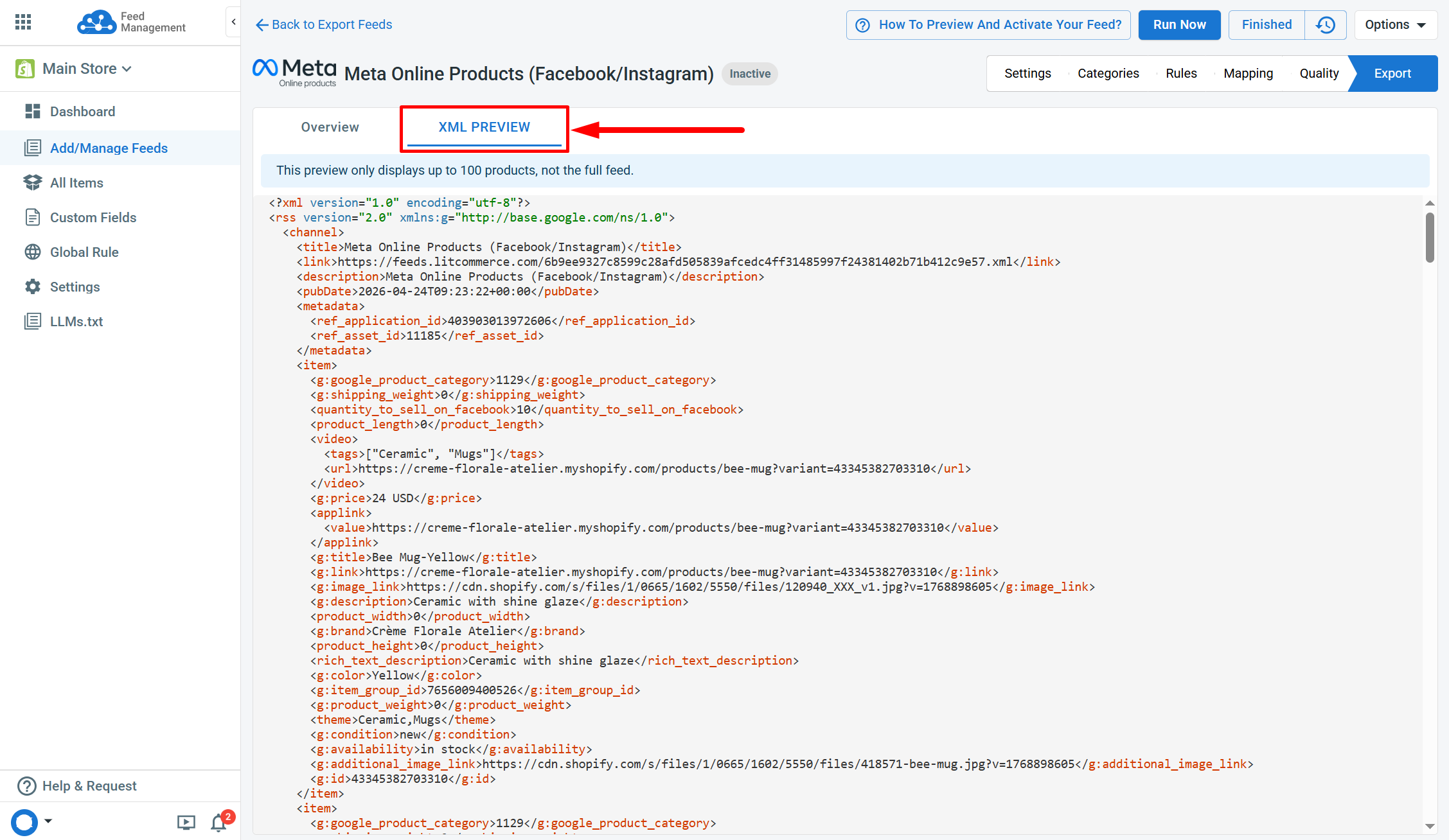
XML Preview
The XML Preview tab shows you a sample of your data (up to 100 products) that will be exported via the feed.
If necessary, you can return to earlier steps to make adjustments.
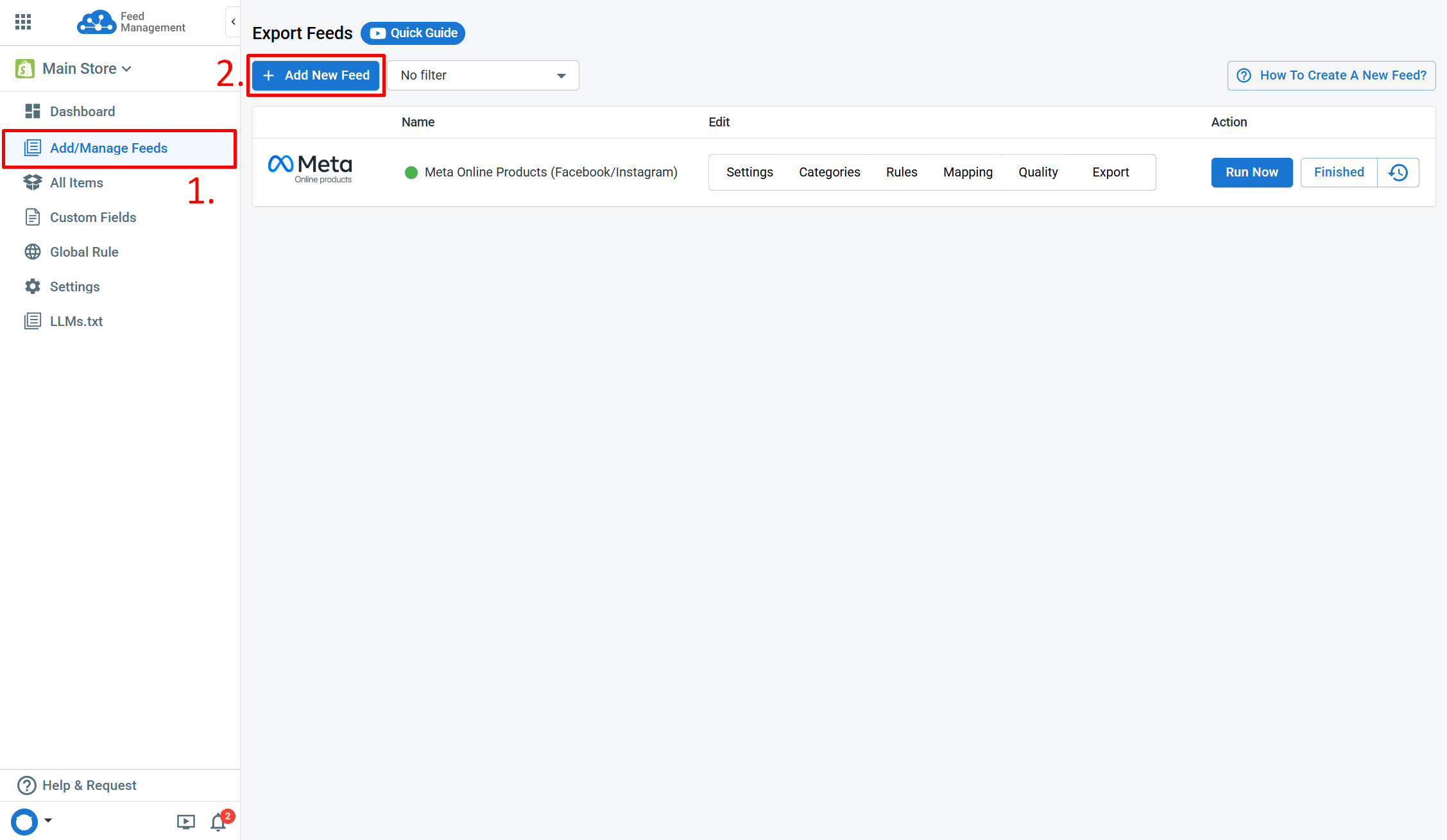
[!INFO] After completing your first feed, simply click
Add New Feedin the Add/Manage Feeds section to proceed with the subsequent ones.
If you have any questions, let us know via the Chat Box in the bottom-right corner of our Help Center.