eBay Size Value Mapping
eBay requires all size data sent to the marketplace to match its predefined standards, whether they are used in Item Specifics or Variant Attributes.
[!INFO] The predefined size values will vary depending on the eBay Primary Category.
LitCommerce offers the Size Value Mapping feature to help ensure accurate size data is submitted to eBay without modifying the source data.
This article walks you through the feature and how to utilize it.
What is Size Value Mapping?
Size Value Mapping lets you map Main Store size values to the corresponding eBay size values, establishing predefined size value conversions between your Main Store and eBay.
When publishing, LitCommerce sends the mapped values to eBay while leaving the original Main Store data unchanged.
This feature is available for both Item Specifics and Variant Attributes.
Size Value Mapping for Item Specifics
[!INFO] When setting up the mapping, LitCommerce automatically matches the selected Main Store attribute values with the corresponding eBay size values.
A value can be mapped automatically when, after normalization for letter case, whitespace, and characters (such as -, _, or .), it matches an eBay size value or one of its common aliases. For example: Small → S, Large → L, XXL → 2XL, and OSFA → One Size.
If LitCommerce cannot automatically map the values, you can proceed to map them manually.
You can set up Size Value Mapping for Item Specifics in two locations:
Channel Settings
Setting up Size Value Mapping in Channel Settings consists of the following steps.
-
Locate and open the
Channel Settingsat the top-right corner of the targeted channel dashboard.
-
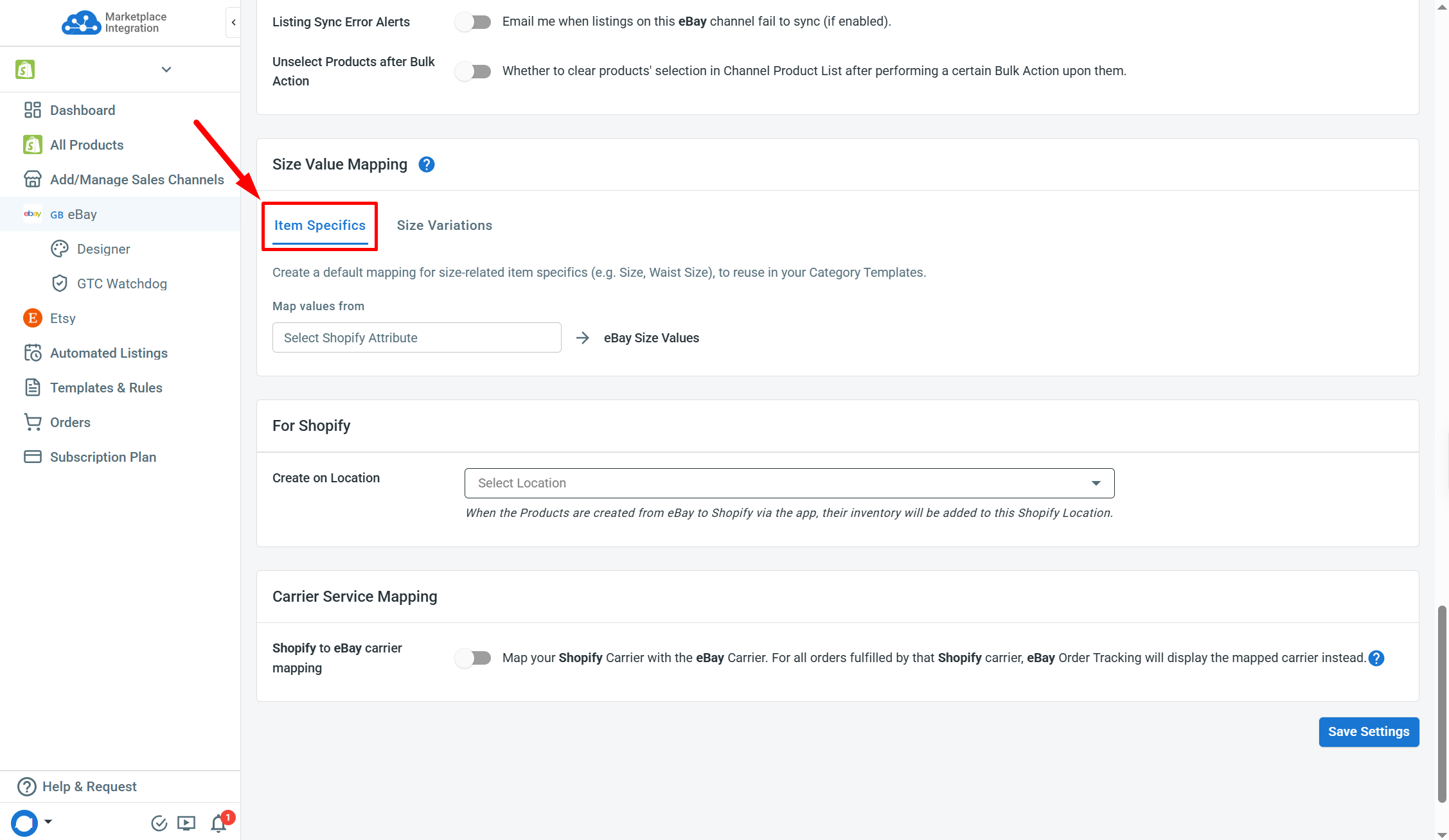
Find the Item Specifics tab in the Size Value Mapping section.
-
Select a Main Store attribute and start setting up mappings.

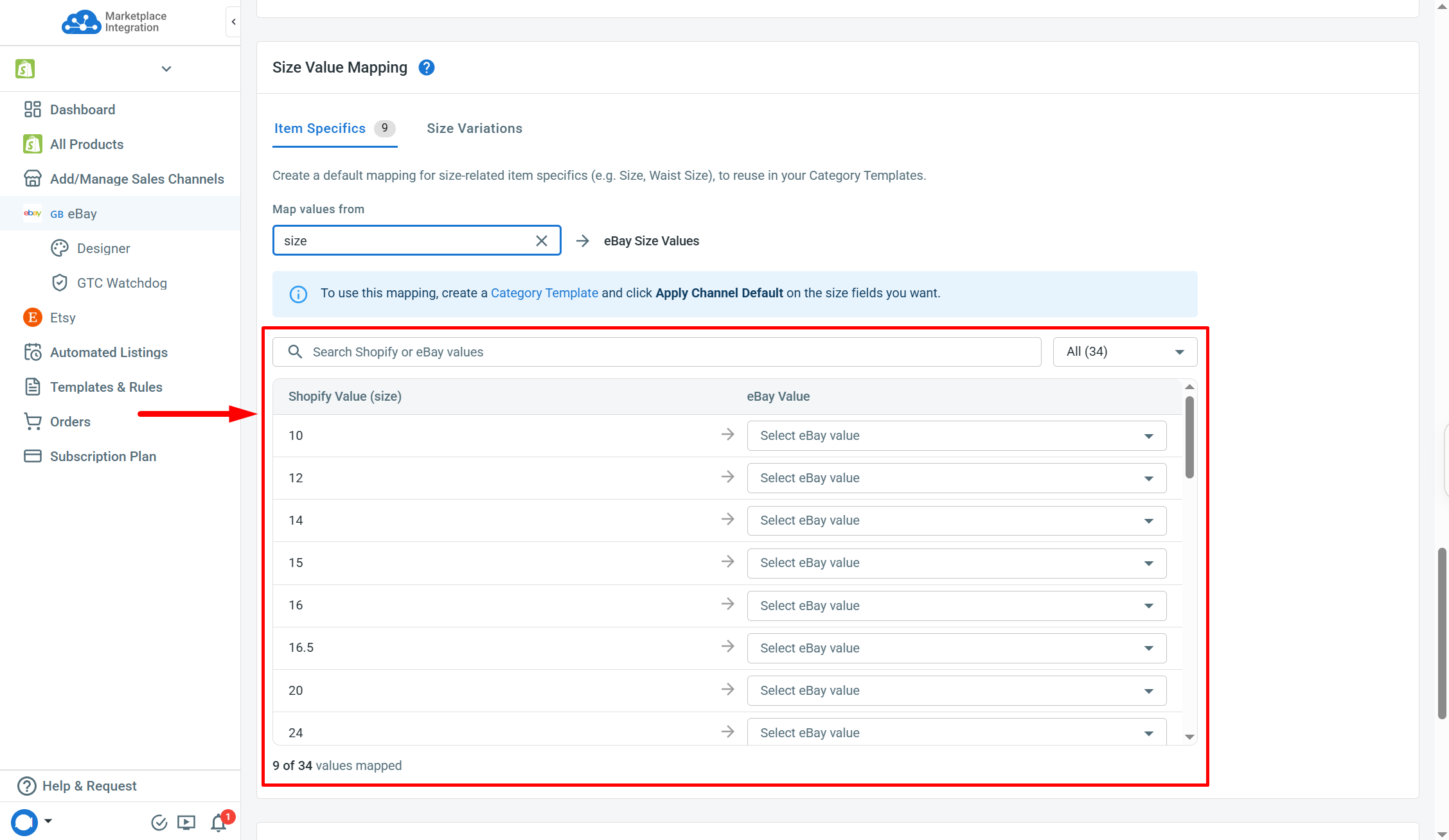
[!SUCCESS] It is recommended to select the attribute that is most commonly used across your Main Store products.
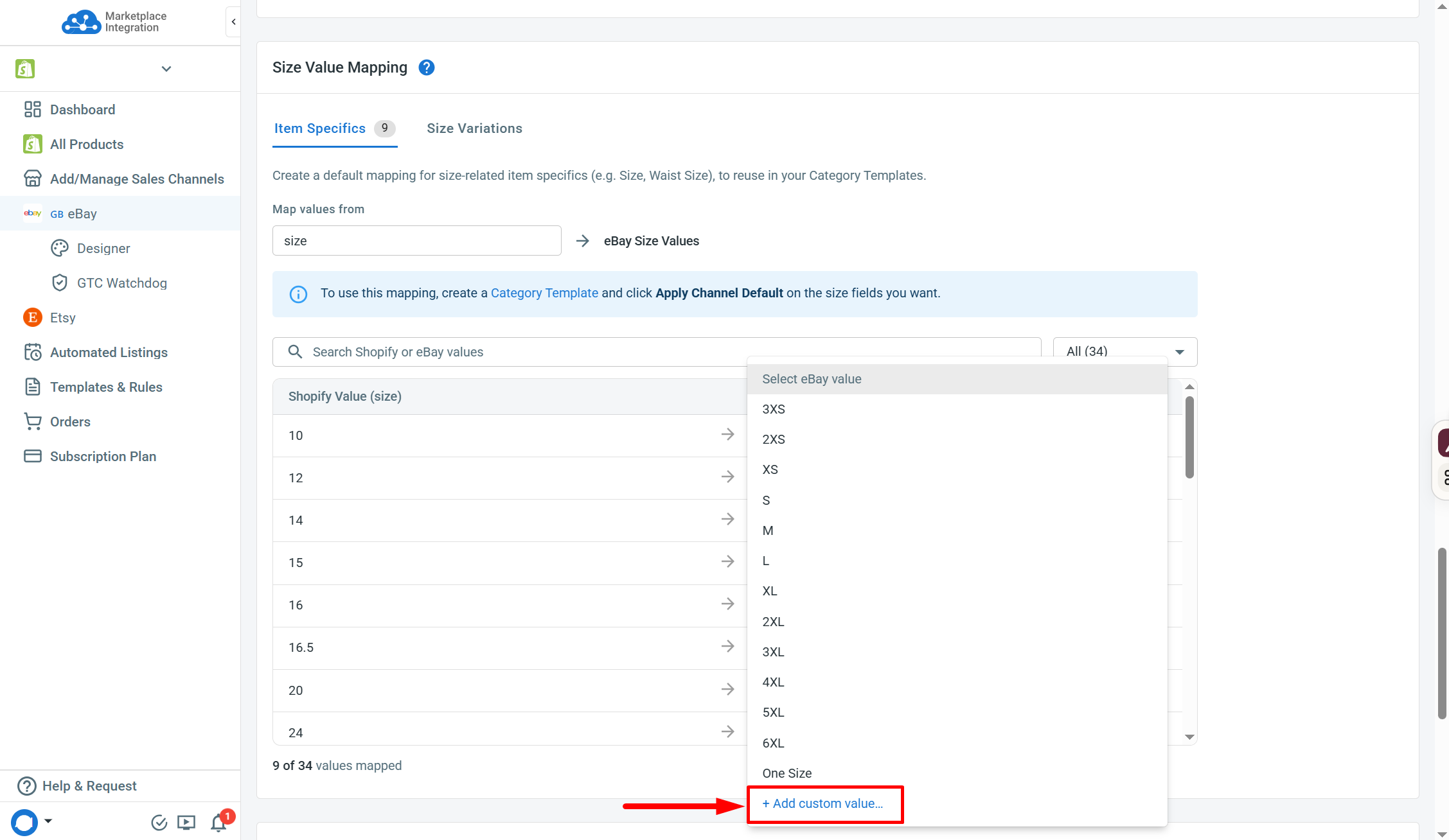
[!INFO] Only the 13 most common eBay size values are available for selection in Channel Settings.
If the value you need is not displayed, you can add a custom value as long as it follows eBay’s size standards. Check the Size Item Specific in the Category Template to view the full list of supported values.
-
Save the settings.

These mappings are set as default and will be used when you select Apply Channel Default for Size Value Mapping in the Category Template.
Category Template
Follow the steps below to set up Size Value Mapping in the LitCommerce eBay Category Template:
-
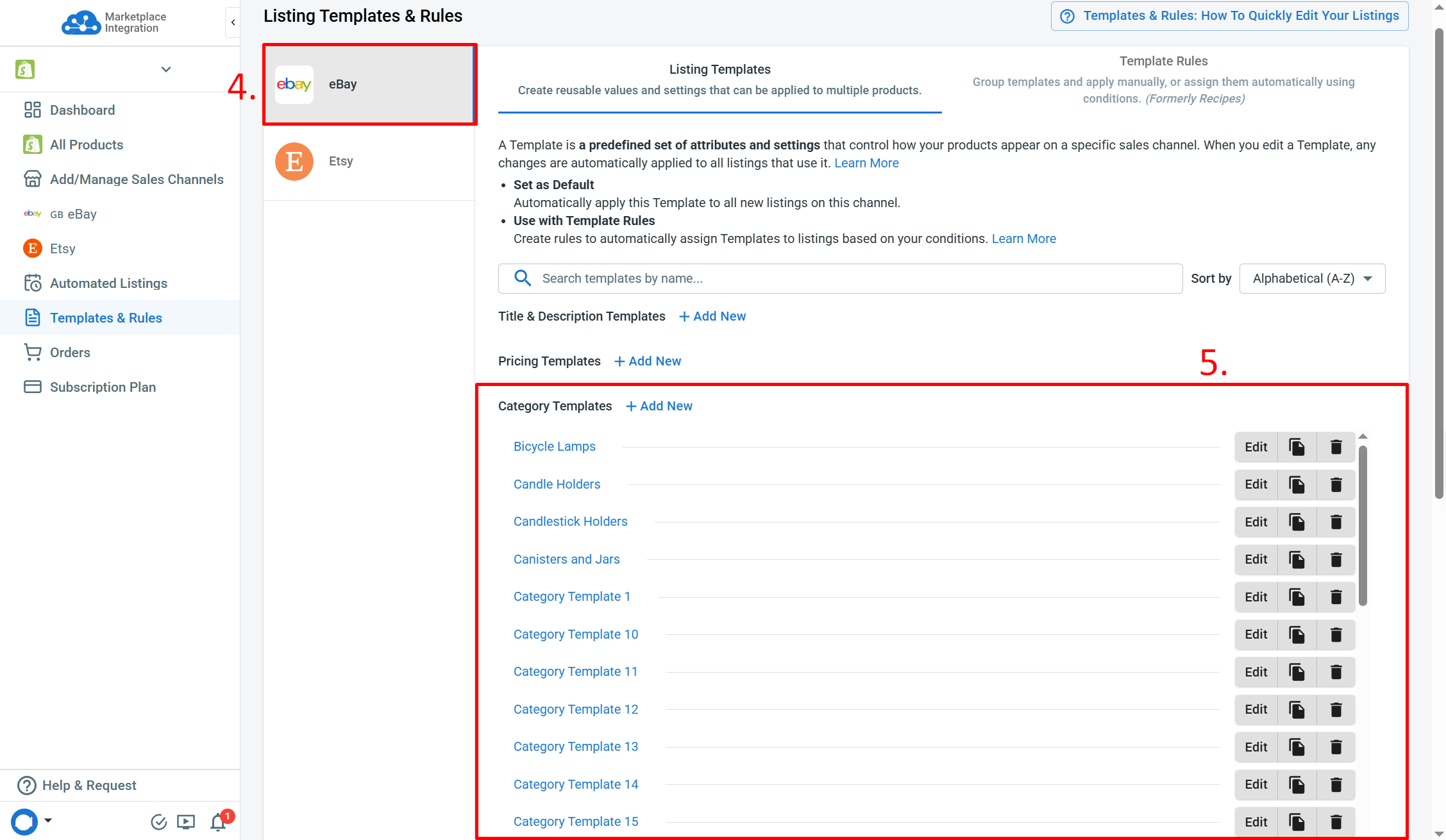
Find the Category Templates in the Templates & Rules section on the sidebar menu.

Alternatively, go to the target LitCommerce eBay channel to click
More Actionsand selectListing Templates/Rules.
-
Add new or open the targeted Category Template.

-
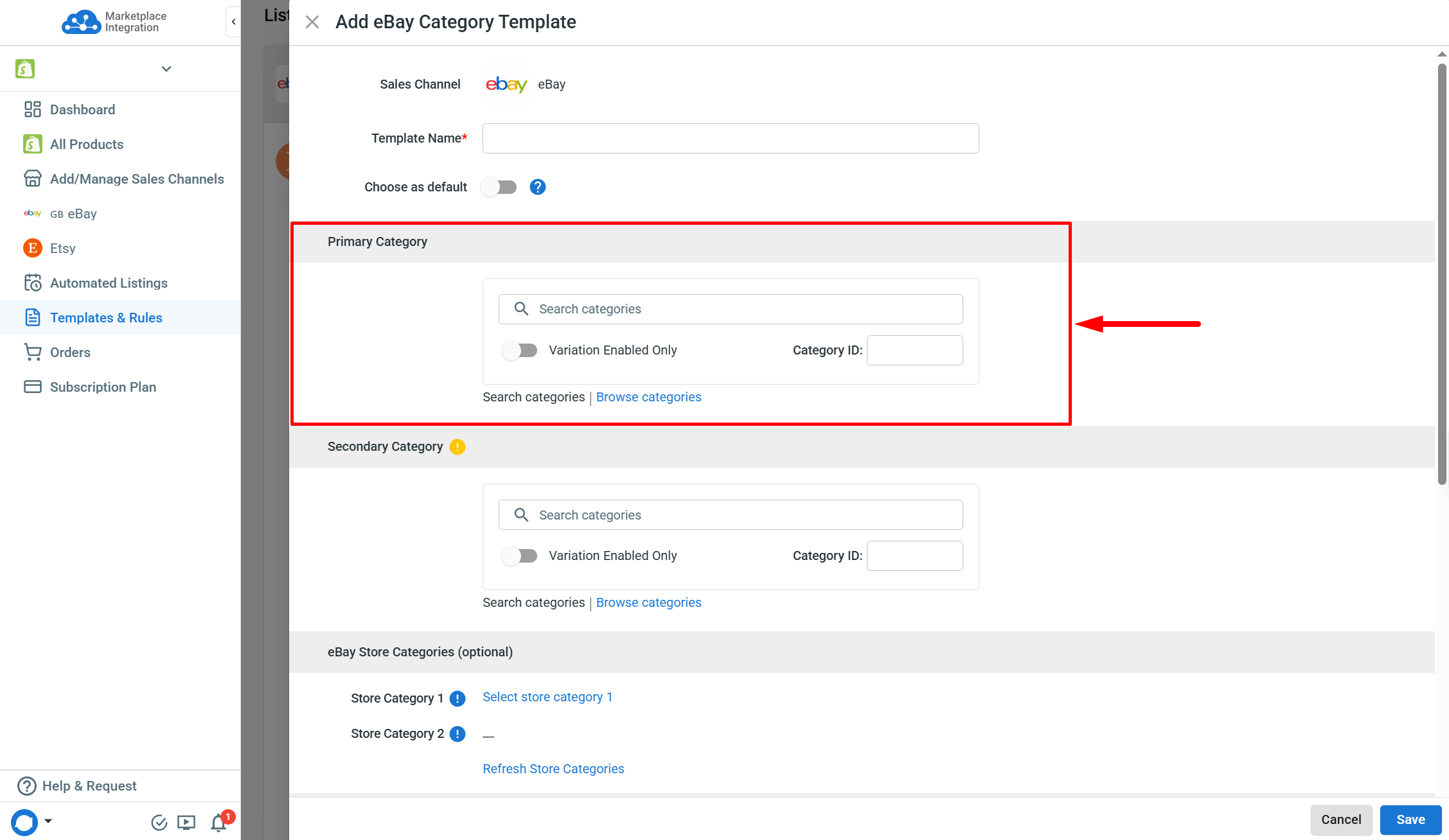
Select your desired Primary Category.
-
Locate the “Size” item specifics and similar size attributes under the Item Specifics section.
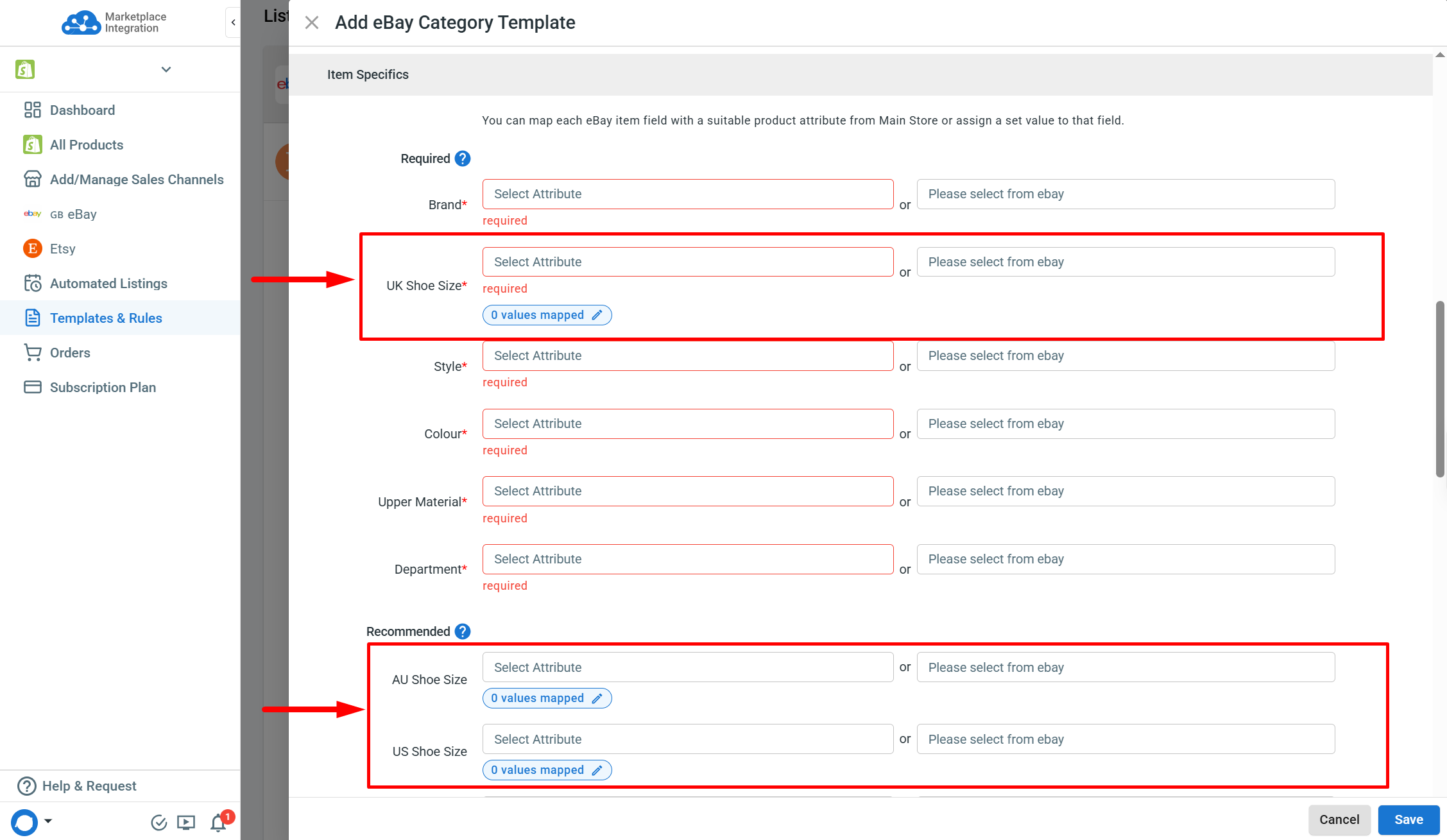
[!INFO] Only Required Item Specifics must be filled in. You may add Recommended Item Specifics to provide additional product information.
-
Click on the
<number> values mappedtag to access Size Value Mapping.The tag indicates the number of values mapped to the Item Specific.

-
Choose either
Apply Channel Defaultto use the setup in the Channel Settings or a Main Store attribute to set up size value mapping for this specific Category Template.

-
Click
Save Mapping.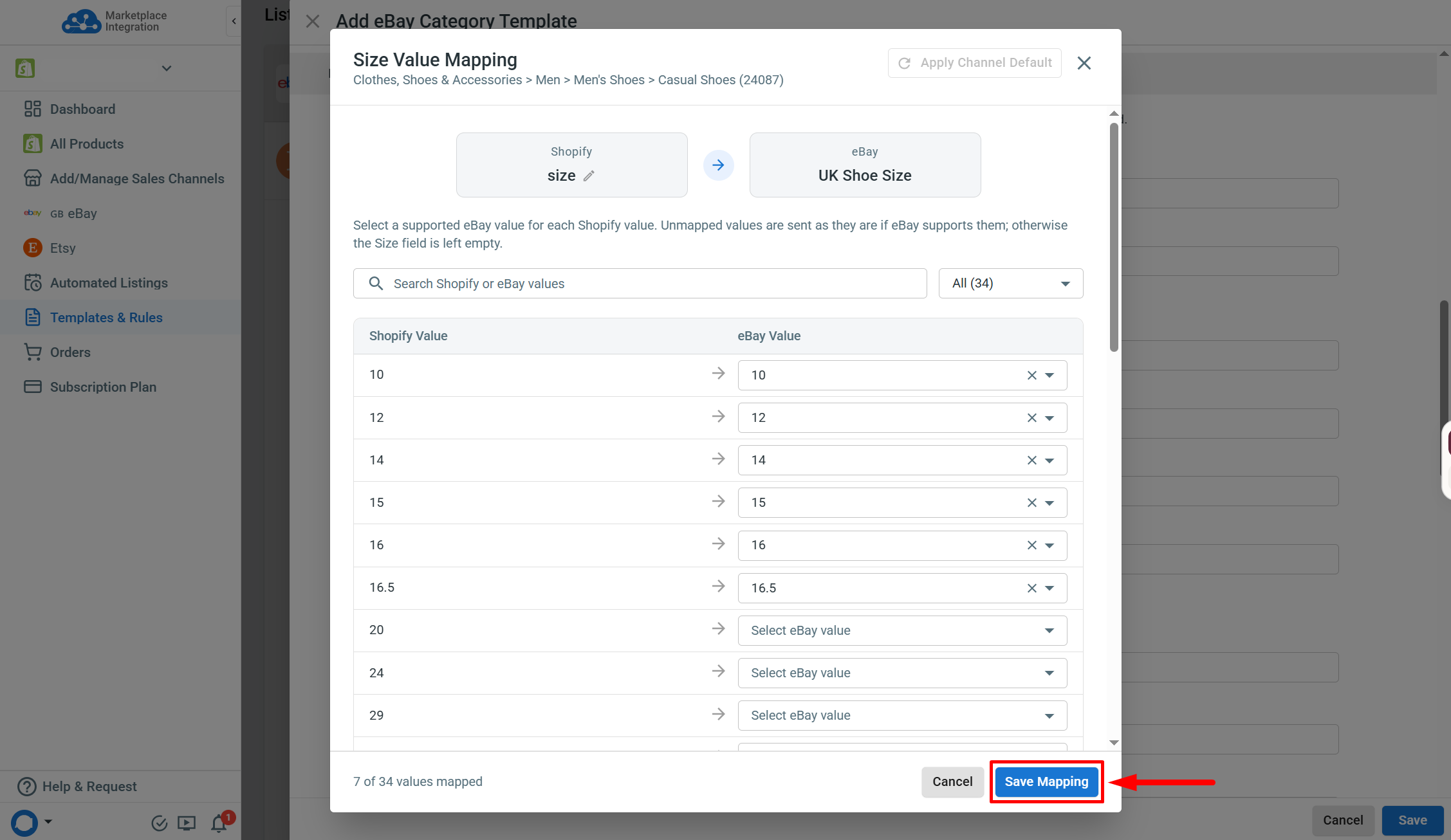
-
Complete the remaining information in the Category Template before saving it.

Once the Category Template is fully populated, you can apply it to the targeted listings and publish them.
Size Value Mapping for Variant Attributes
Size variations must also comply with eBay’s size standards. The steps below let you configure Size Value Mapping for size variations in Channel Settings.
-
Locate and open the
Channel Settingsat the top-right corner of the targeted channel dashboard.
-
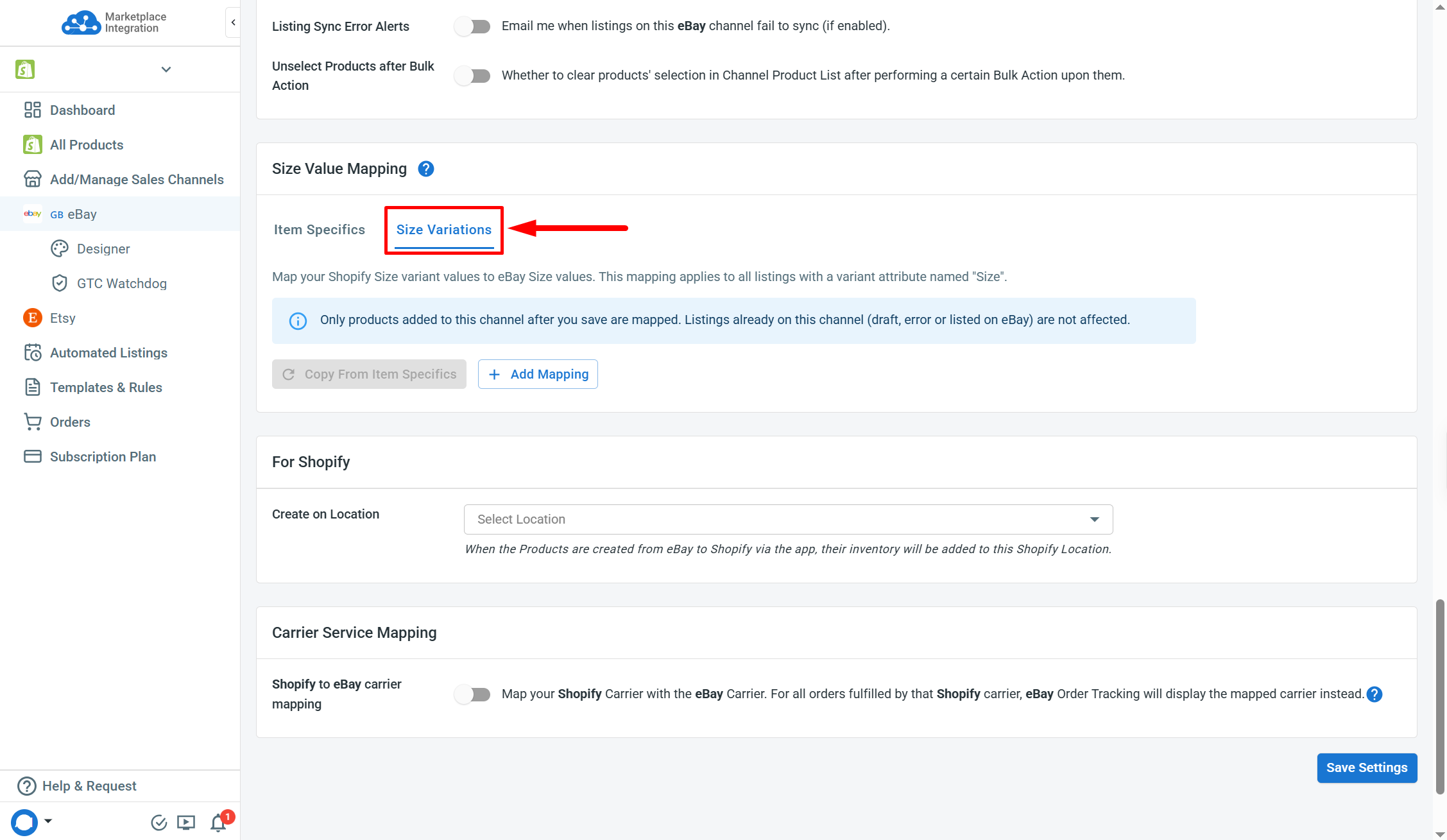
Find the Size Variations tab in the Size Value Mapping section.
-
Click
Add Mappingand proceed with the mapping setup.Manually enter the Main Store variation values and select the corresponding eBay values to map.


[!SUCCESS] Use
Copy From Item Specificsto apply the existing mappings from the Item Specifics tab.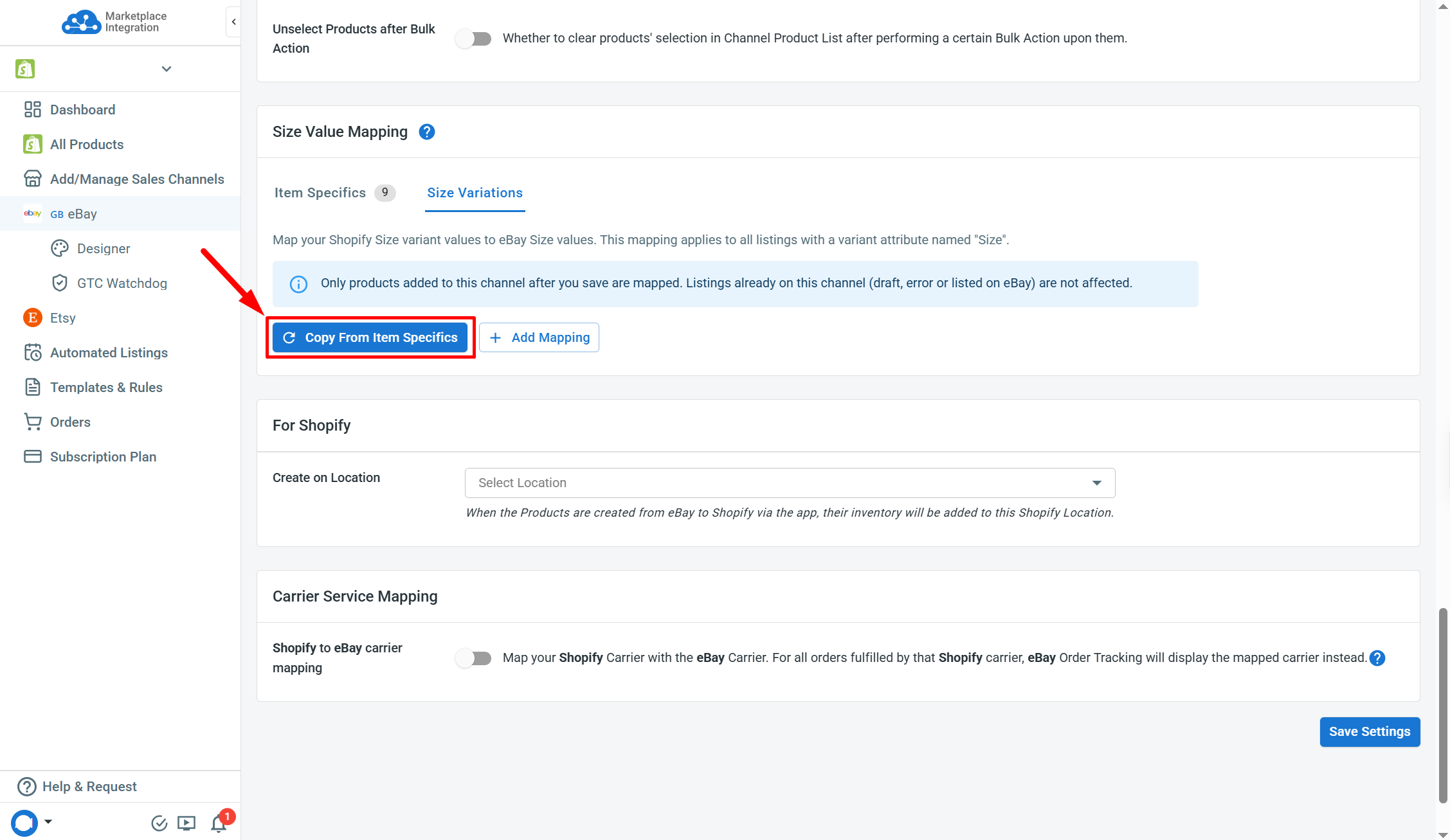
-
Click
Save Settings.
Once saved, Main Store products added to the LitCommerce eBay channel will have their size variation values converted accordingly.
[!INFO]
- Size Variation Value Mapping in Channel Settings is set to the default and applied at the channel level.
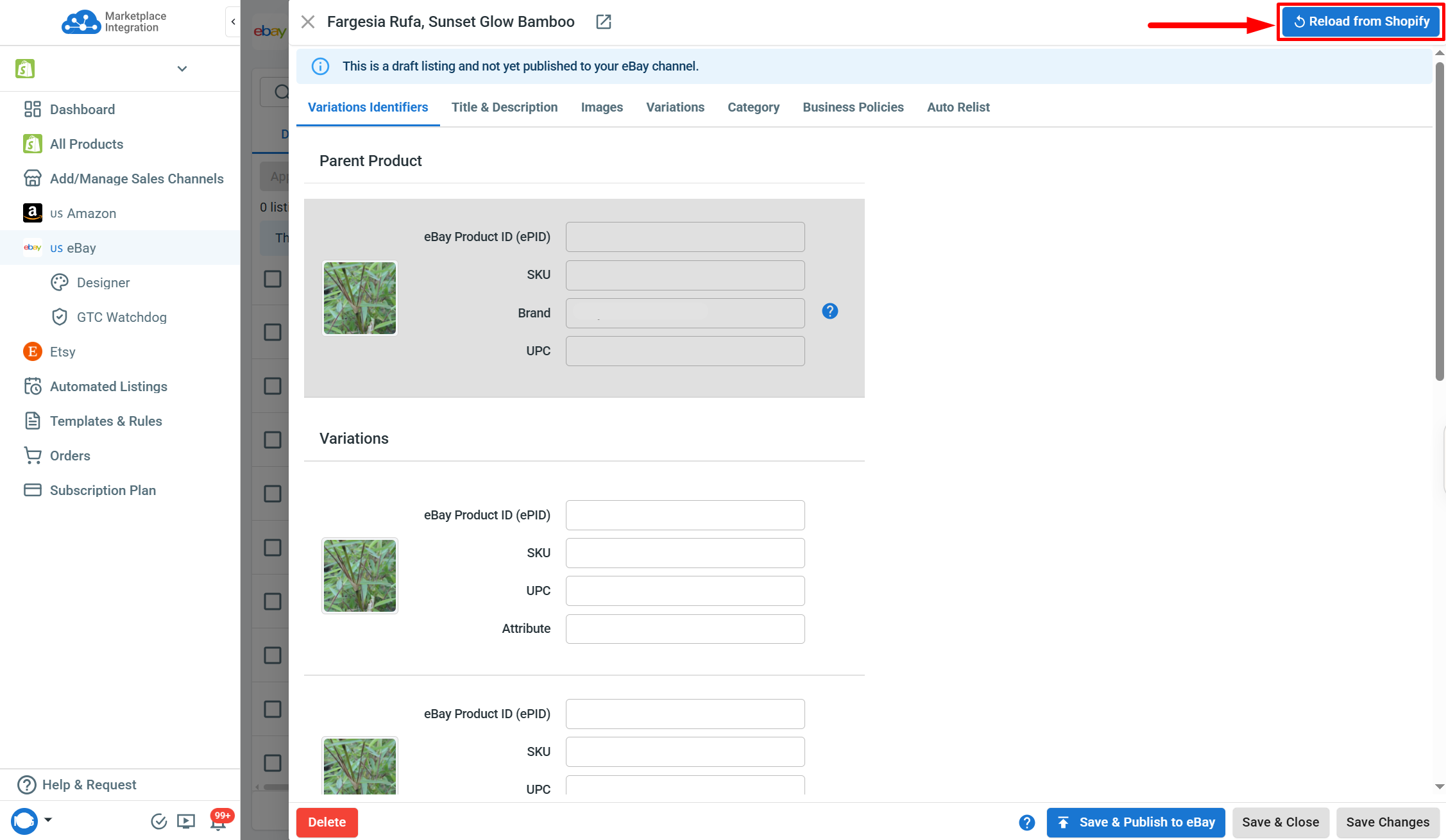
- Only listings added to the LitCommerce eBay channel after the setting is saved will have these mappings applied. Use
Reload From Main Storeto update existing Draft and Error listings on the channel with the mappings.
If you have any questions, let us know via the Chat Box in the bottom-right corner of our Help Center.
← eBay Channel Settings Clone your listings between eBay channels in LitCommerce →