Step 1: Connect your Main Store and first channel
Getting started with LitCommerce by connecting your Main Store and first channel. This article walks you through the two-step setup process.
Step 1: Connect Main Store
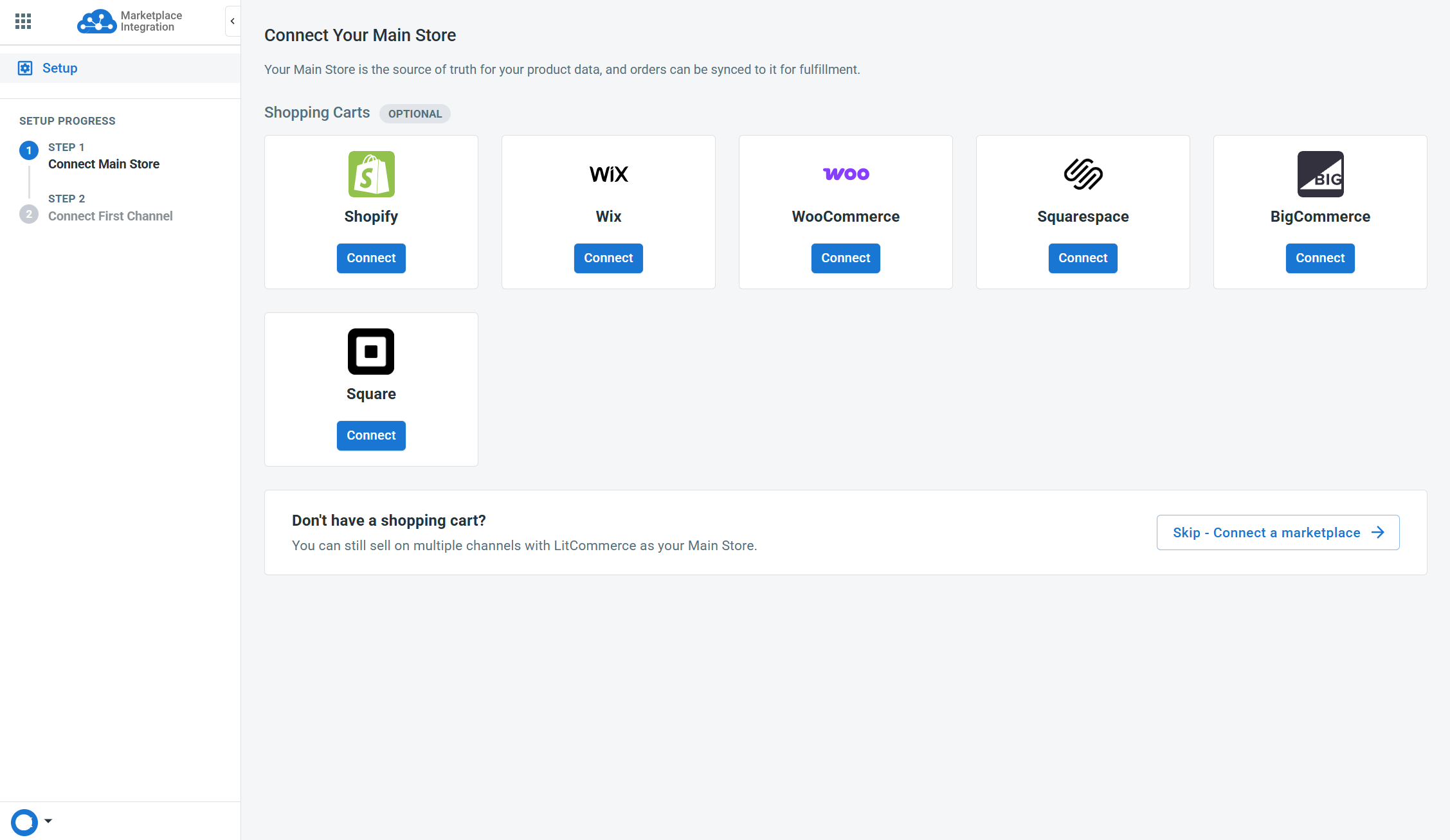
See the “Connect Your Main Store” screen after accessing your LitCommerce account.
Choose the Main Store by clicking the Connect button under the desired shopping cart.
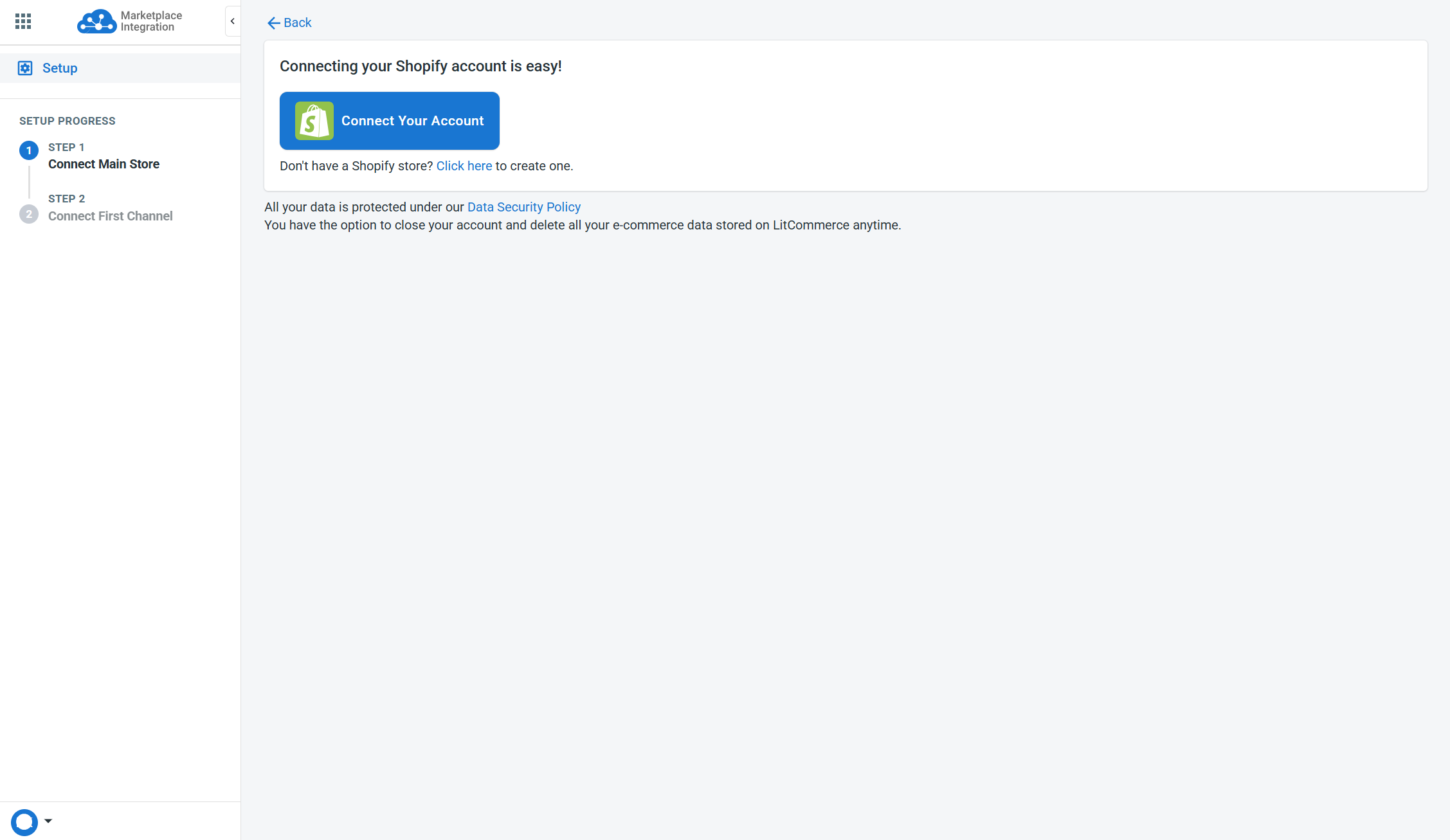
LitCommerce will then display the corresponding connection screen for the selected platform. Follow the instructions to connect it.
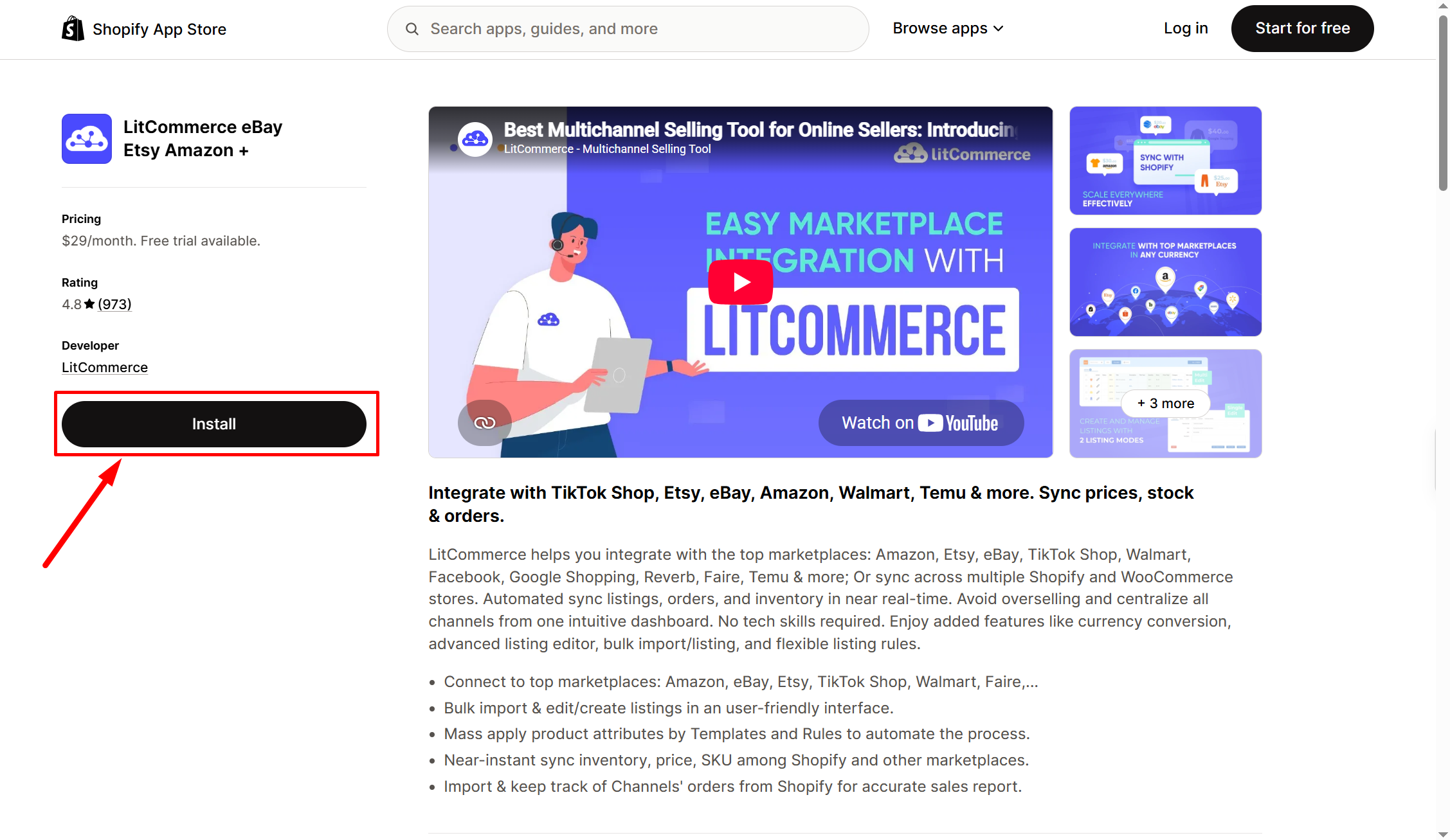
[!SUCCESS] Alternatively, you can find and install the LitCommerce app or plugin from the eCommerce app stores. Once installed, you will be redirected to the LitCommerce dashboard to proceed with further steps.
For example: The LitCommerce app on Shopify, on WordPress.org.
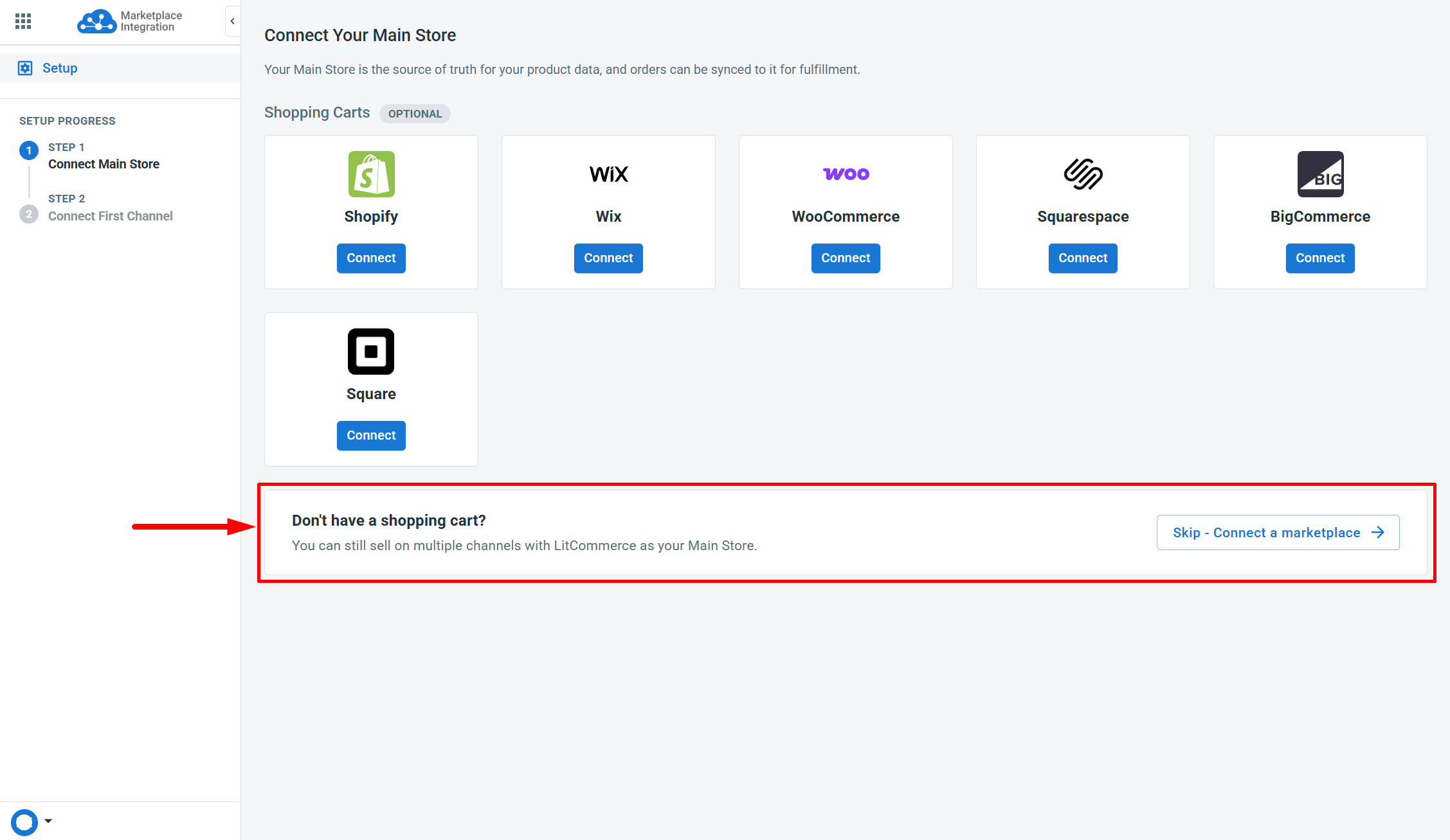
[!SUCCESS] If you do not have a shopping cart, click the
Skip - Connect a marketplacebutton to use LitCommerce (Native) as your central hub.
[!INFO] You can connect multiple individual Main Stores under one LitCommerce account. Each Main Store operates as a separate sub-account.
Additionally, for more detailed guidance on connecting a specific Main Store, check out the following articles.
How to connect Shopify as the Main Store
How to connect WooCommerce as the Main Store
How to connect BigCommerce as the Main Store
How to connect Wix as the Main Store
Step 2: Connect First Channel
Once your Main Store is set up, connect your first channel by following a similar process.
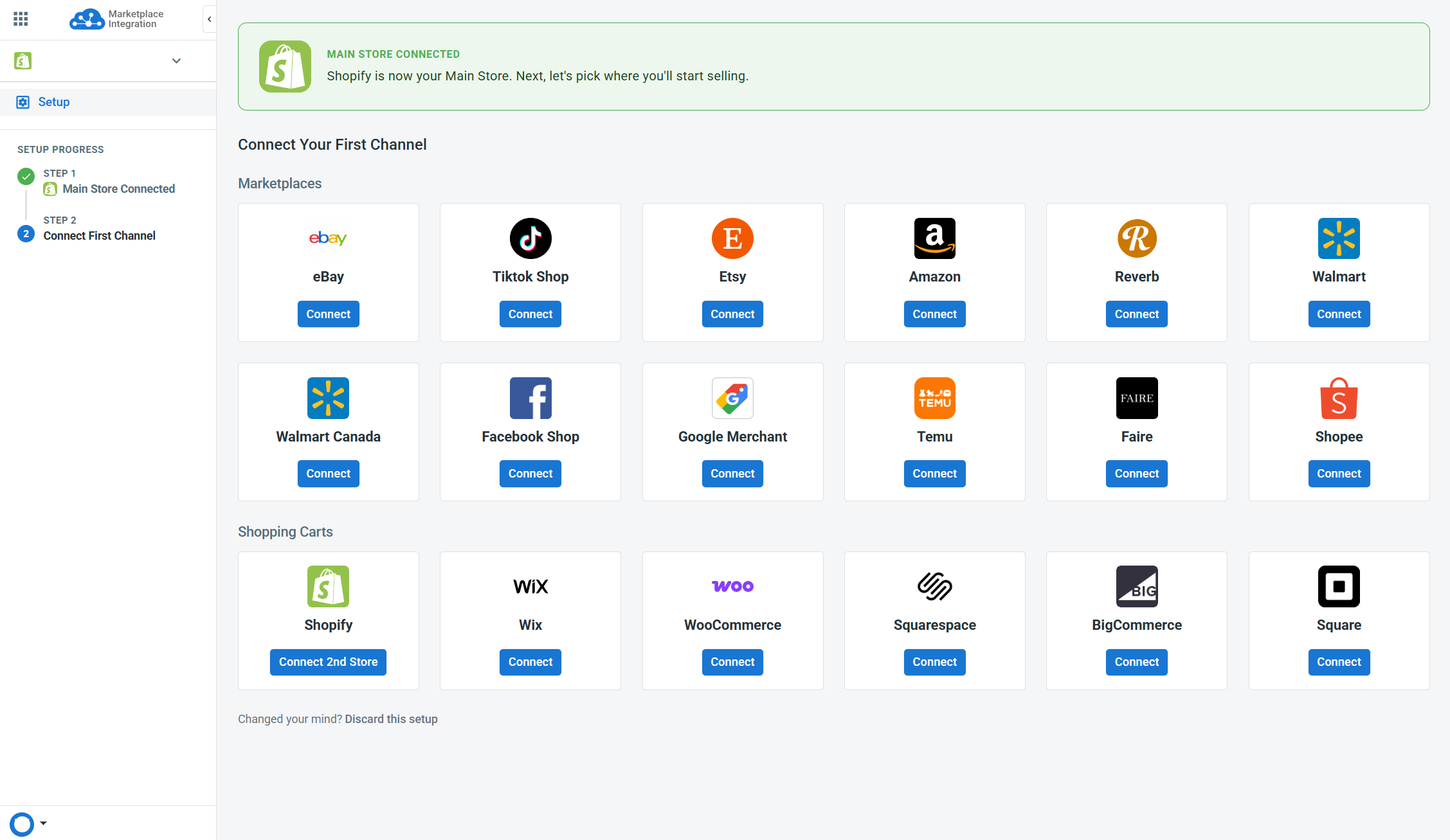
[!INFO]
- Shopping carts for connecting as sales channels in LitCommerce only display if the Main Store is Shopify, WooCommerce, or Wix. If no options show up, contact our Support Team for assistance.
- You can connect additional channels based on the Subscription plan limit.
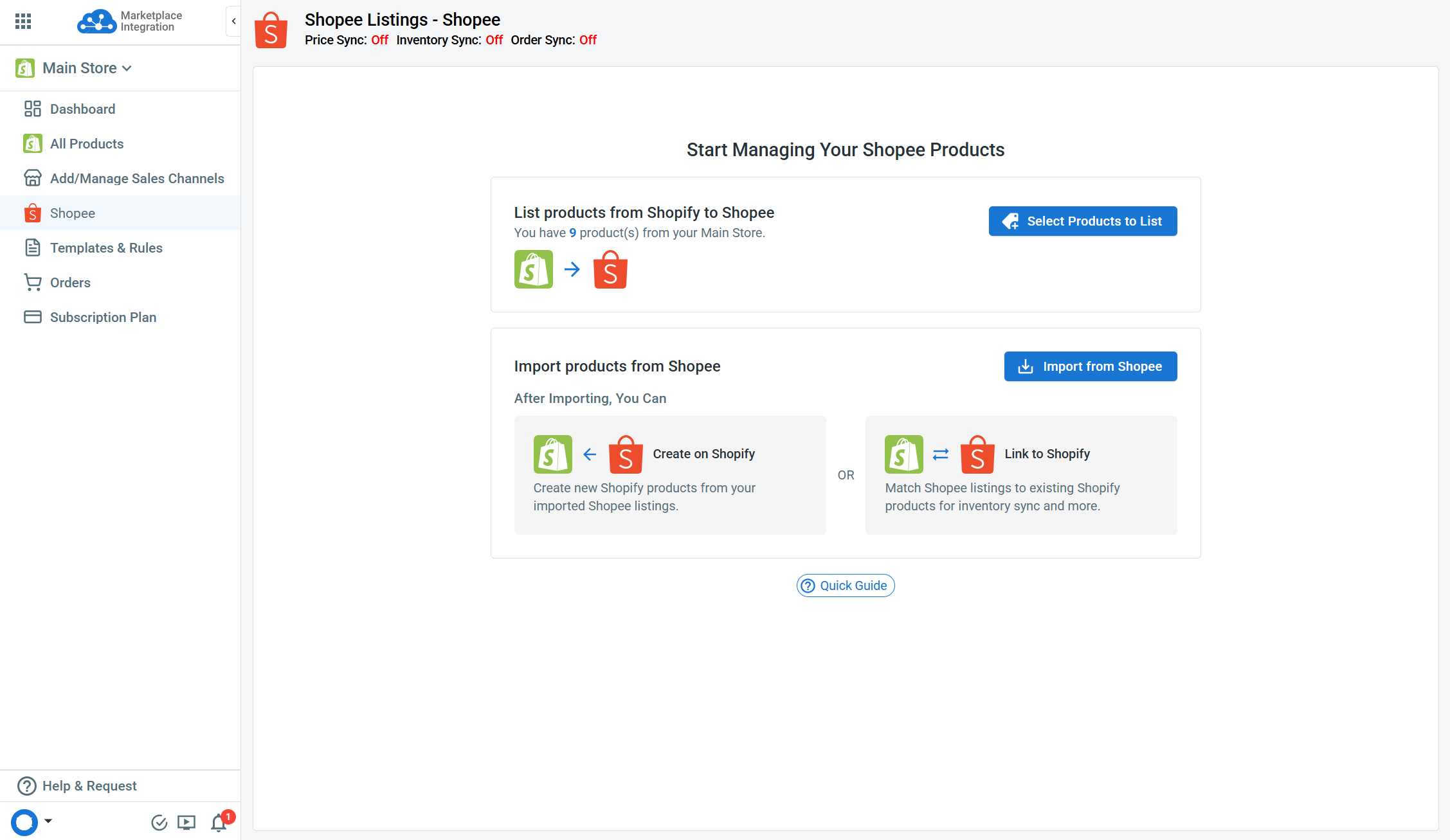
After completing the setup, your LitCommerce account is ready for the next actions. You can start importing products, creating listings, or setting up sync between your Main Store and sales channel.
If you have any questions, let us know via the Chat Box in the bottom-right corner of our Help Center.