Order Processing in LitCommerce: A look into the workflow
Order Sync is only available for the LitCommerce Marketplace Integration app. This article explains the app’s order workflow.
Further details can be found below.
Manage orders in LitCommerce
[!INFO] The system requires enabling both
Inventory SyncandImport Orders To Main Storein the Channel Settings to automatically sync orders from your sales channel to the Main Store through LitCommerce.
The settings follow the basic Order Sync Options.
When managing orders via LitCommerce, you will come across the following.
Orders section
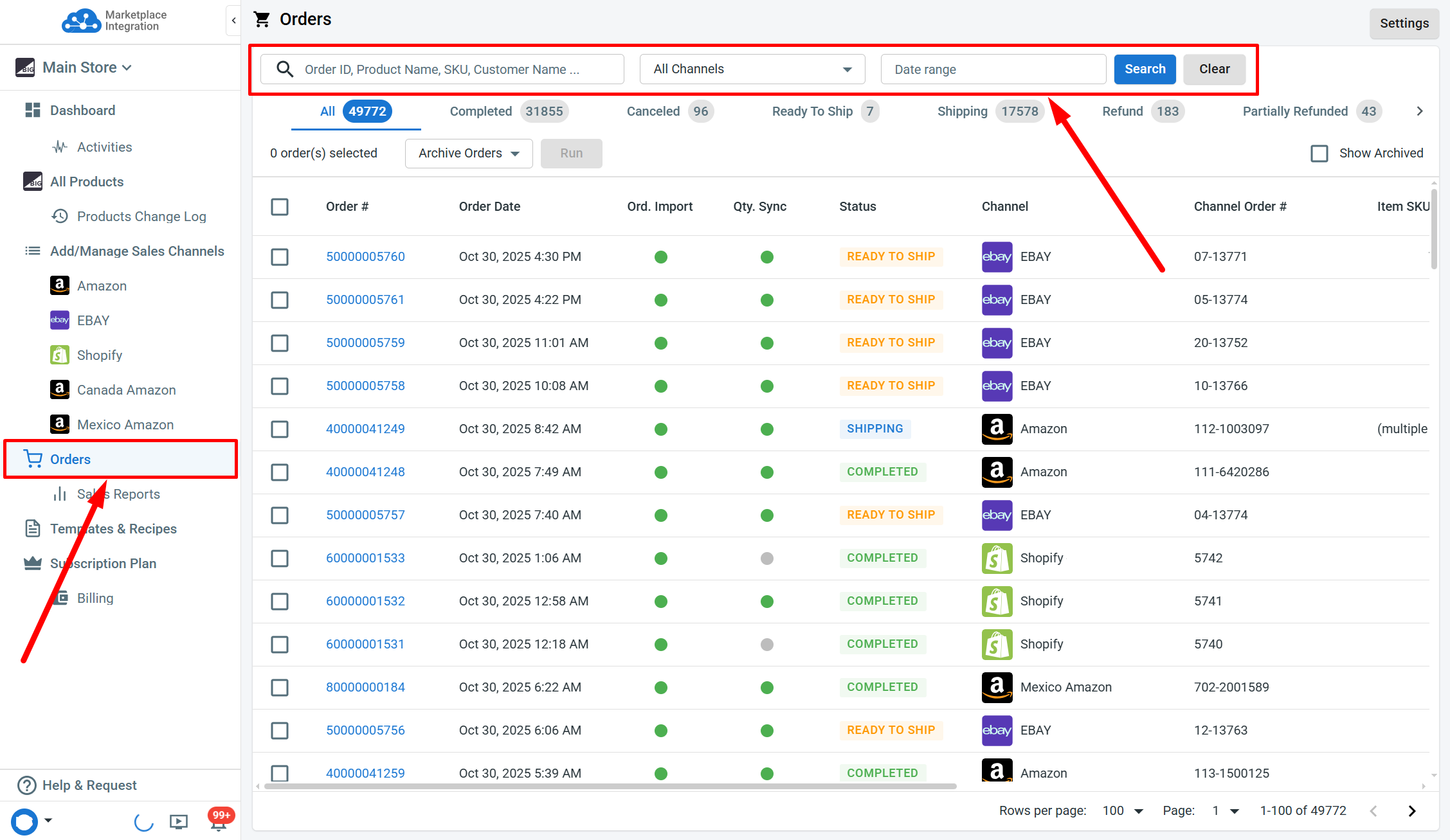
Access this section from the sidebar menu to view and manage all synced orders.
Search/Filters
You can use the LitCommerce Search and Filters feature to locate the targeted orders.
| Field | Definition |
|---|---|
| Search bar | Search for an imported order using SKU, Product name, Customer name, or Order ID (either from the Channel, LitCommerce, or the Main Store). |
| All Channels | Use this field to select and filter out orders from a certain Sales Channel. |
| Date range | Select this field to view orders that occurred within a specific date range. |
| Search | Apply settings from the three fields above to return the corresponding orders. |
| Clear | Reset to the default settings. |
Order tabs
These tabs categorize orders by the latest updated order statuses on either the Main Store or Channels.
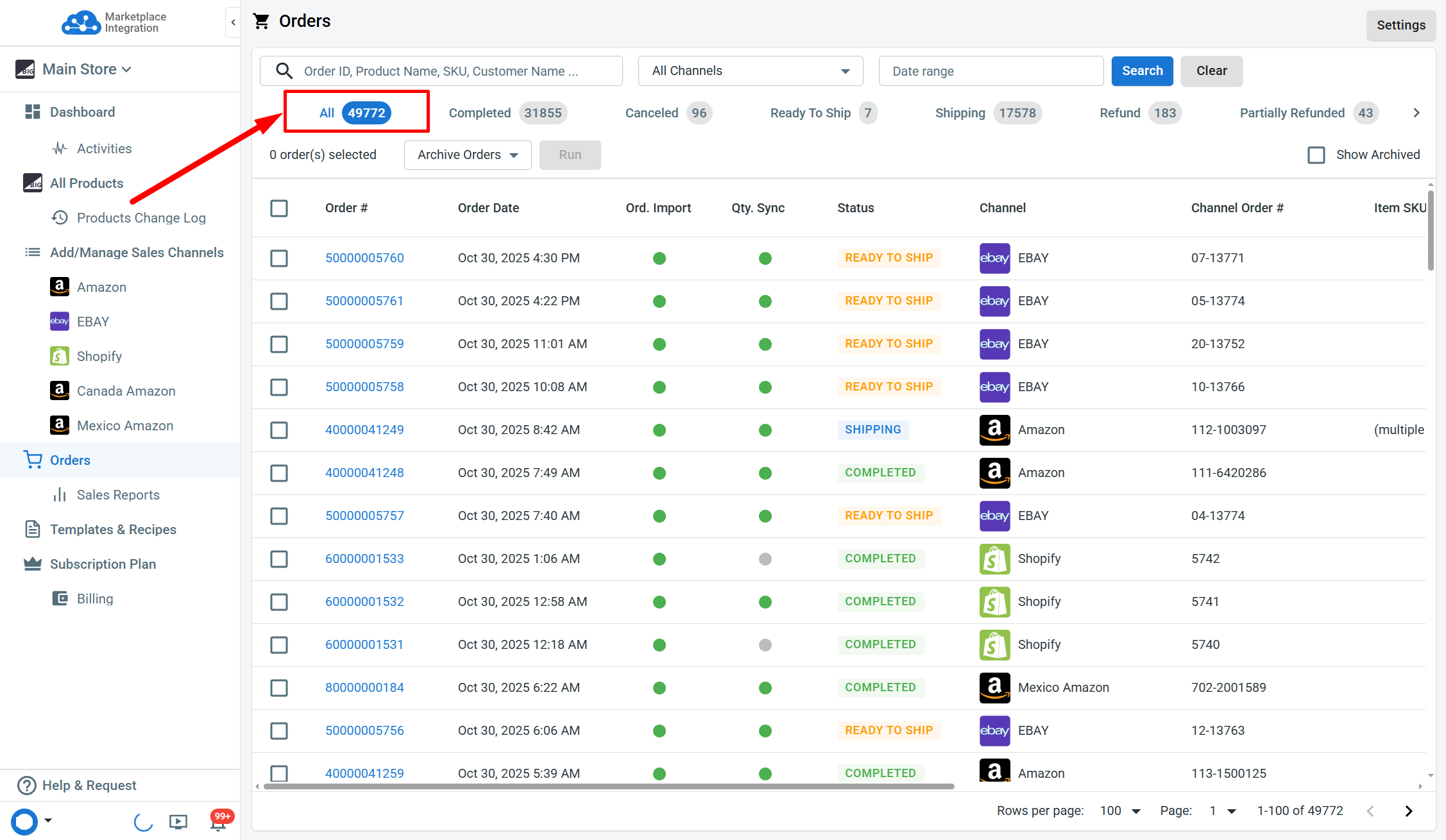
- All
This tab displays all orders imported from sales channels to LitCommerce.
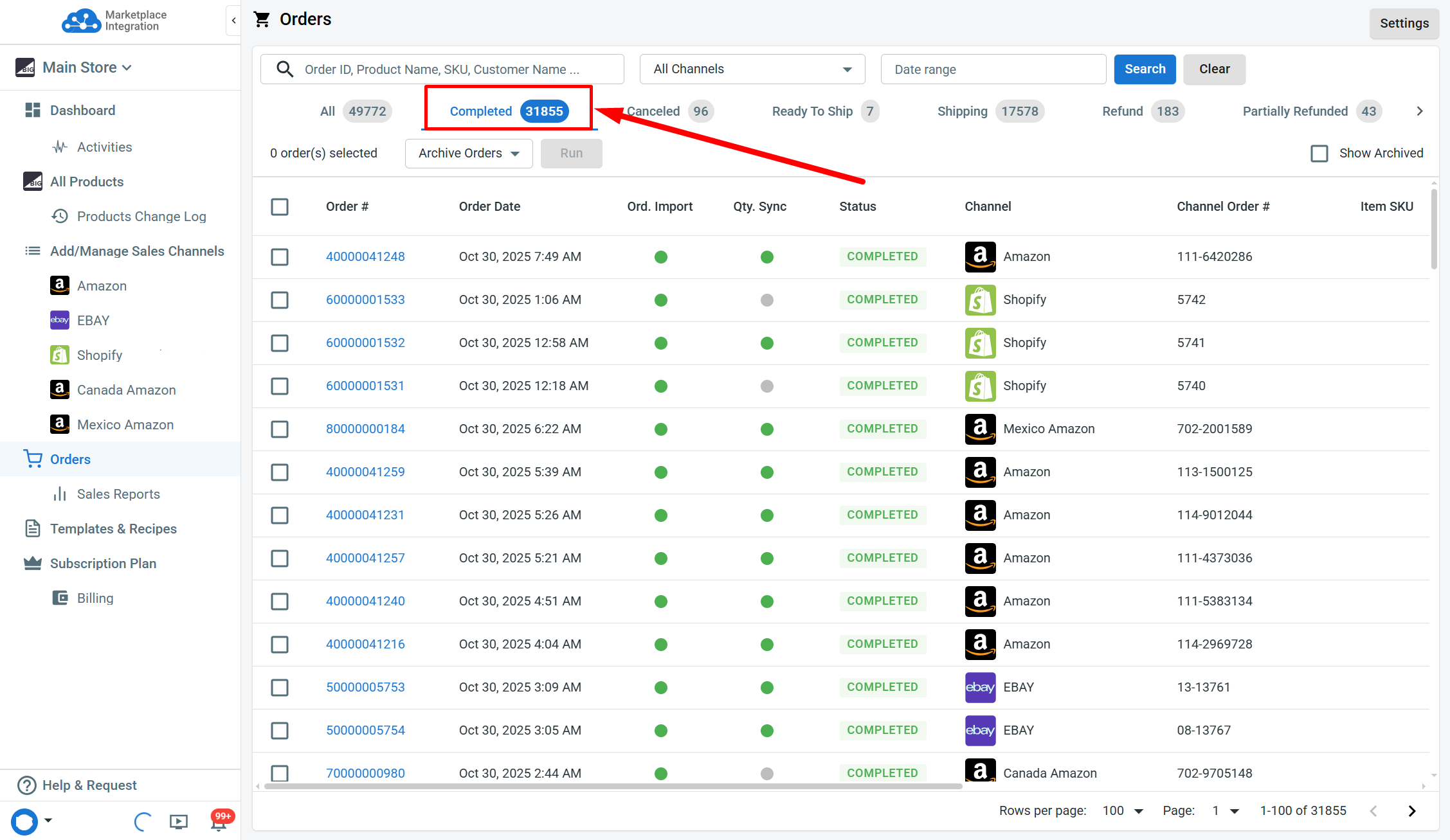
- Completed
LitCommerce automatically marks orders as Completed and sorts them into the relevant tab once their status becomes Completed, Shipped, or Delivered on the connected platform.
On the Channel: Once imported to the Main Store, orders that are completed on the Channel will have their status and tracking information updated automatically to the Main Store, regardless of unlinked listings.
On the Main Store: Once the orders are imported to the Main Store and completed there, order completion on the Channel will occur automatically, regardless of unlinked listings.
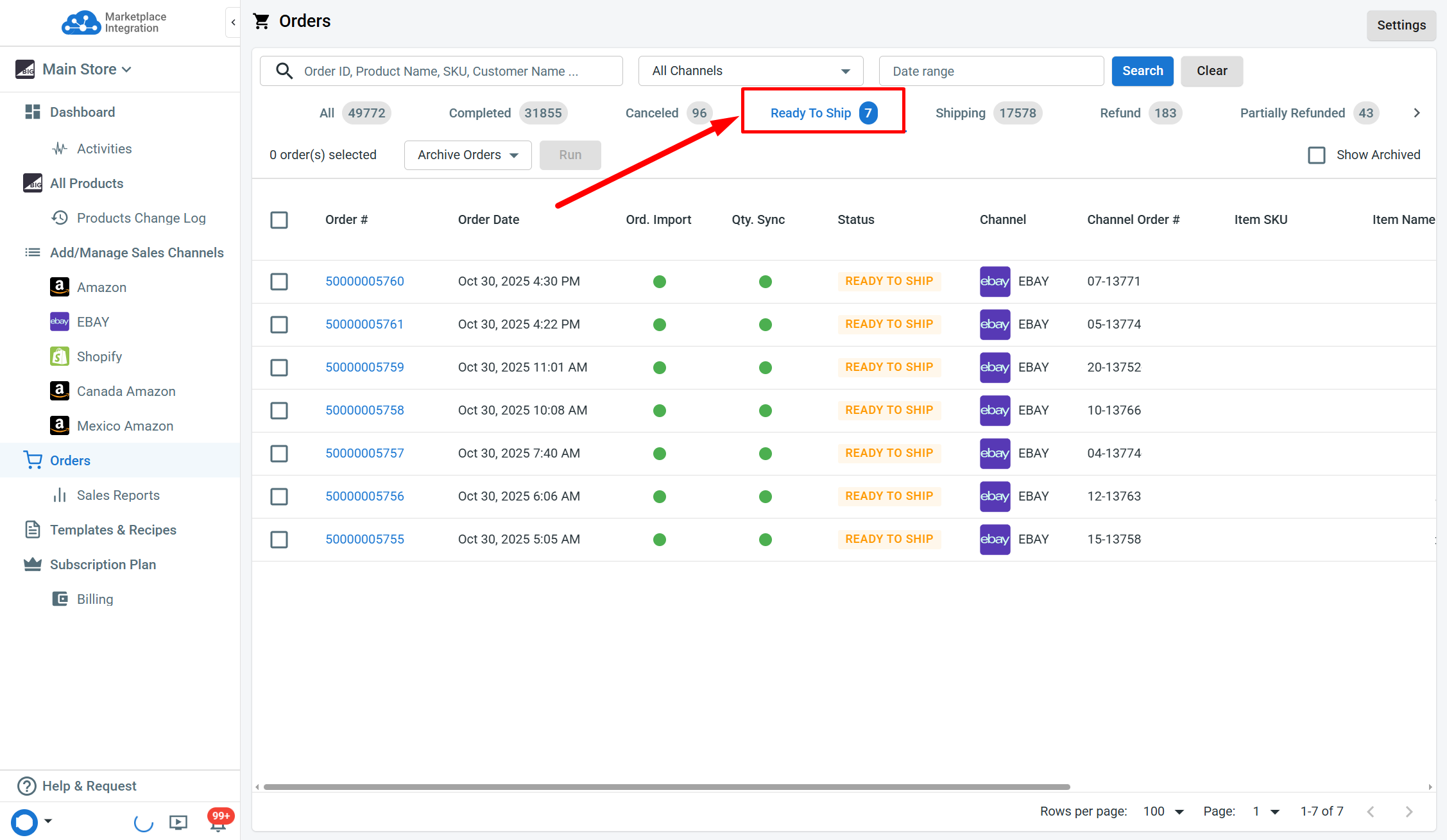
- Ready To Ship
This tab displays paid orders being prepared for shipment.
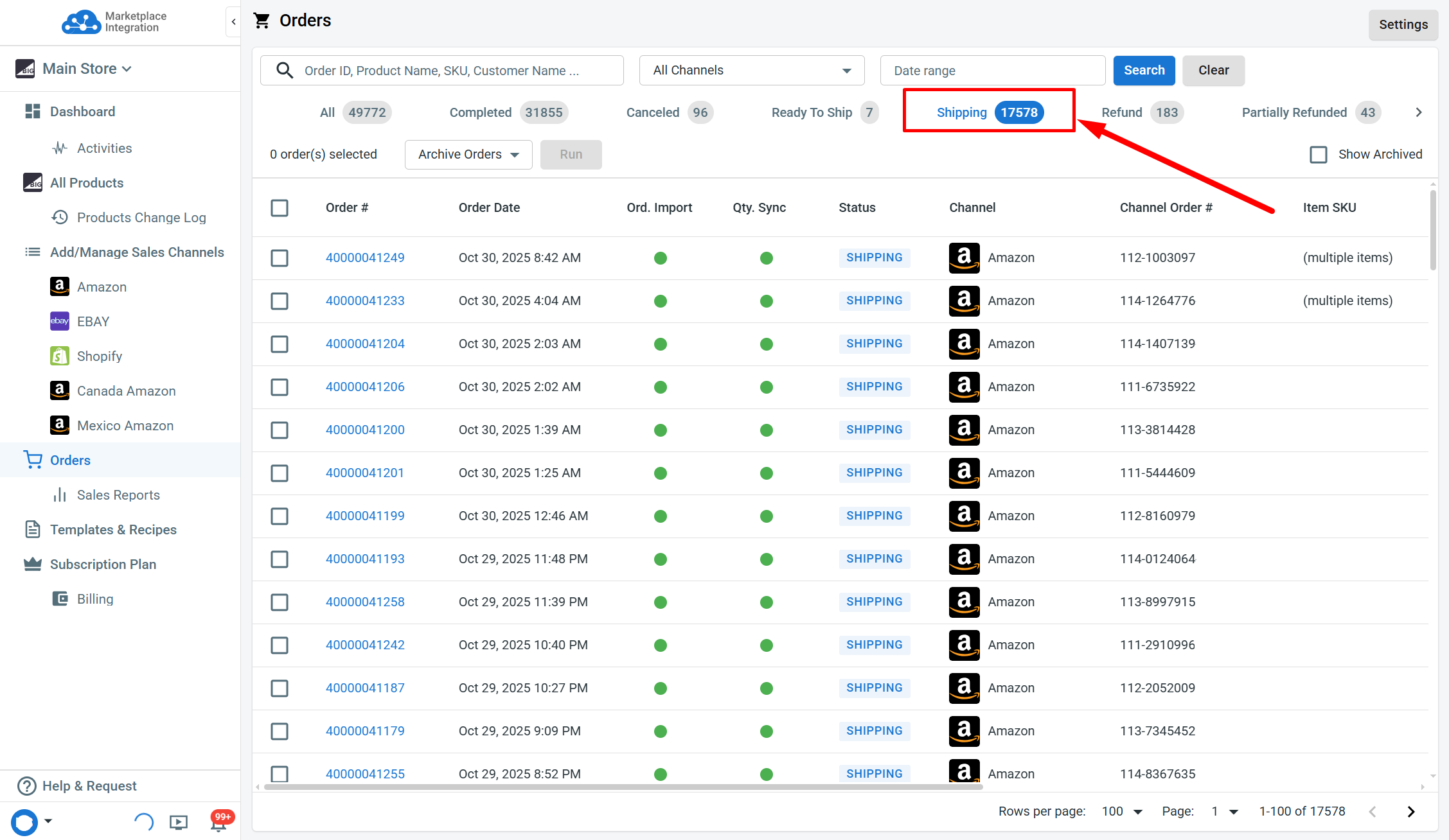
- Shipping
This tab shows the orders that have been dispatched and are currently on their way to buyers.
- Canceled/Refund/Partially Refunded
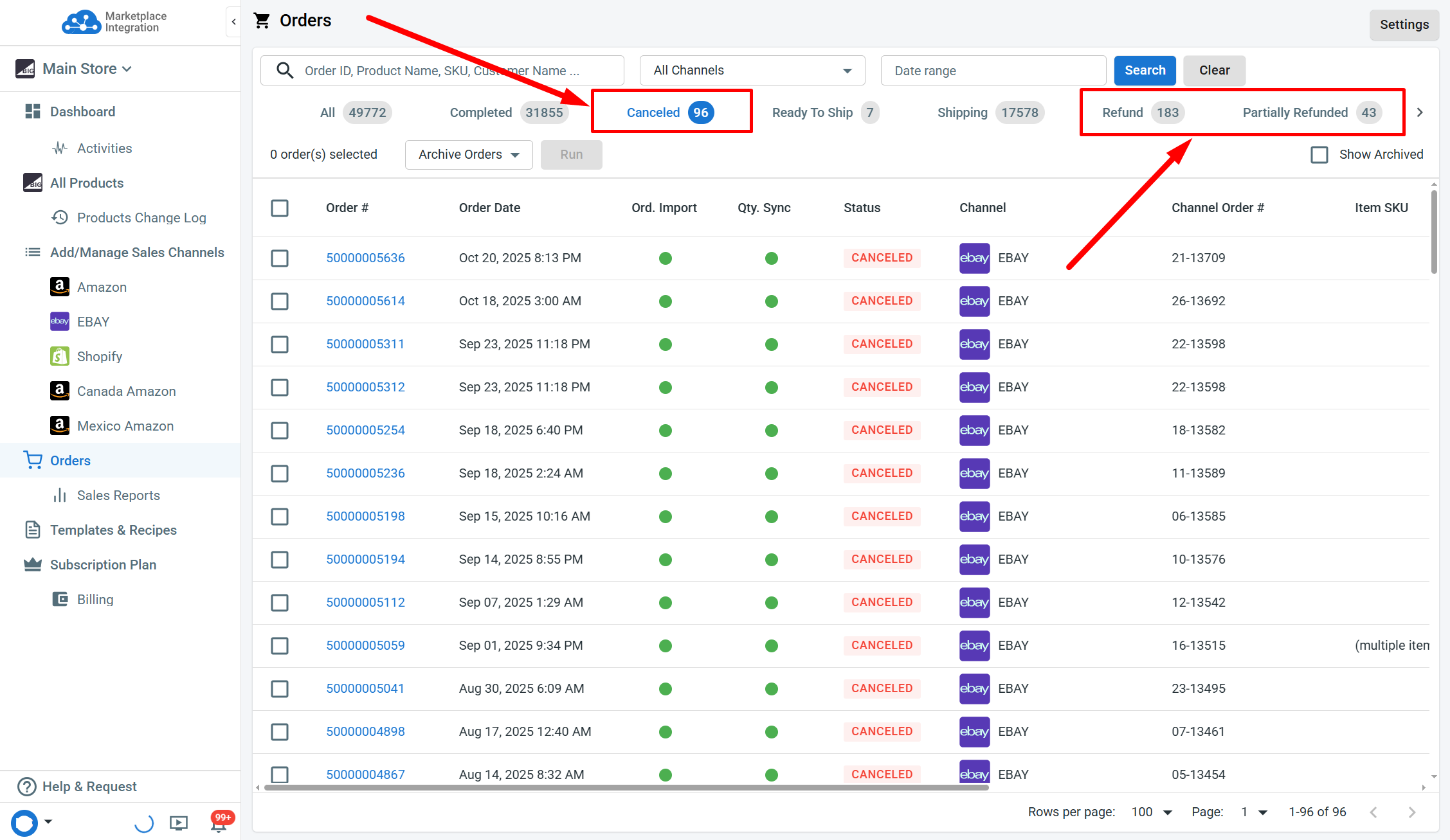
These tabs display orders of the following statuses:
-
Canceled: Show orders that have been successfully canceled and will not be processed or shipped.
-
Refund: Show orders with the refund process in progress or that have been completed.
-
Partially Refunded: Show orders with at least one refunded item.
On the Channel: When an order is canceled or refunded on a Channel, LitCommerce automatically syncs the order status and restocks the items on the Main Store accordingly. However, there are some special cases to consider:
Because canceled or refunded orders are immediately removed from the Etsy system, LitCommerce cannot receive their information. As a result, order status and products in your Main Store will not be automatically restocked and need to be manually handled.
A canceled order will have the Main Store inventory restocked as usual. However, if an Amazon order is refunded but not canceled, LitCommerce will not receive any notifications, leading to the Main Store not being automatically restocked.
You will need to set the Main Store order status to Canceled and manually restock the items.
[!INFO]
- If your Channel is a shopping cart, the Canceled/Refund order status can be synced both ways.
- Orders that are canceled before being imported into LitCommerce will not be processed by the tool.
- Refund data can be synced for management purposes, but the actual funds are not issued to the buyer. Process the refund directly on the platform where the order originated.
On the Main Store: Canceled/Refund order status will not be synced from the Main Store to the Channel. Go to your Channel platform to process the cancellation or refund.
- Require Links
By default, only orders with all linked listings will be imported to your Main Store. Orders with at least one unlinked listing will be moved to the Require Links tab on the LitCommerce Orders section.
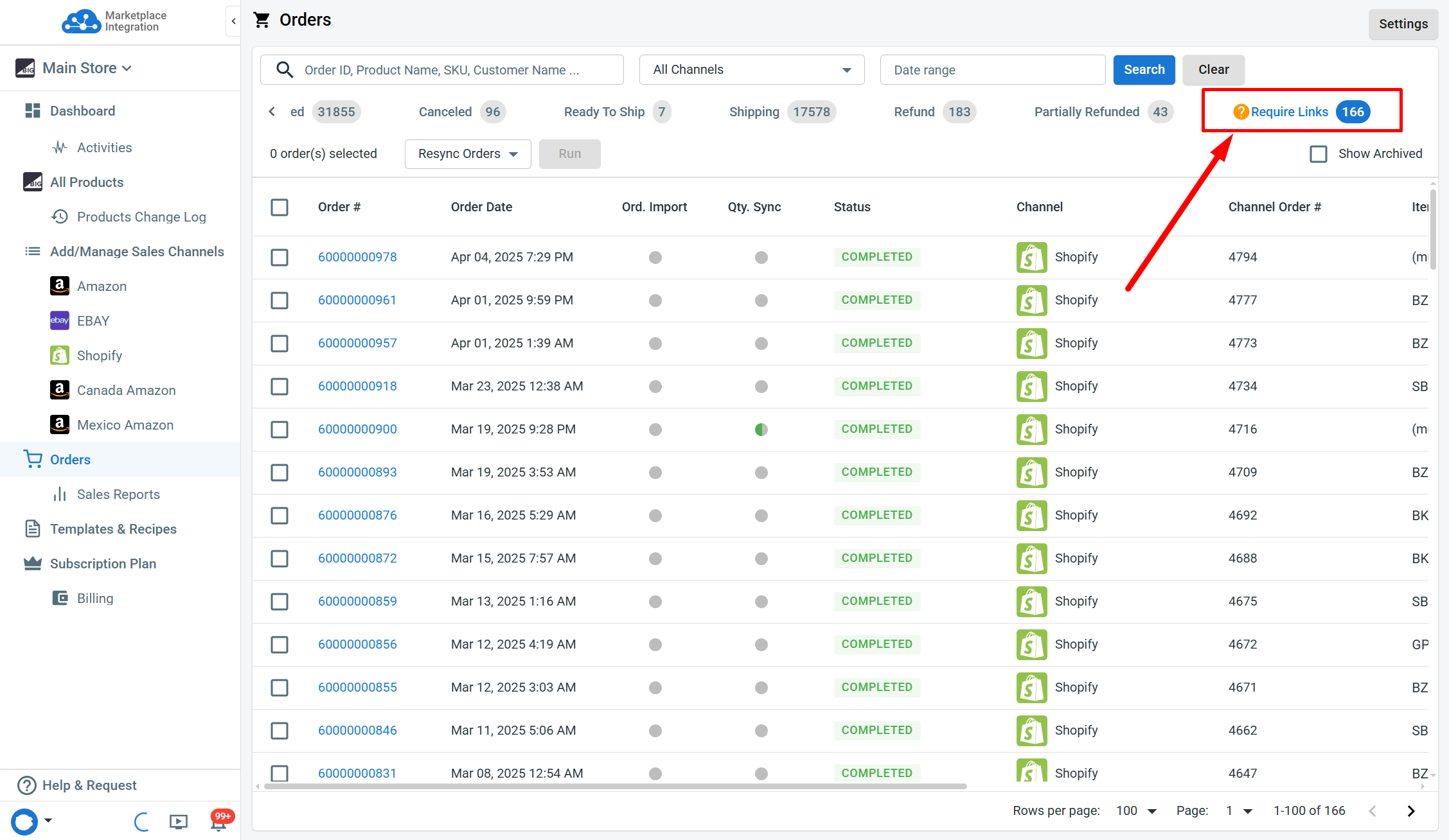
[!INFO] Unlinked orders cannot be imported into your Main Store and cannot be used to update inventory. This may lead to desynchronized inventory between your Main Store and Channel.
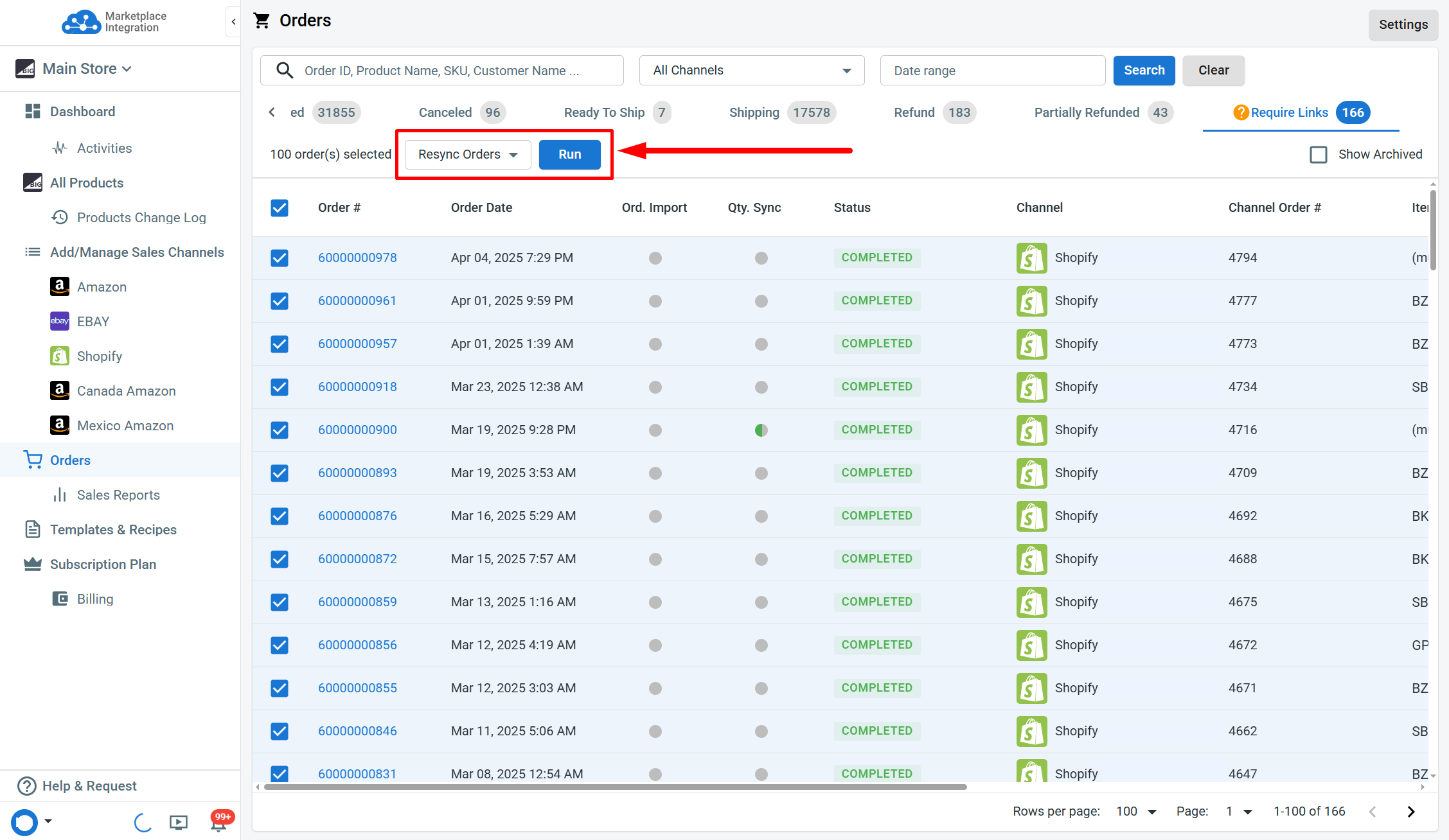
From there, you can manually link the listings and then click on Resync Order to import those orders to the Main Store.
[!SUCCESS] Enabling the
Import Orders with Unlinked Productsfeature in Channel Settings allows LitCommerce to automatically import all orders, including those with unlinked listings, to your Main Store.
The unlinked items will not have their corresponding Main Store inventory synced.
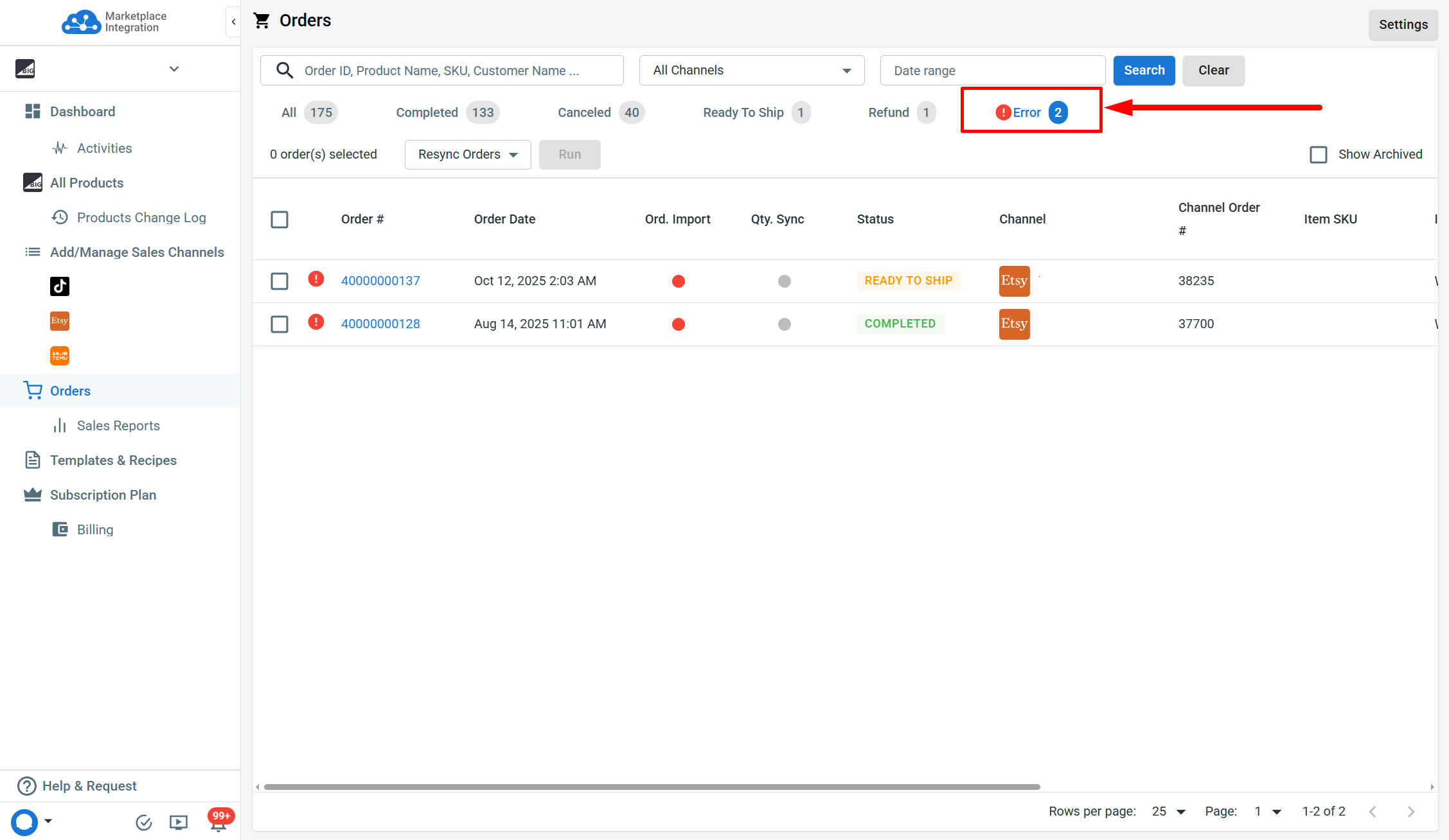
- Error
Orders that contain errors will prevent them from being imported to your Main Store. This can occur for various reasons. To view the detailed error message, click on the order in the Orders section.
After that, address the error and click Resync Order to import the order to the Main Store.
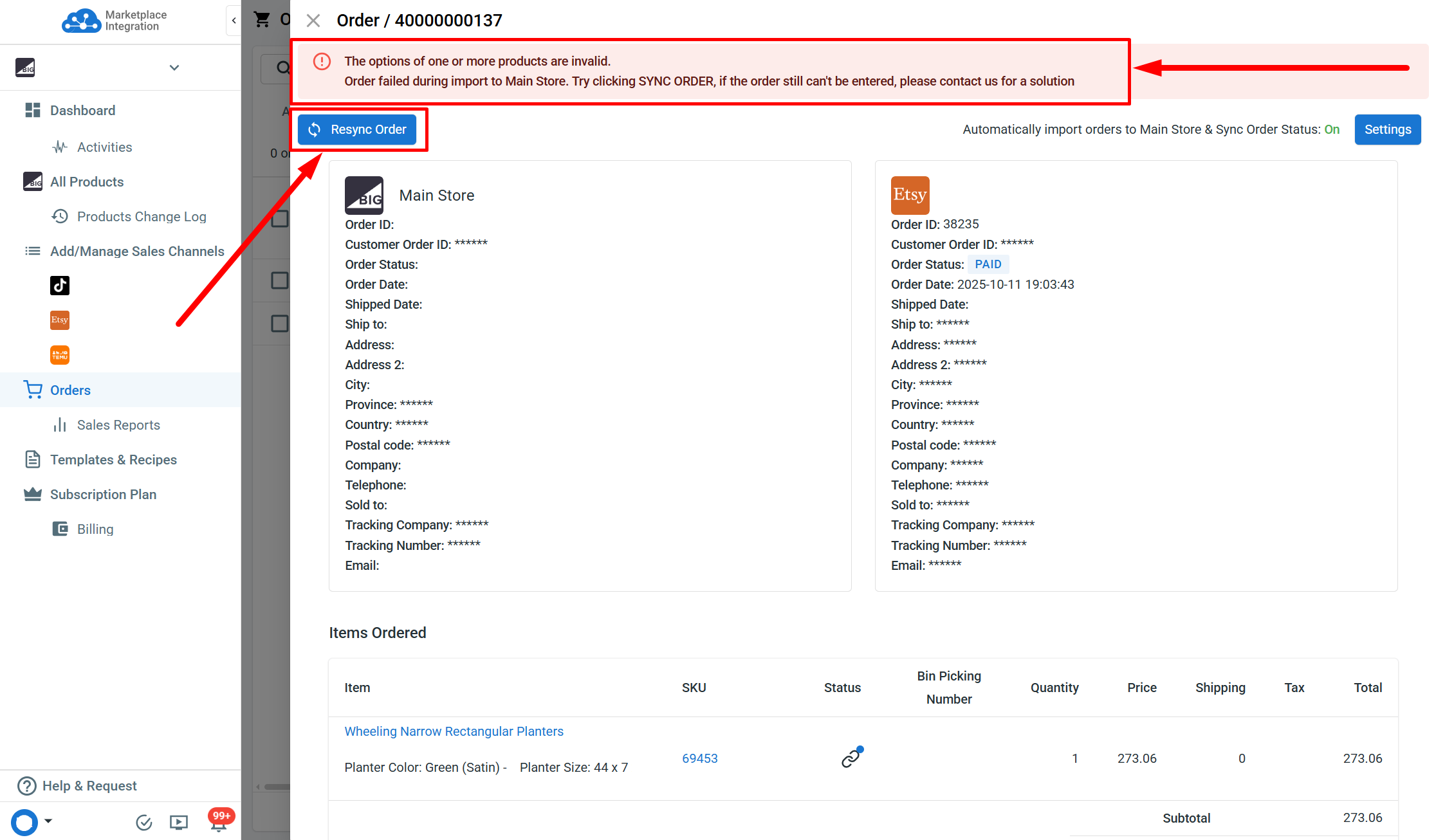
Contact us if you are unsure about the error messages and how to resolve them.
Columns
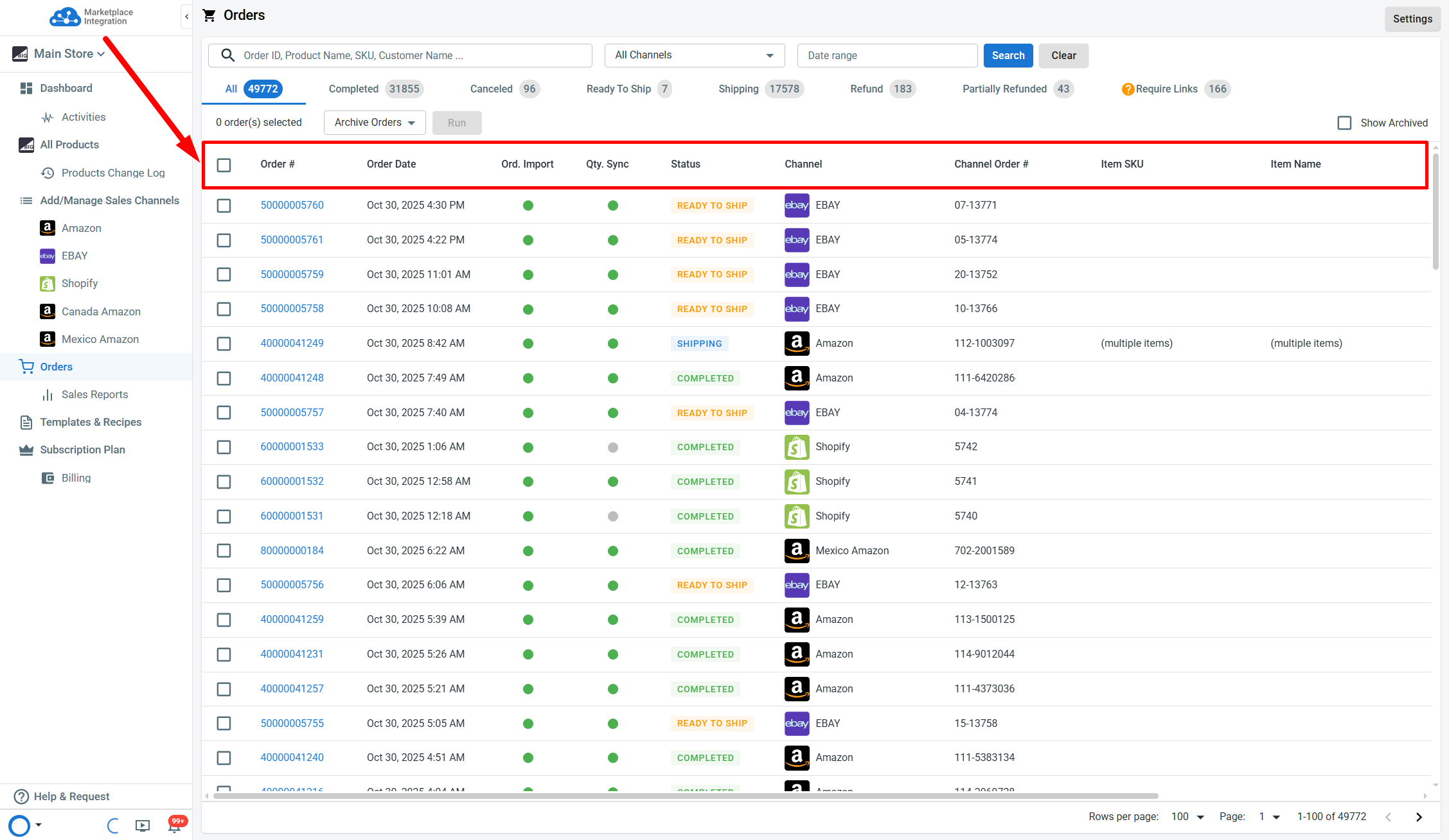
The columns provide you with prompt information about the imported orders in LitCommerce.
| Field | Definition |
|---|---|
| Order # | Shows the LitCommerce Order IDs. These IDs are only generated within the tool’s system. |
| Order Date | Shows the date when orders were created on the Channel. It is based on your device’s timezone. |
| Ord. Import | Shows whether an order is imported to the Main Store. You will find the following statuses: - Grey: Marks an unimported order. |
- Red: Marks an unimported order due to errors.
- Green: Indicates that the order has already been imported. Hover over each status for more details. | | Qty. Sync | Shows whether an order’s inventory is synced with the Main Store. You will find the following statuses: - Grey: Marks an unsynced inventory.
- Green: Indicates that the inventory has already been synced.
- Half-grey, half-green: Specifies that not all items’ inventory has been synced. This usually shows on orders with both linked and unlinked listings. Hover over each status for more details. | | Status | Shows the progress of an order throughout its fulfillment. This information is automatically updated in LitCommerce. | | Channel | Shows the platform from which the order was imported. | | Channel Order # | Shows the Order ID from the Channel where the order was created. | | Item SKU | Shows the purchased SKUs within an order. Orders with more than one item are displayed as (multiple items). | | Item Name | Shows the purchased listings’ title within an order. | | Buyer | Shows the buyer’s name. | | Total | Shows the final order total value (after shipping, tax, and discount). | | Last Updated | Shows the most recent time that LitCommerce received an order update from either the Main Store or the channel. |
Order details page
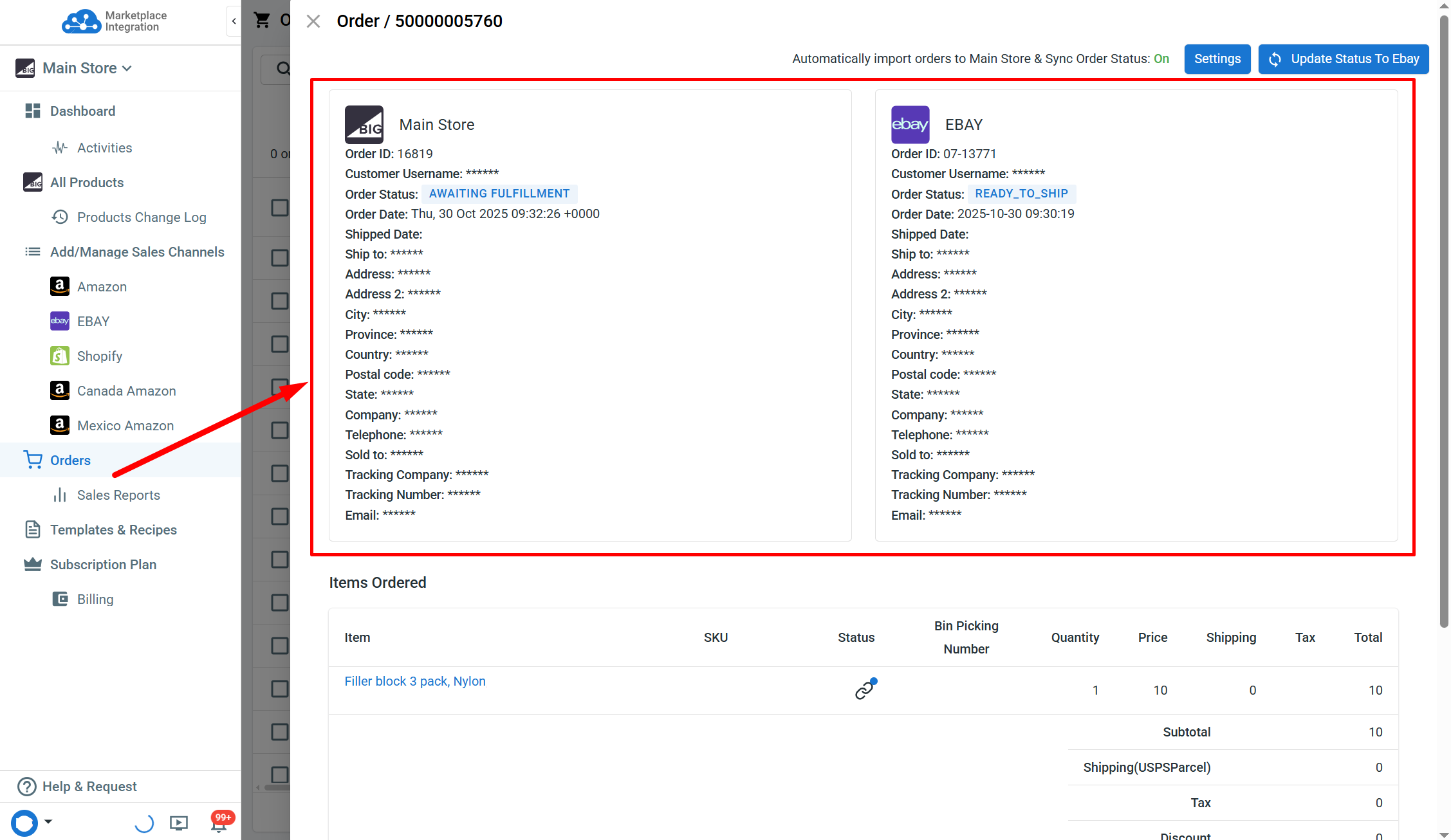
When clicking on a specific order, you can view its detailed information from both the Main Store and the Channel. This includes:
Order
| Field | Definition |
|---|---|
| Order ID | Displays the unique order identifier retrieved from your Channels and Main Store. |
| Customer Order ID/Username | Displays the buyer’s ID or username returned by the platform for the order. |
| Order Status | Displays the current fulfillment stage of the order on the platform. |
| Order Date | Shows the date (in your device’s timezone) when orders were created on the platform. |
| Shipped Date | Displays the date on which the order was dispatched. |
| Buyers’ information | Includes buyer’s name, shipping address, and email returned from the sales channel. |
| Tracking Company | Displays the shipping carrier used to deliver the order, based on data from the platform where it was fulfilled. |
| Tracking Number | Displays the unique code provided by the shipping carrier to identify and track the order. |
Items Ordered
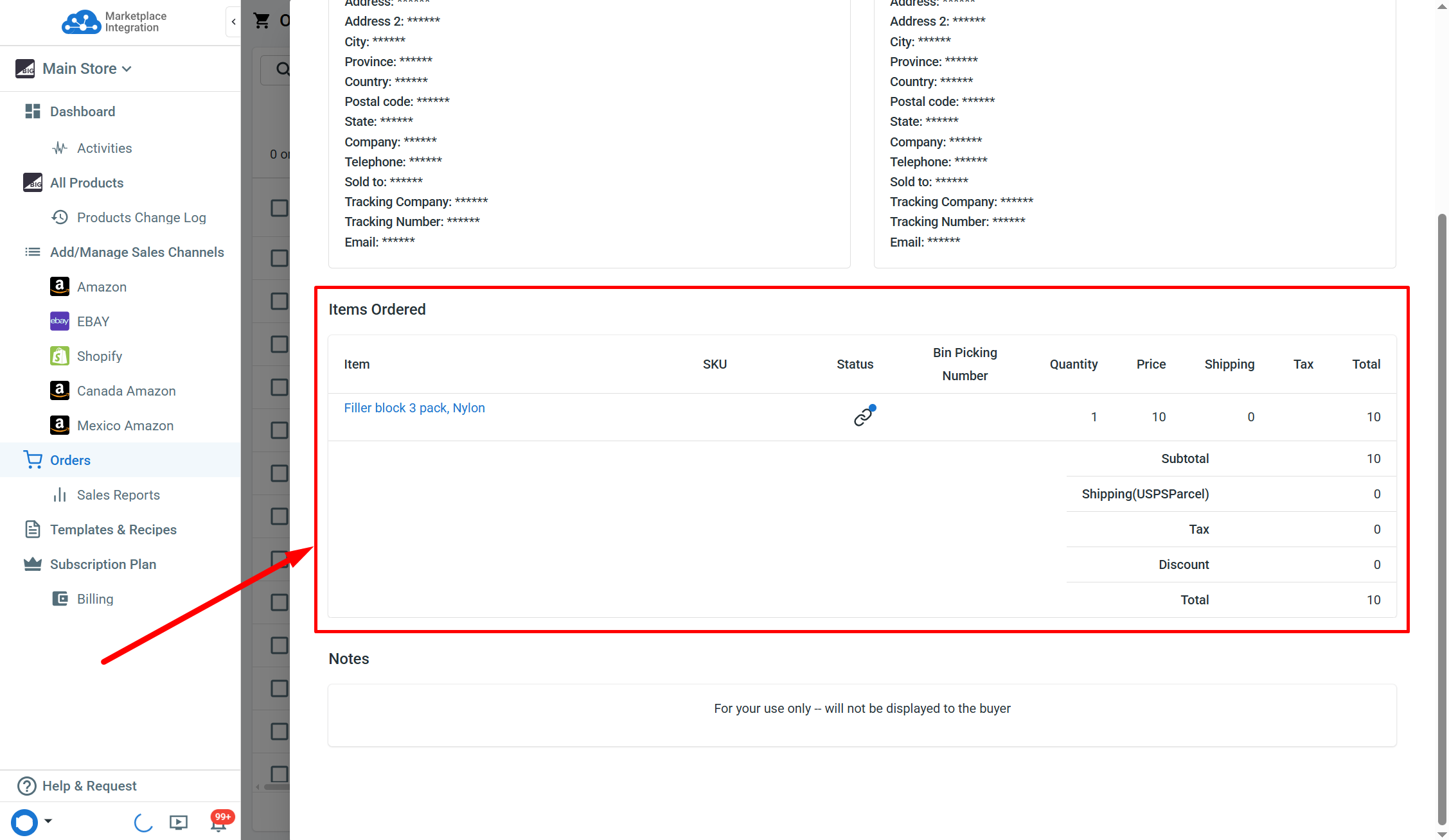
| Field | Definition |
|---|---|
| Item | Indicates the items being purchased. Each listing title is hyperlinked and will direct you to the corresponding listing on the LitCommerce sales channel. The tool also specifies the purchased variation for items with a variant format. |
| SKU | Shows the corresponding SKU for each purchased item. |
| Status | Specifies the link status of each purchased item. Blue marks a linked item, while red indicates that the listing is not linked. Each linked icon will direct you to the corresponding product in the LitCommerce All Products section. |
| Quantity | Shows the number of units purchased for each item in the order. |
| Price | Shows the price of each item in the order. |
| Shipping | Shows the delivery fee of each item in the order. |
| Tax | Shows the available tax for the order. You can set up this information on the platforms or use the Custom Tax Rate feature in the Channel Settings. |
| Discount | Shows the total amount deducted from the order’s original price. |
| Subtotal | Shows the order value before applying shipping, tax, and discount. |
| Total | Shows the final order total value (after shipping, tax, and discount). |
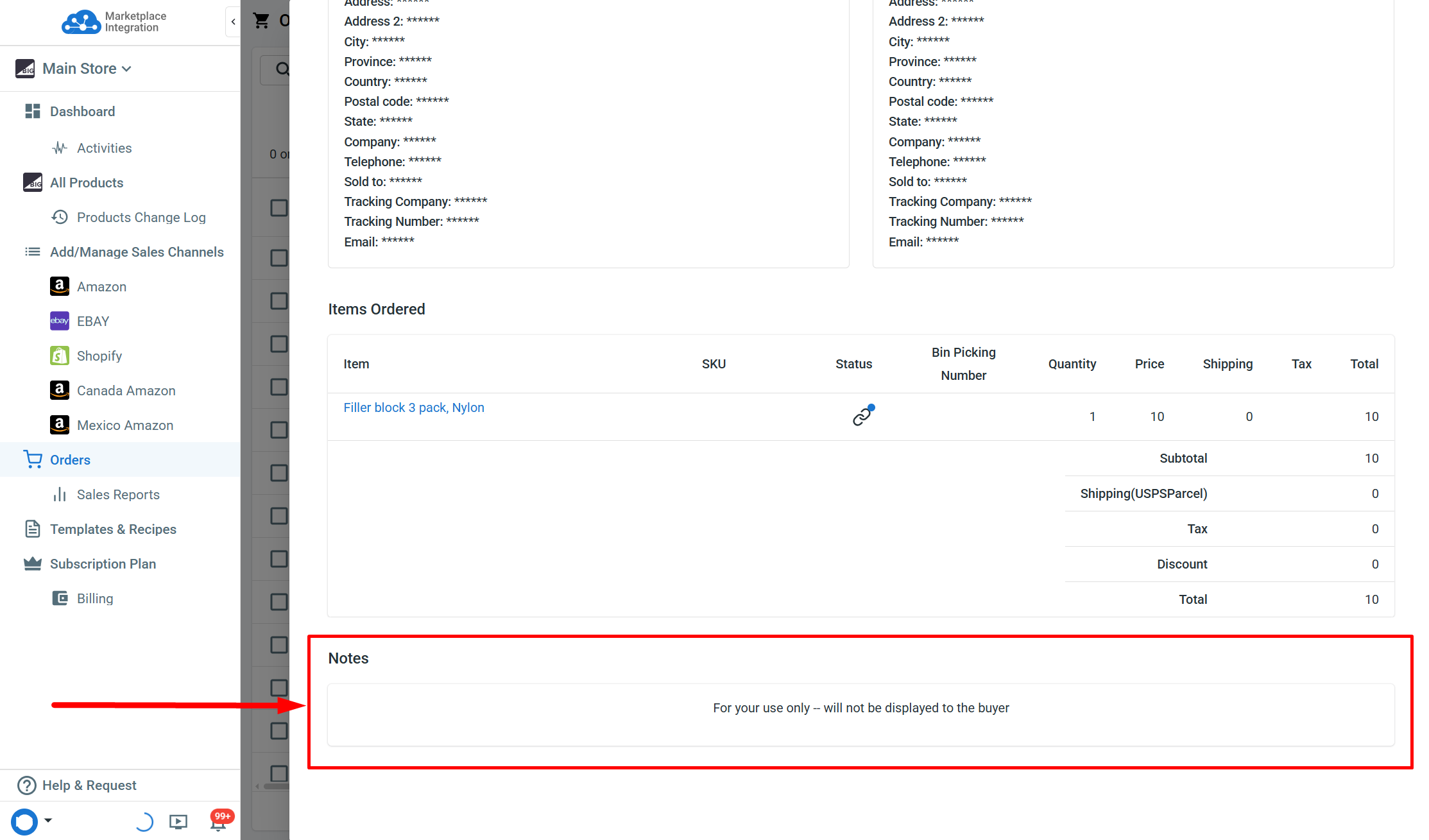
Notes
If the order includes specific notes, LitCommerce will display them in this section.
Order processing
Order status and tracking information
Once your orders are fulfilled from either the Main Store or Channel, LitCommerce will then sync the order status and tracking information to the other platform.
[!WARNING] Due to the Amazon and Etsy API limitations, not all order data (such as buyer’s name, shipping address, etc.) can be synced from these marketplaces. The sync of order status and tracking information is also limited.
With Etsy, this limitation only affects stores in the United States, Türkiye, Canada, Germany, France, Bulgaria, Italy, Lithuania, Spain, Ukraine, Australia, Greece, the Netherlands, and Portugal. Refer to this article for more details.
-
Fulfill orders on your Channel: The tool only updates order status to your Main Store when the order is completed, canceled, refunded, or partially refunded on the Channel.
-
Fulfill orders on your Main Store: The tool updates order statuses from the Main Store to the Channel throughout the entire order fulfillment process.
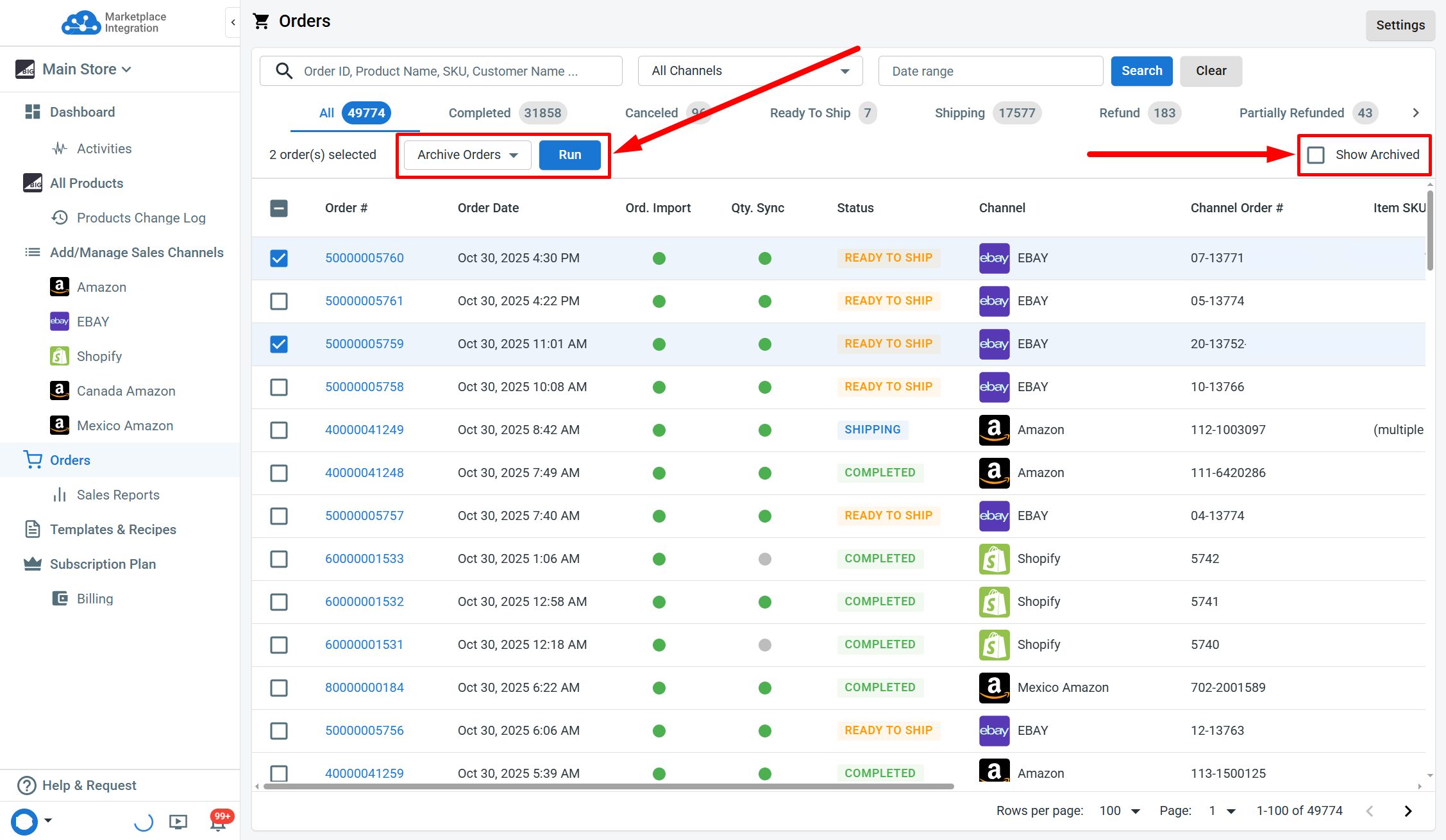
[!INFO] If you do not wish to process the orders, simply archive them using
Archive Orders. The archived orders will then be hidden from LitCommerce, and the tool will stop updating their status.
To display archived orders, check the
Show Archivedbox and unarchive the orders you want to restore.
Carrier Services
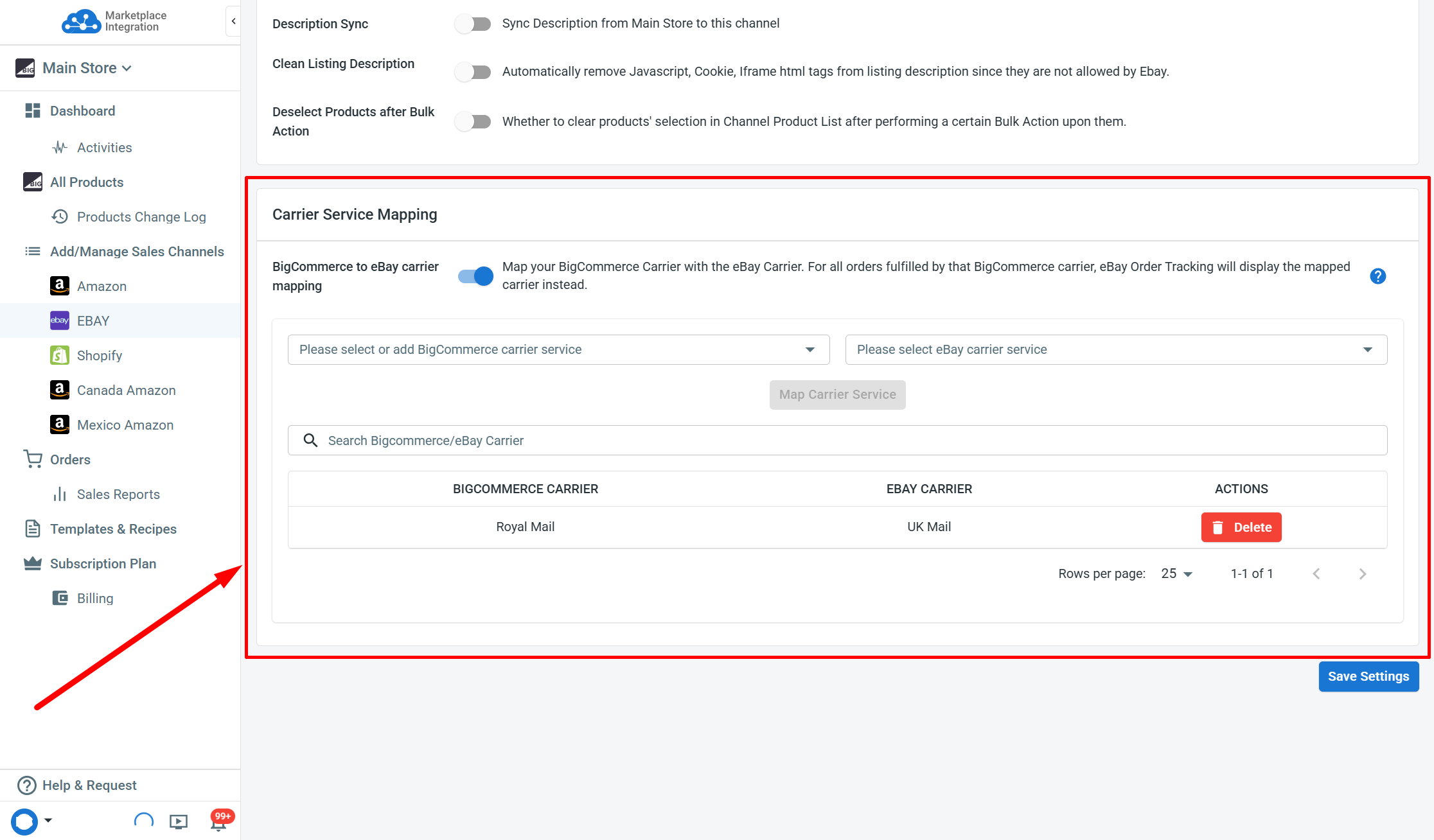
LitCommerce automatically maps the carrier service if the names match on both the Channel and the Main Store.
If the tracking services differ, perform Carrier Service Mapping in the Channel Settings to connect the services used on your Main Store and Channel. This ensures accurate tracking information sync.
For example, with the mapping below, all orders shipped by "Royal Mail" in the Main Store, the carrier service will be updated as "UK Mail" on the Channel.
Orders with Tax
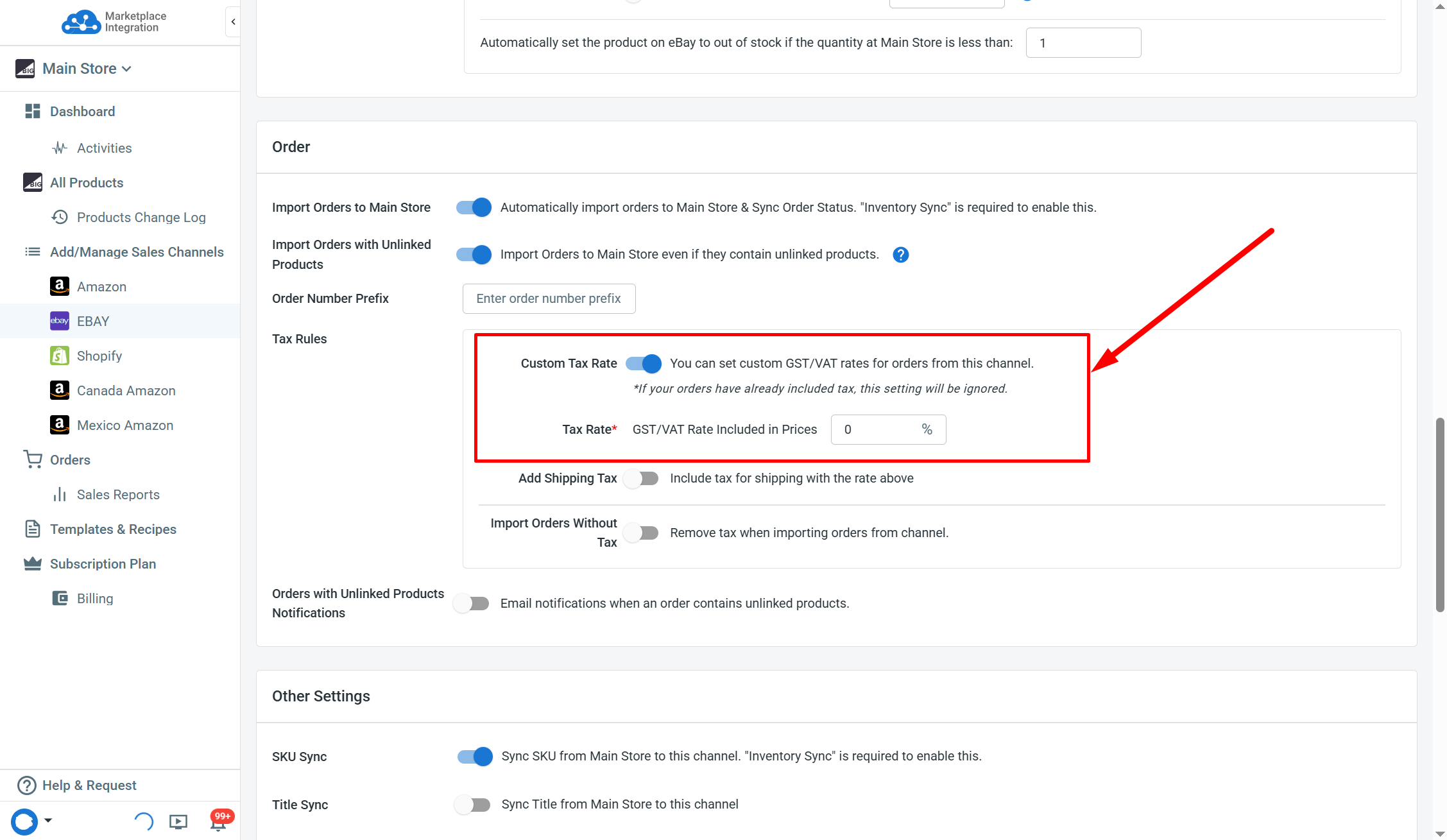
Enabling Custom Tax Rate allows LitCommerce to automatically separate tax from the price before importing orders to the Main Store. This is useful when an order's total already includes tax, but the tax amount is not specified in the order data obtained from the Channel.
With Import Order Without Tax, LitCommerce will import orders into the main system with the tax removed.
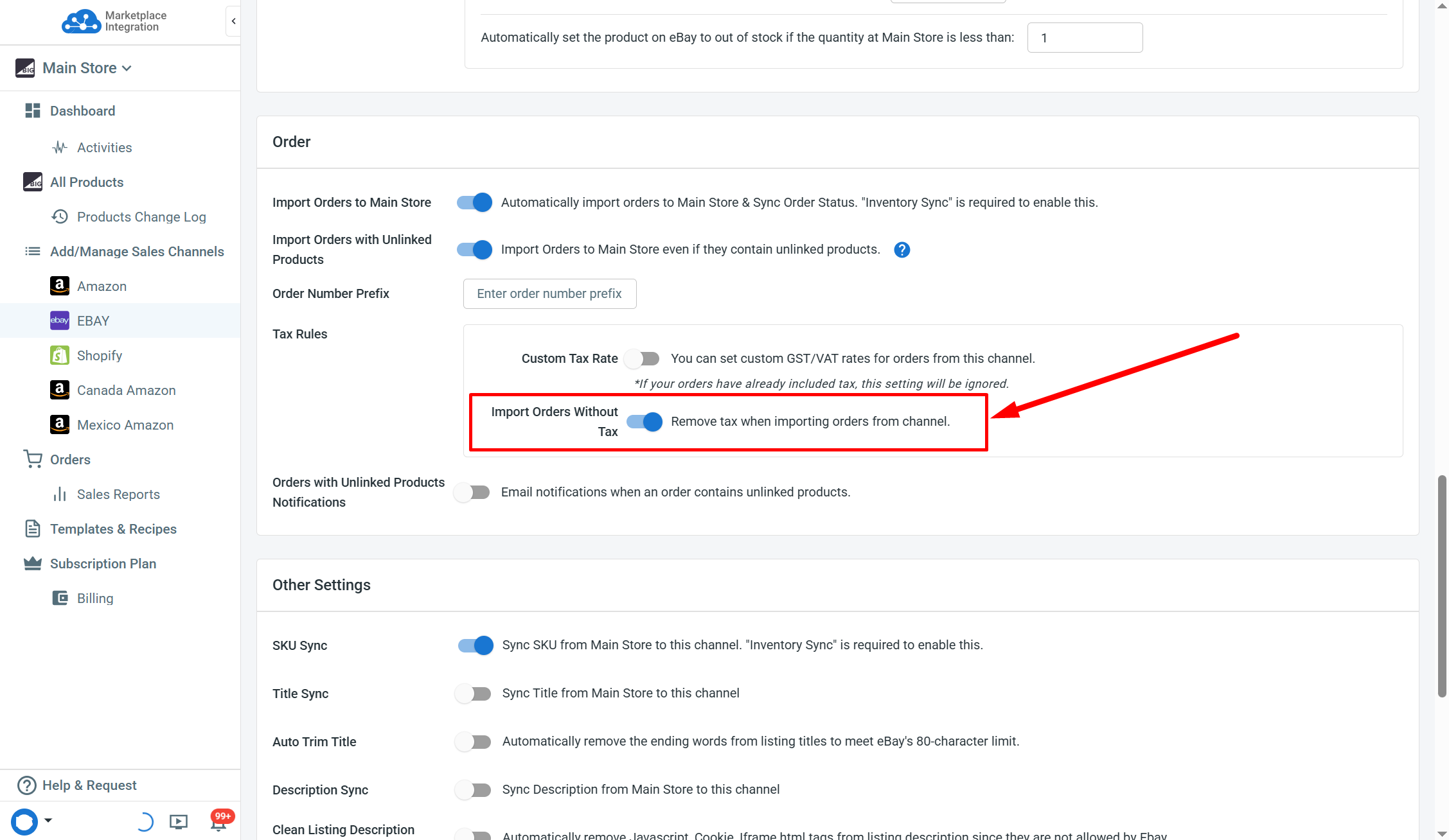
Check out this article for more details on the Tax Rules.
If you have any questions, let us know via the Chat Box in the bottom-right corner of our Help Center.