Set up AI and API connections in LitCommerce
AI and automation can help simplify complex e-commerce workflows by making it easier to process large amounts of data and reduce repetitive manual tasks.
With LitCommerce, you can use the API/MCP feature to connect external tools and give them access to supported LitCommerce data and actions.
This guide walks you through how to set up the feature and start using external tools with your LitCommerce account.
What is API/MCP?
The API/MCP feature lets external tools work with your LitCommerce account to review data, find information, and perform supported actions without managing everything manually in LitCommerce.
For example, an AI assistant can help find listings with sync errors, review orders, or update supported product data.
You can connect to LitCommerce in two ways:
- **MCP (Model Context Protocol) **is a protocol for securely connecting AI assistants to external tools and data sources. In LitCommerce, it lets compatible assistants such as Claude and ChatGPT access supported data and actions using natural-language requests.
- **API (Application Programming Interface) **enables software applications to communicate with LitCommerce programmatically. Developers can use the LitCommerce API to access supported data and actions from custom applications, scripts, or automated workflows.
The following table compares MCP and API to help you choose a suitable connection method.
| | MCP | API | | Designed for | AI-assisted workflows, such as Claude or ChatGPT | Custom integrations and automation | | Used by | Merchants and non-technical users | Developers and technical users | | Interaction | Natural-language prompts | API requests through code | | Connection | Connect an AI assistant | Generate an API token | | Coding | Not normally required | Required |
[!INFO]
- AI only has access to the Main Store you authorize. It cannot see other Main Stores, channel credentials, or buyer information in orders.
- All changes are previewed before they are applied and require your confirmation.
How to set up AI and API connections in LitCommerce
[!INFO] Only LitCommerce account owners have access to the API/MCP section.
Find and open the API/MCP section on the left sidebar menu. Here you will find three main tabs:

Connect
Use this tab to start establishing your connections. Choose a suitable option from the available ones.
Connect AI Assistants
You can connect supported AI assistants to LitCommerce through the LitCommerce MCP server. The setup steps vary depending on the AI tool or account type you use.
[!INFO] AI connection via MCP renews automatically while in use. Reconnection is required after 30 days of inactivity or a maximum of 90 days since your last sign-in.
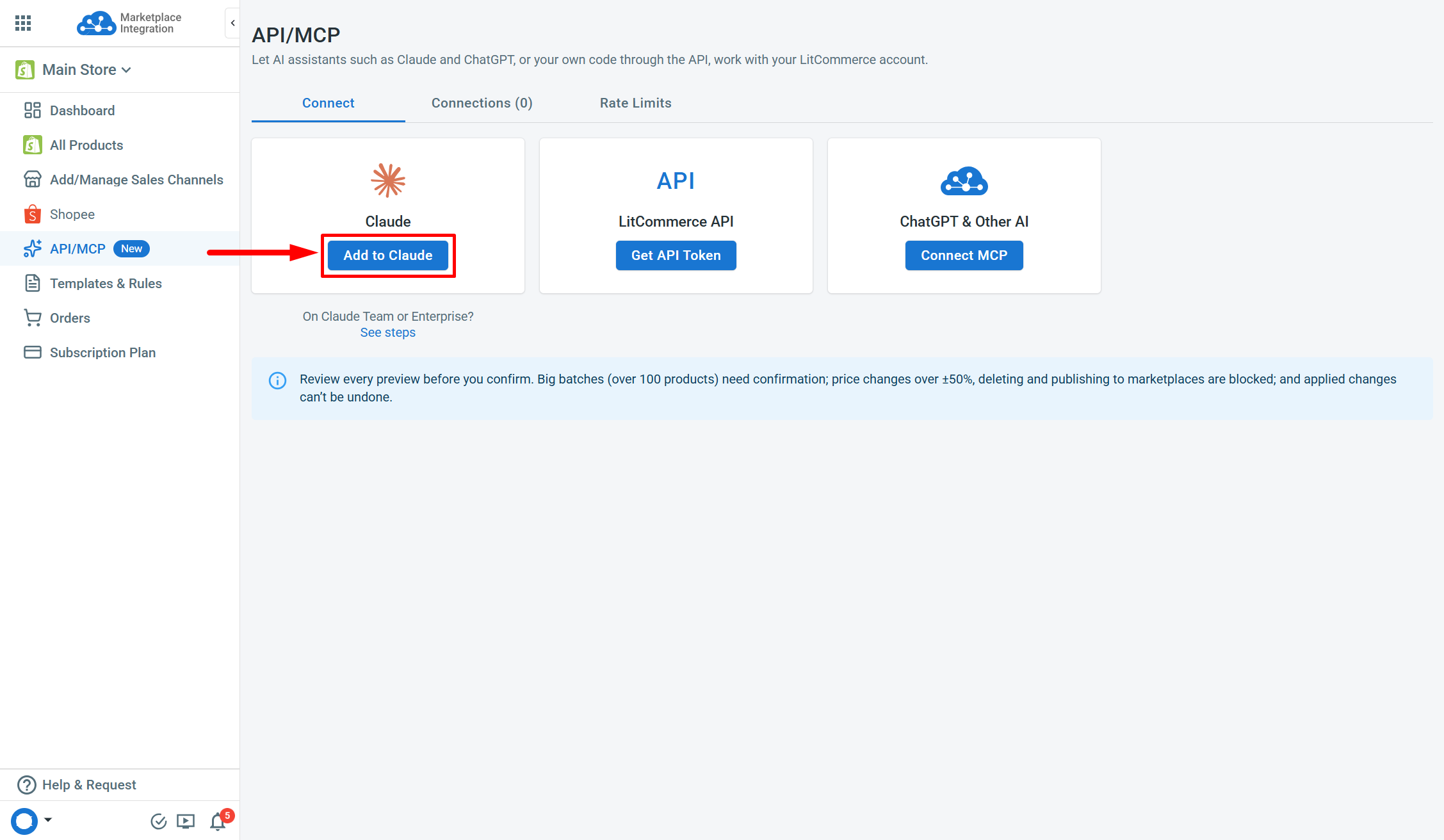
For a personal Claude account, you can connect LitCommerce directly by clicking Add to Claude to redirect you to claude.ai.
Then, follow the instructions to add LitCommerce as a custom connector, select the Main Store you want, and grant the necessary permissions.
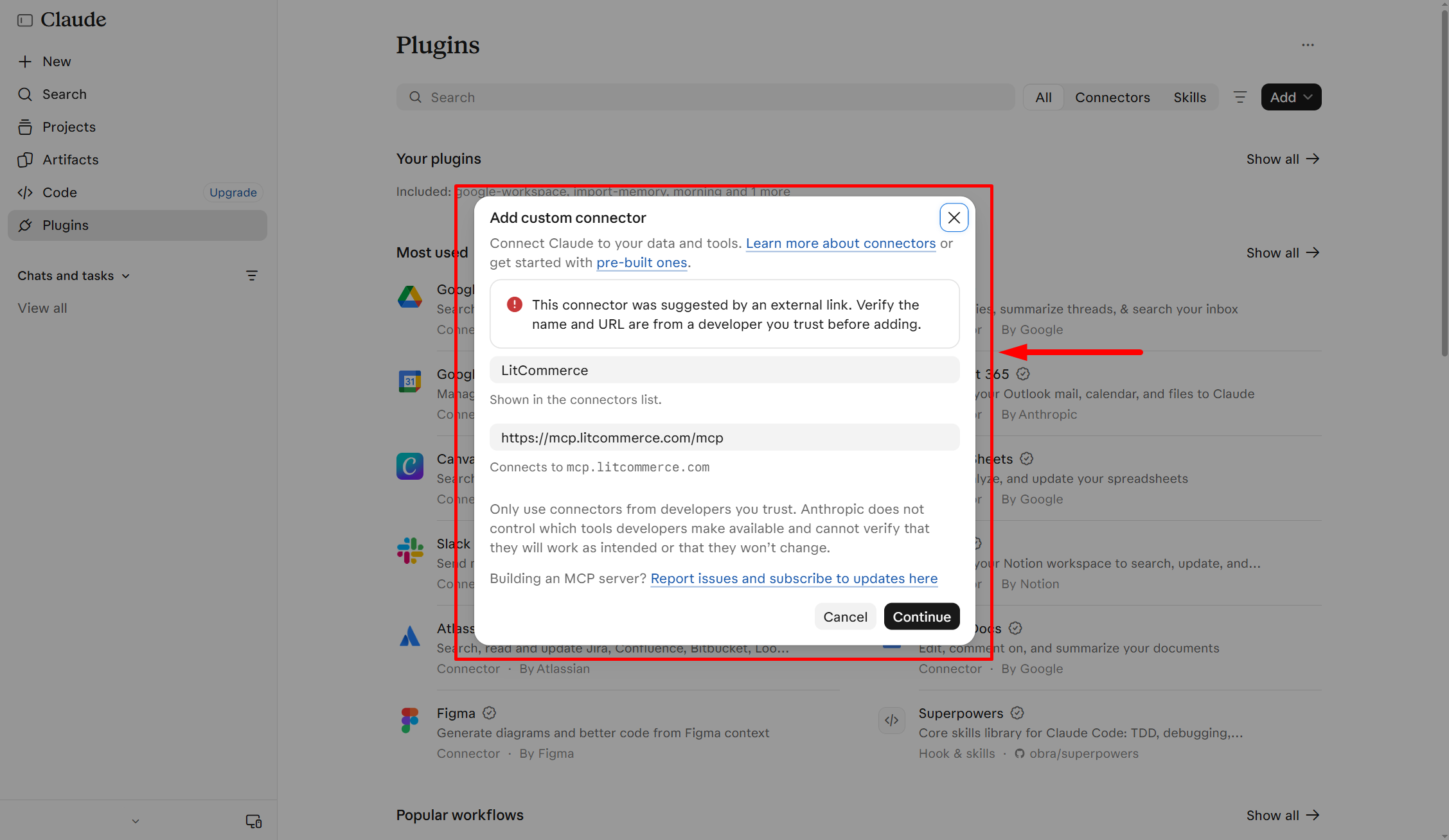
Alternatively, add the connection manually via Customize in Claude.

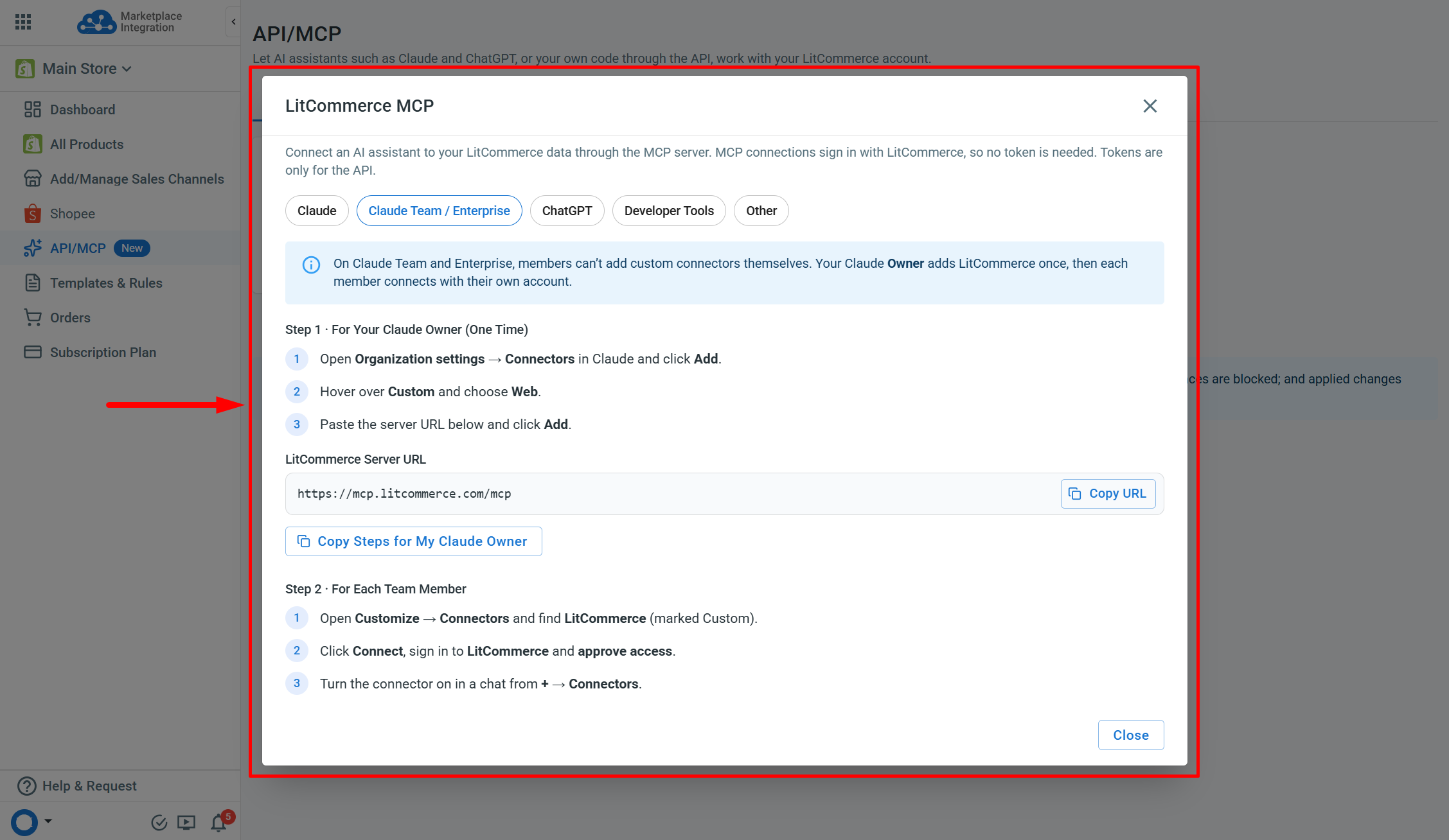
For Claude Team and Enterprise, the connection is established via MCP.
The organization owner must add LitCommerce first. Team members can then connect LitCommerce individually using their own accounts.
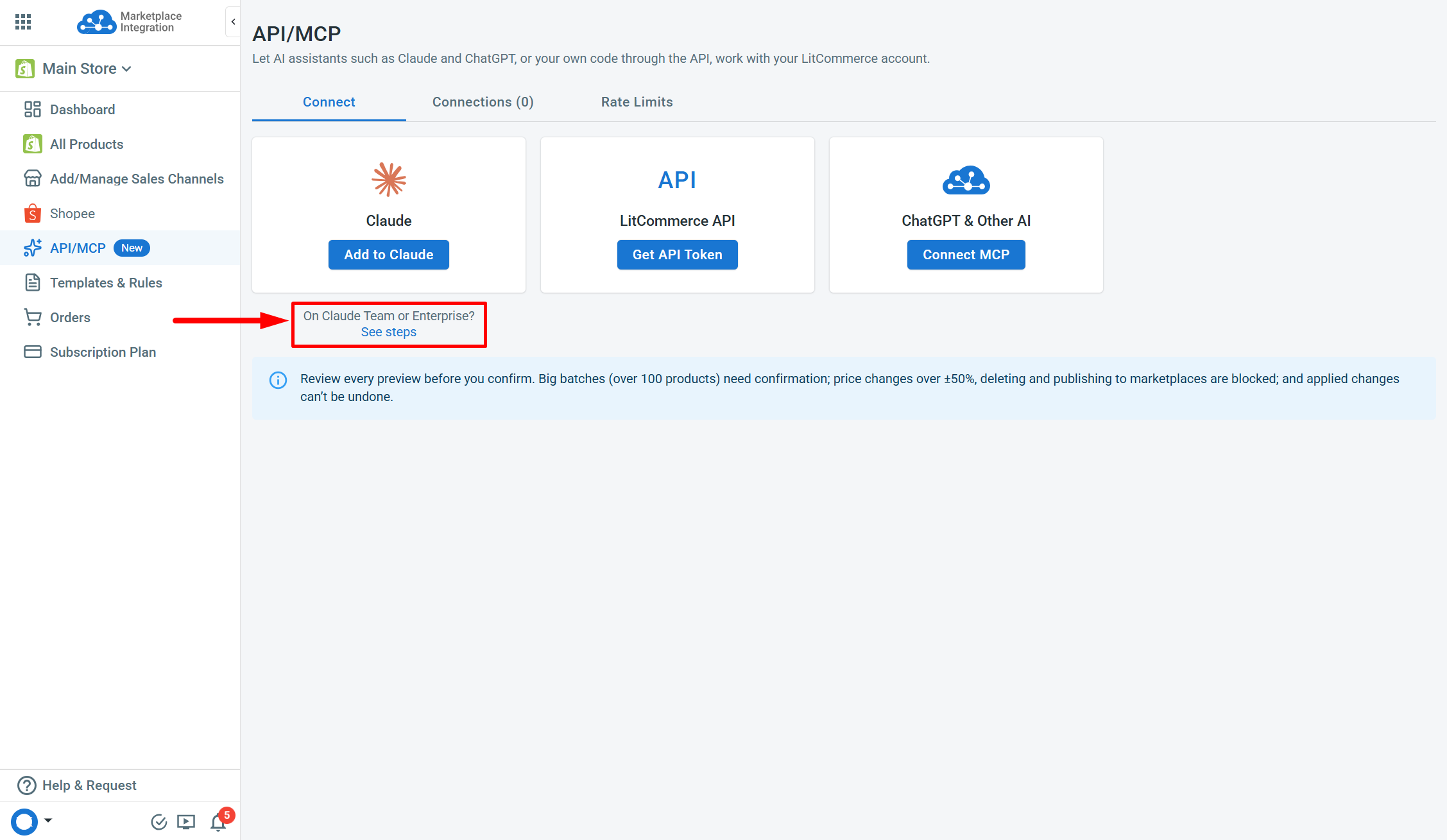
[!SUCCESS] Click on
See stepsto view the connection guide in the LitCommerce interface.
[!SUCCESS] Click
Connect MCPto view the detailed connection guidance.

You can connect ChatGPT to LitCommerce by manually establishing the connection through the Plugins section in ChatGPT.
[!INFO] A paid ChatGPT plan is required. In Business, Enterprise, or Edu workspaces, an owner or admin must enable custom MCP servers before members can connect LitCommerce.
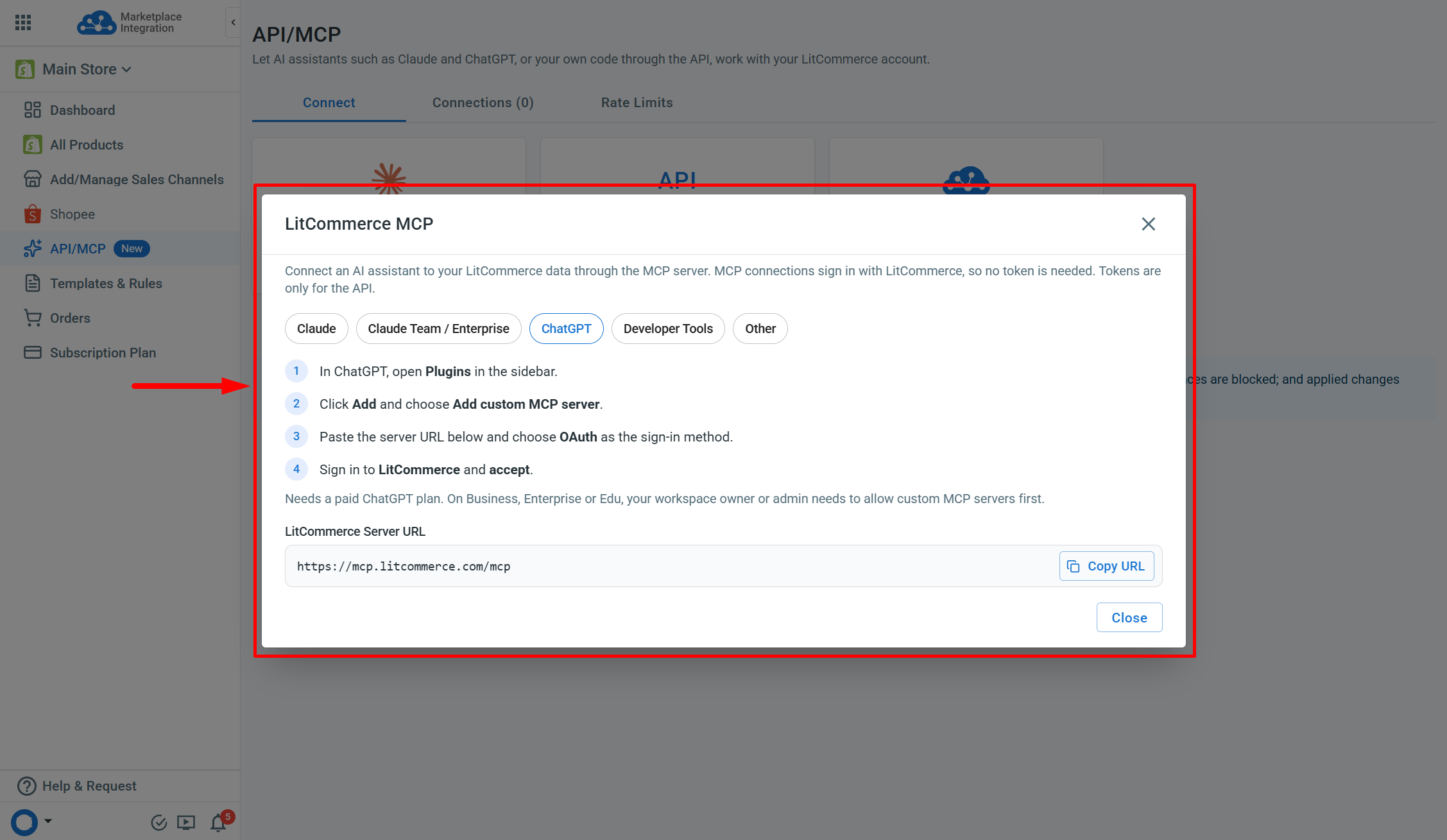
LitCommerce also supports connecting developer tools such as Claude Code, Cursor, and VS Code through MCP.
These connections use OAuth in your browser.

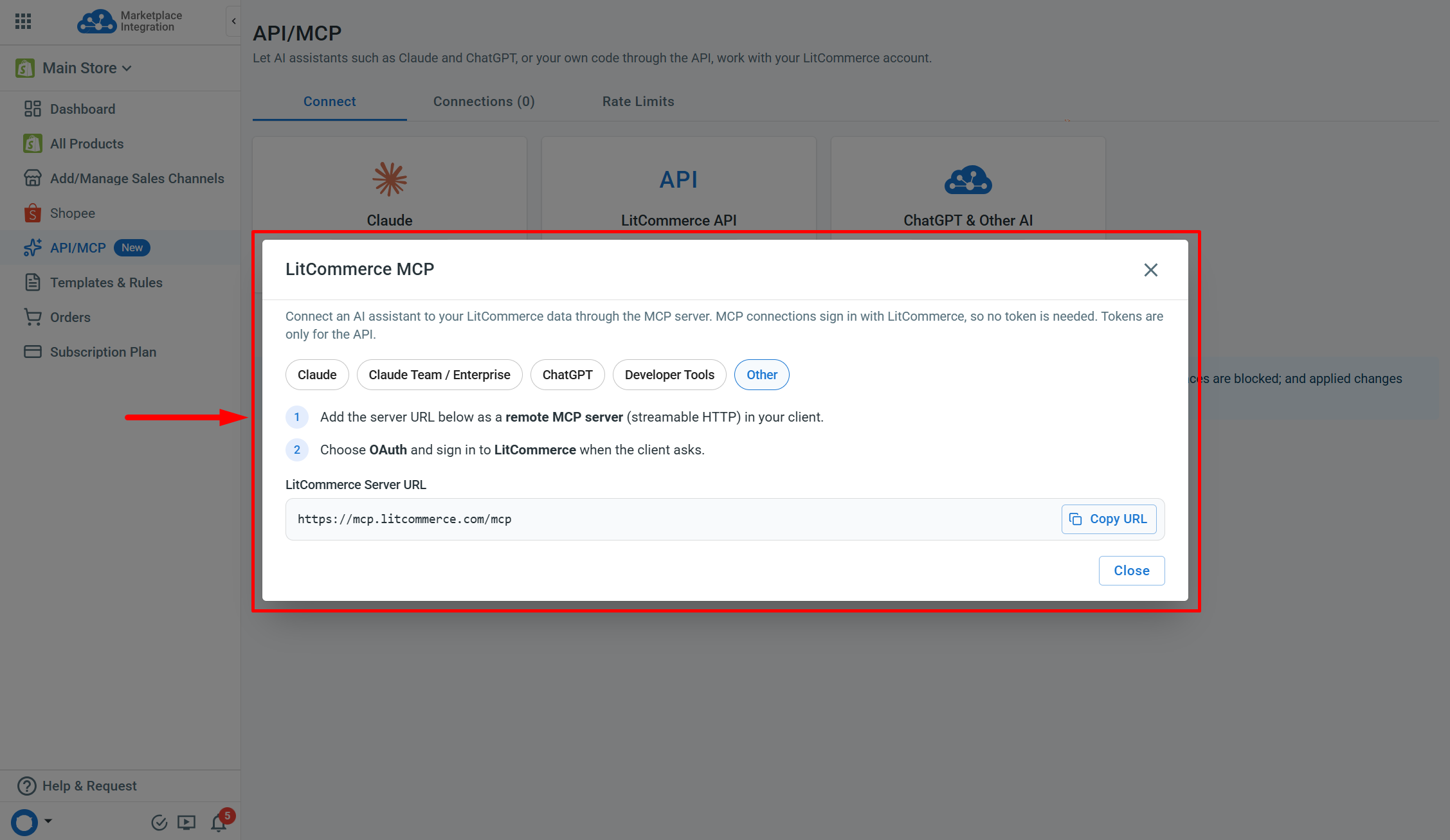
If your AI tool or client supports remote MCP servers, you can connect it to LitCommerce manually using the LitCommerce MCP server URL.
[!INFO] Menu names and setup steps may differ between AI tools. The tool must support a remote MCP server over Streamable HTTP and OAuth authentication to connect using this method.
Connect through the LitCommerce API
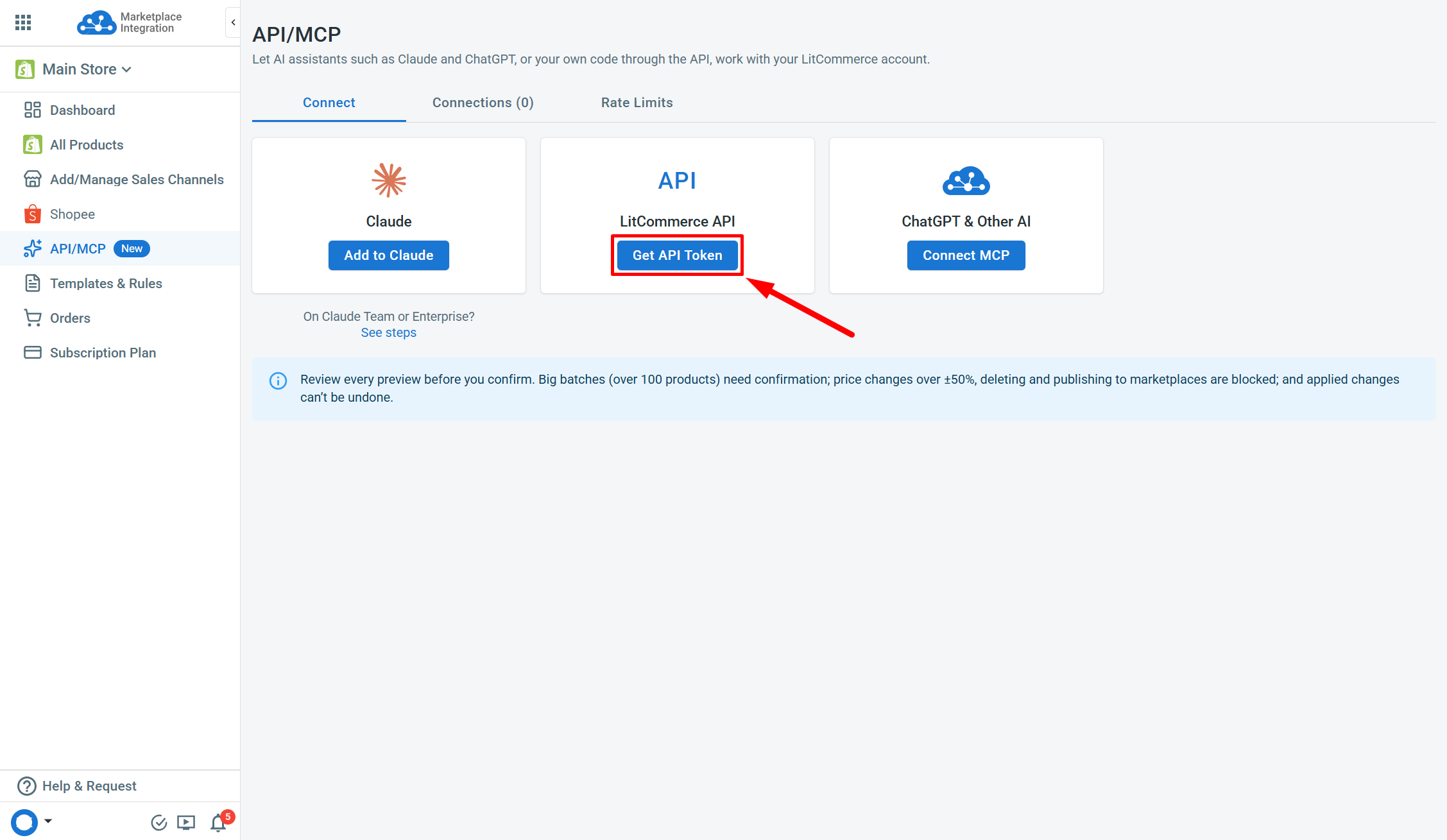
Use the LitCommerce API when you want your own application, script, or custom workflow to work with LitCommerce programmatically. Authentication is handled through an API token.
Click Get API Token to proceed with the connection process.

[!INFO]
- For security reasons, the API token can only be retrieved once after it is generated.
- Each Main Store can have a maximum of 20 active API tokens.
Connections
Once the connection is complete, this tab displays all the AI/MCP connections currently associated with your LitCommerce account.
Click Revoke next to a connection to disconnect it at any time.
[!SUCCESS] Use
Revoke Allto deactivate all active API Tokens.

Rate Limits
This tab lets you keep track of how many API/MCP requests have been used per action and when the limits will reset.

[!INFO] LitCommerce applies usage limits to help protect system performance:
- Limits are calculated per minute and per day.
- Some resource-intensive actions, including product creation, image uploads, AI content generation, data refreshes, and cart imports, may be subject to stricter limits.
- MCP and API connections for the same Main Store share the same usage limits.
- Daily limits reset at 00:00 AM (UTC).
- Available limits may vary depending on your subscription plan and listing allowance.
If you have any questions, let us know via the Chat Box in the bottom-right corner of our Help Center.