Setting up a promotion for your Google Shopping feed
Promotions can make your products more appealing by highlighting special offers such as discounts, free shipping, or free gifts.
When connected to products in your Google Shopping feed, eligible promotions appear alongside shopping ads and free listings, helping your products stand out, attract more clicks, and encourage purchases.
This article walks you through how to set up a promotion for your Google Shopping feed using the LitCommerce Feed Management app.
[!INFO] This feature is currently only available for Shopify in 13 supported countries (United States, United Kingdom, Australia, Canada, Germany, France, Italy, Spain, the Netherlands, Brazil, India, Japan, and Korea).
How to enable the Promotion tab for the Google Shopping feed in LitCommerce?
[!INFO] Enable the Promotions add-on in Google Merchant Center before setting up promotions using LitCommerce. Check HERE for more details.
Follow the steps below to open the Promotions tab for each Google Shopping feed.
- Access the Add/Manage Feeds section in the LitCommerce Feed Management app from within your Shopify admin.
- Open the Settings tab of your desired Google Shopping feed.
- Enable the
Promotionstoggle under Advanced Settings. - Click
Saveto add the Promotions tab to the feed.


The Promotions tab will appear between the Rules and Mapping tabs.
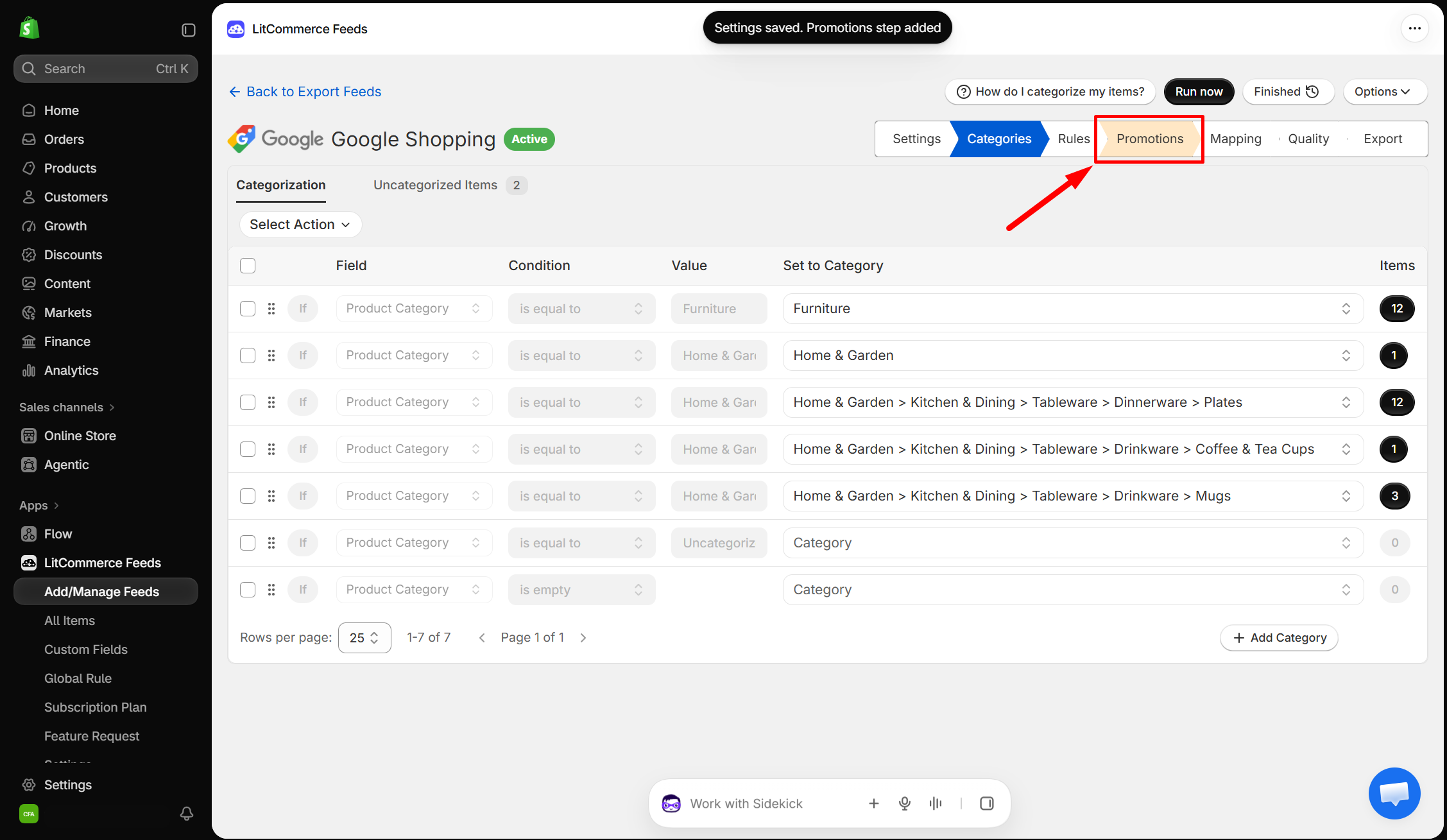
How to set up a promotion for the Google Shopping feed using LitCommerce?
The following steps guide you in setting up a promotion.
-
Click
Add promotionin the Promotions tab.
-
Choose the offer type you want the buyers to receive from the available options.

It includes the following promotion types:
Amount off
This option offers buyers a fixed monetary discount. Specify the
DiscountandMinimum order (optional).For example, to give buyers $8 off when they spend at least $15, enter "8" in Discount and "15" in Minimum order.

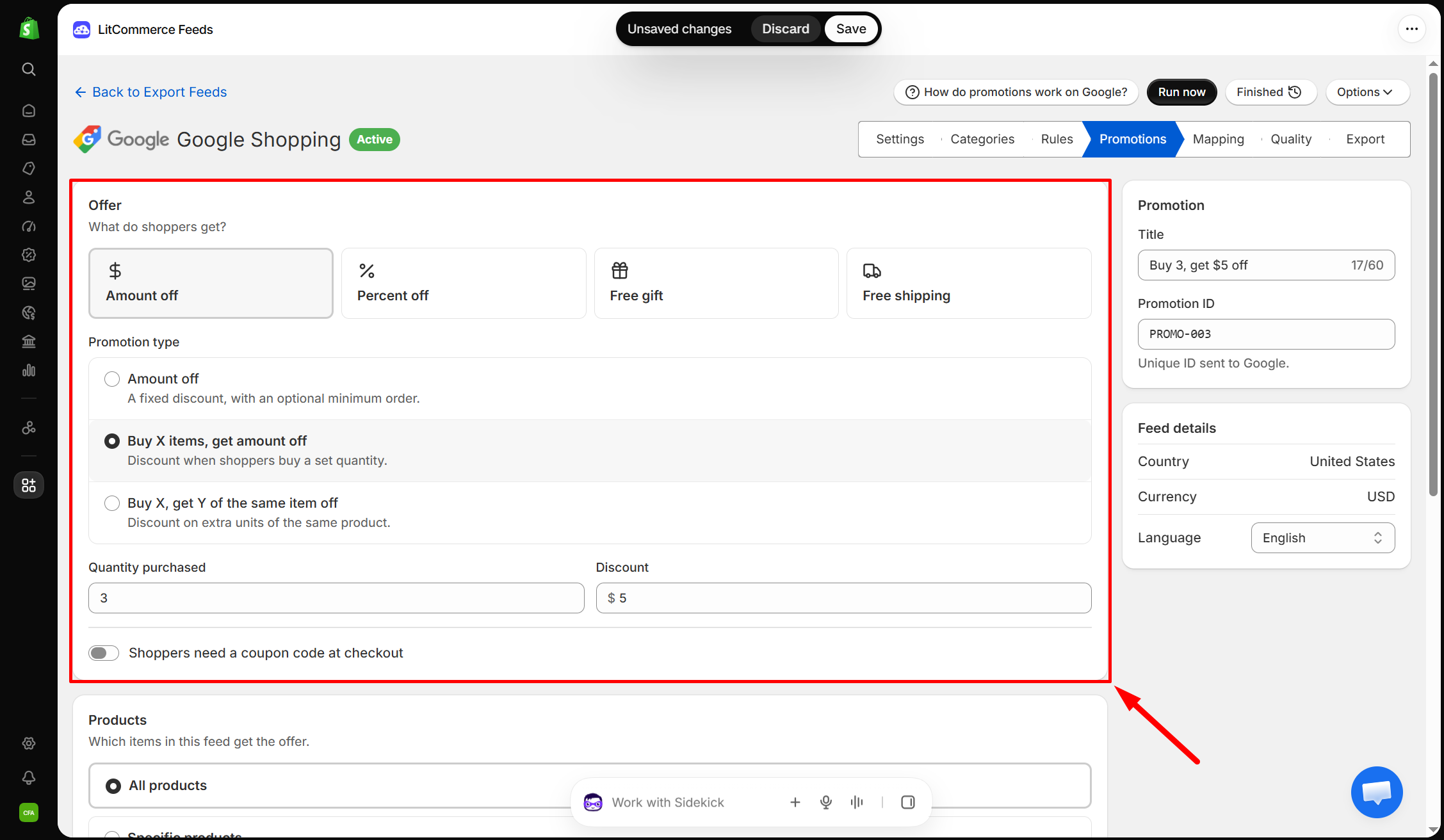
Buy X items, get amount off
This option offers a monetary discount to buyers who purchase a certain quantity of products. Specify the
Quantity purchasedandDiscount.For example, to give buyers $5 off when they purchase at least 3 items, enter “3” in Quantity purchased and “5” in Discount.
Buy X, get Y of the same item off
This option offers a discount for buyers who purchase extra units of the same product. Specify the
Quantity purchased,Quantity discounted, andDiscount.For example, to offer $8 off each of 2 extra units when buyers purchase 3 of the same product, set Quantity purchased to “3”, Quantity discounted to “2”, and Discount to “8”.

[!INFO] Discount percentages must be whole numbers. Decimals are not allowed.
It includes the following promotion types:
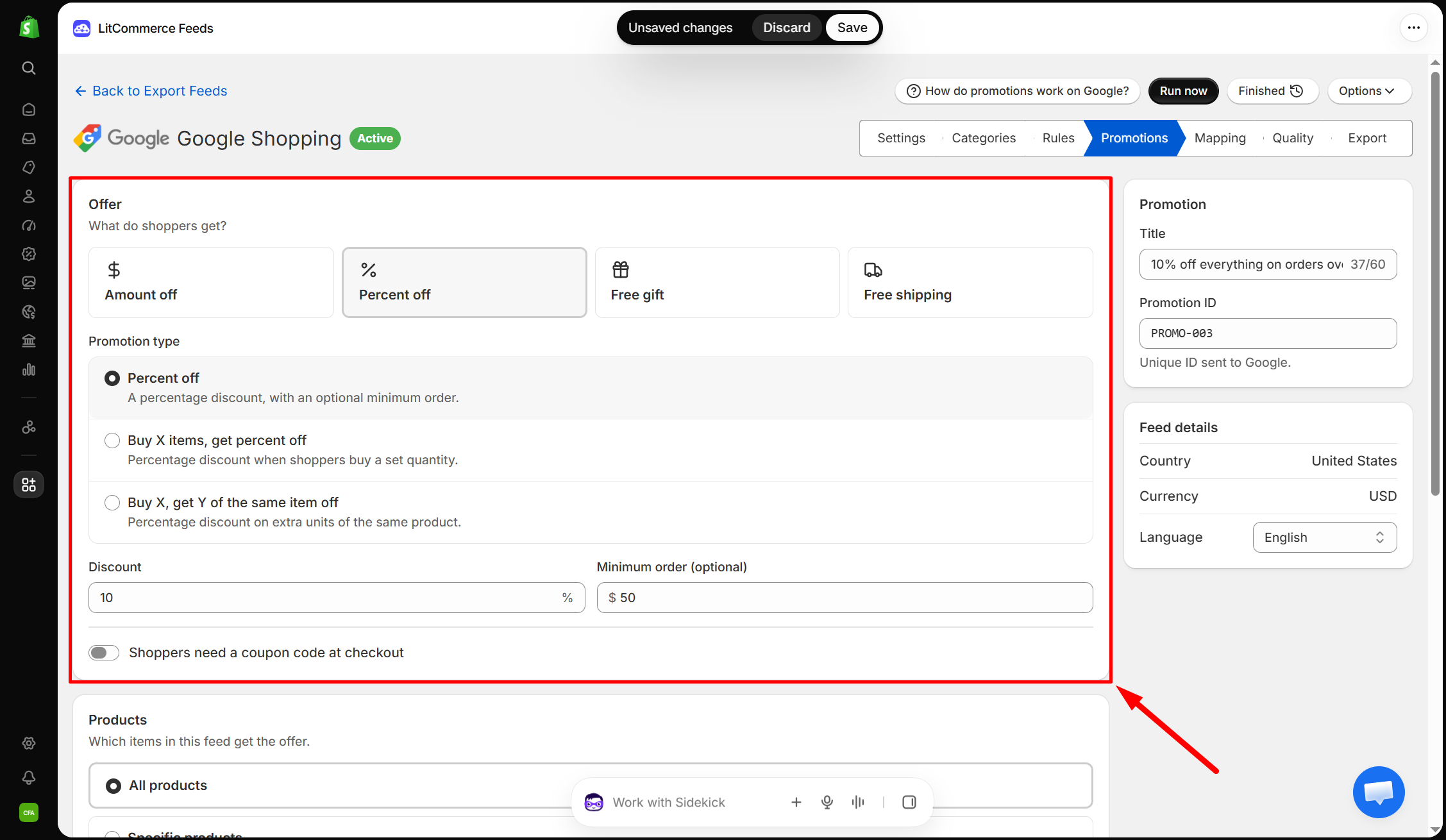
Percent off
This option offers buyers a fixed percentage discount. Specify the
DiscountandMinimum order (optional).For example, to give buyers 10% off orders of $50 or more, set Discount to “10” and Minimum order to “50”.
Buy X items, get percent off
This option offers a percentage discount to buyers who purchase a certain quantity of products. Specify the
Quantity purchasedandDiscount.For example, to give buyers 20% off when they purchase at least 5 items, set Quantity purchased to “5” and Discount to “20”.

Buy X, get Y of the same item off
This option offers a discount for buyers who purchase extra units of the same product. Specify the
Quantity purchased,Quantity discounted, andDiscount.For example, to give buyers 15% off each of 2 extra units when they purchase 3 of the same product, set Quantity purchased to “3”, Quantity discounted to “2”, and Discount to “15”.

It includes the following promotion types:
Free gift
This option lets you offer buyers an item for free for every purchase. Specify the
Free gift,Minimum order (optional), andMinimum quantity (optional).For example, to give buyers a free canvas tote bag on orders of $50 or more, enter “Canvas tote bag” in Free gift and “50” in Minimum order.

Free gift with value
This option lets you offer buyers a free item that is worth a set amount. Specify the
Gift value,Minimum order (optional), andMinimum quantity (optional).For example, to give buyers a free gift worth $10 on orders of $50 or more, set Gift value to “10” and Minimum order to “50”.

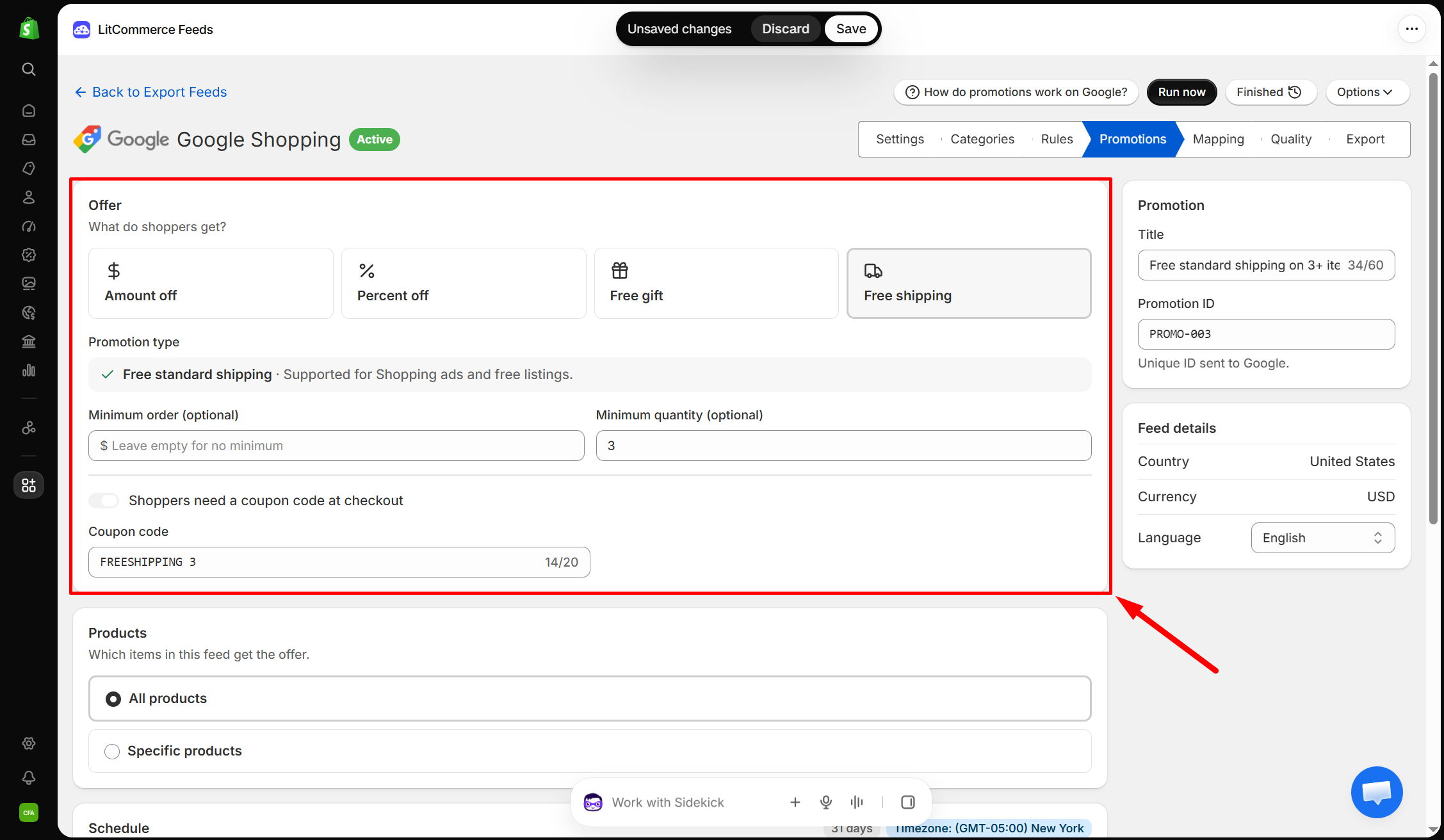
This offer lets you offer free shipping to buyers. Free standard shipping is selected by default and is supported for both shopping ads and free listings.
You can also optionally add the
Minimum orderandMinimum quantityinformation.[!INFO] A coupon code is required for this offer.
For example, to offer free standard shipping with the coupon code “FREESHIPPING 3” when buyers purchase at least 3 items, set Minimum quantity to “3”, leave Minimum order empty, and add a coupon code “FREESHIPPING 3”.
[!INFO] Google sets a minimum value threshold of 5 for dollar- or percentage-based discounts.
[!SUCCESS] Enable
Shoppers need a coupon code at checkoutto require buyers to enter a coupon code to redeem the offer.
-
Edit the promotion details, consisting of the title and Promotion ID.
[!INFO] Title and Promotion ID must follow Google’s guidelines. Refer to this article for more information.

[!SUCCESS] You can also change the Promotion Language in Feed details.

-
Determine which products the offer should apply to.
You can apply the promotion to all products or limit it to specific items using manual selection or filtering conditions.


-
Set the promotion duration in the Schedule section.
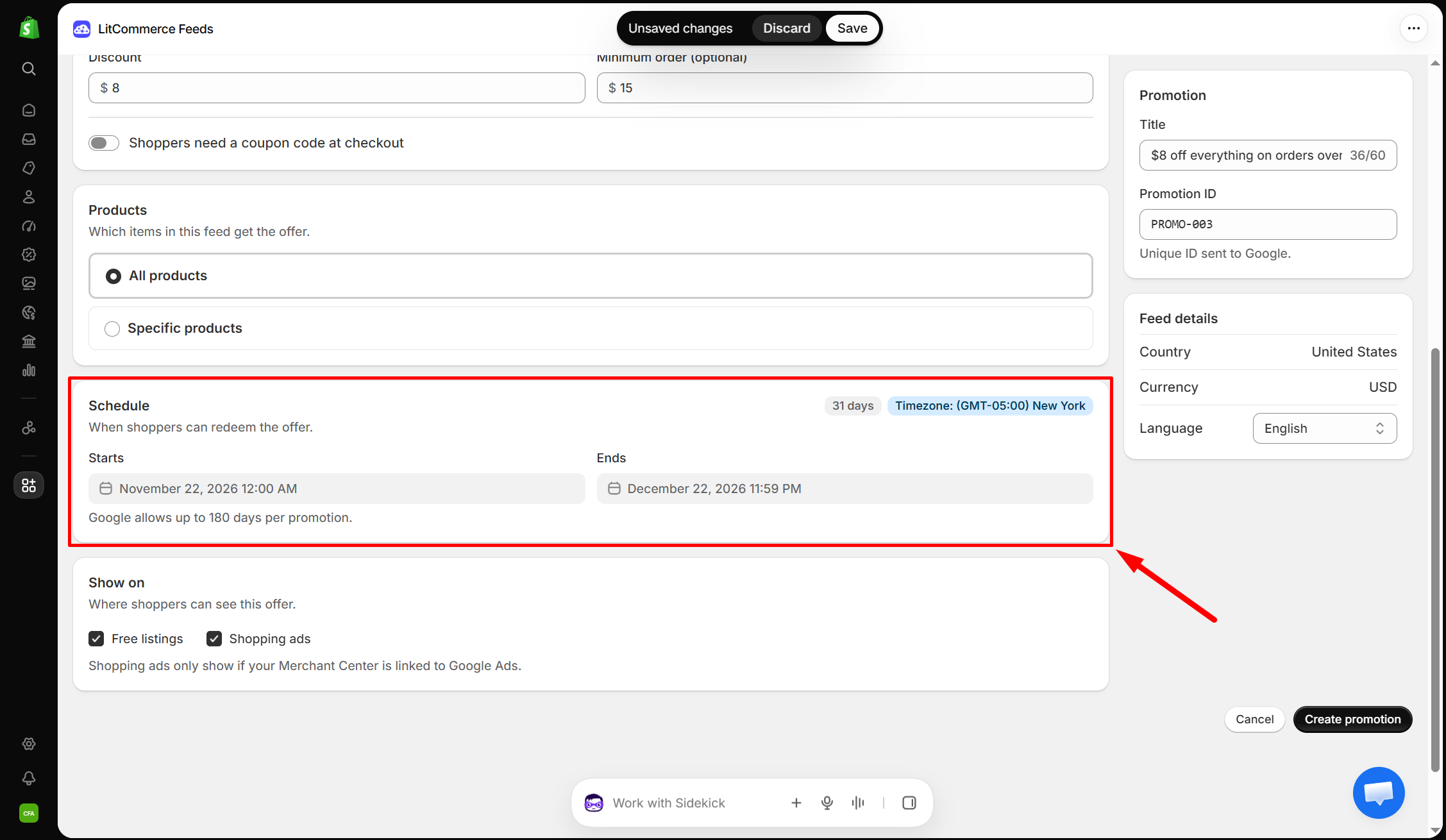
[!INFO] Promotions can run for a maximum duration of 6 months.
[!SUCCESS] You can change the time zone in your Shopify admin’s Settings.
-
Select whether the promotion appears on free listings, shopping ads, or both.

-
Click
Create promotionto complete the setup.

[!SUCCESS] Promotions can be edited or deleted at any time.

How to submit a promotion to the Google Merchant Center for your feed?
There are two ways to submit the feed’s promotion to your Google Merchant Center and make it available to buyers. Choose one that is most suitable for you.
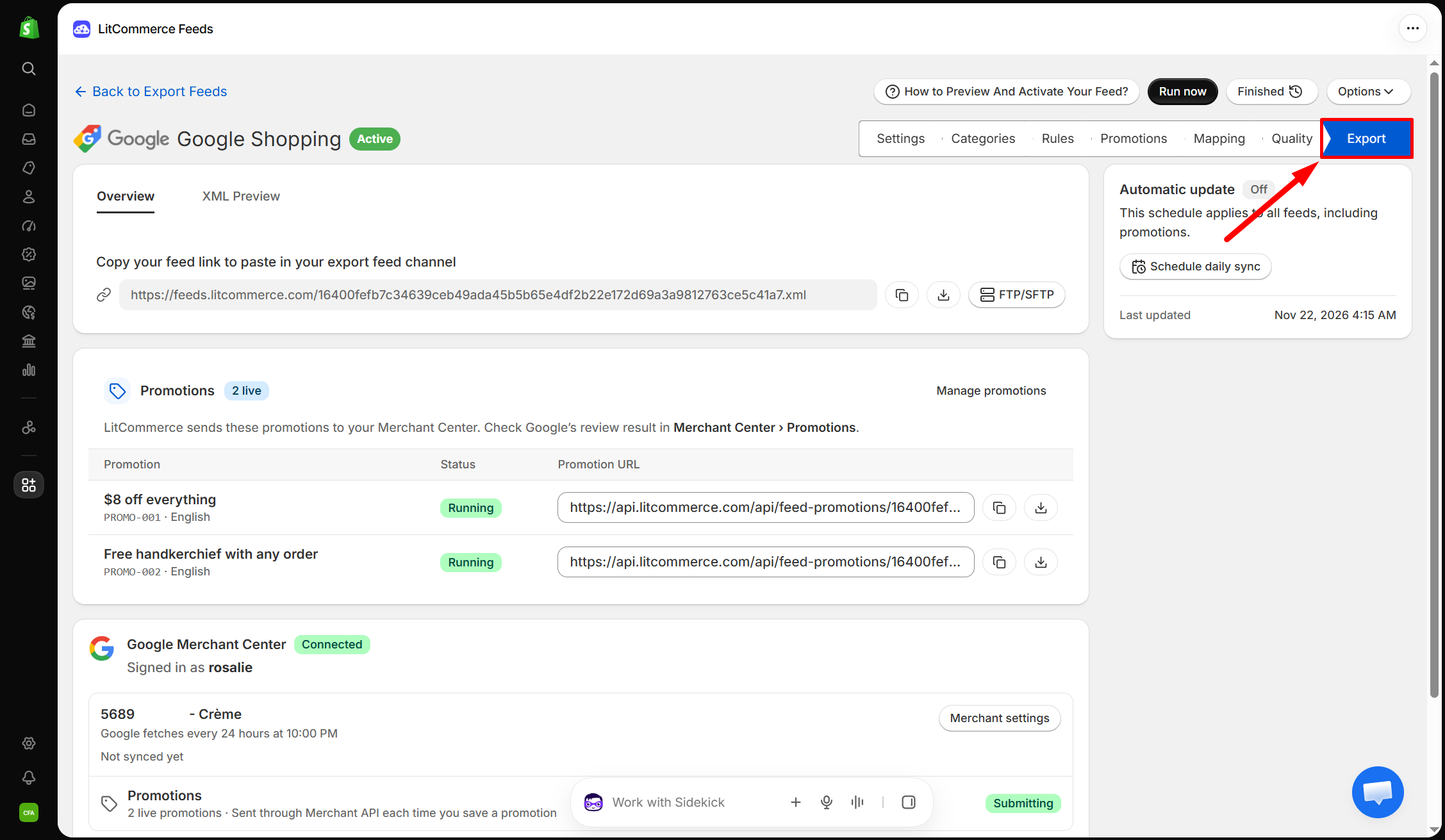
Auto submission
Connecting your Google Merchant Center to LitCommerce Feed Management allows the app to submit the feed and its promotions for you without further manual setup.
Click Connect to Google Merchant Center in the Export tab and follow the process to establish the connection.

Manual submission
Once the promotion is created, LitCommerce will generate a Promotion URL for you to copy or download. Find it in the Export tab.
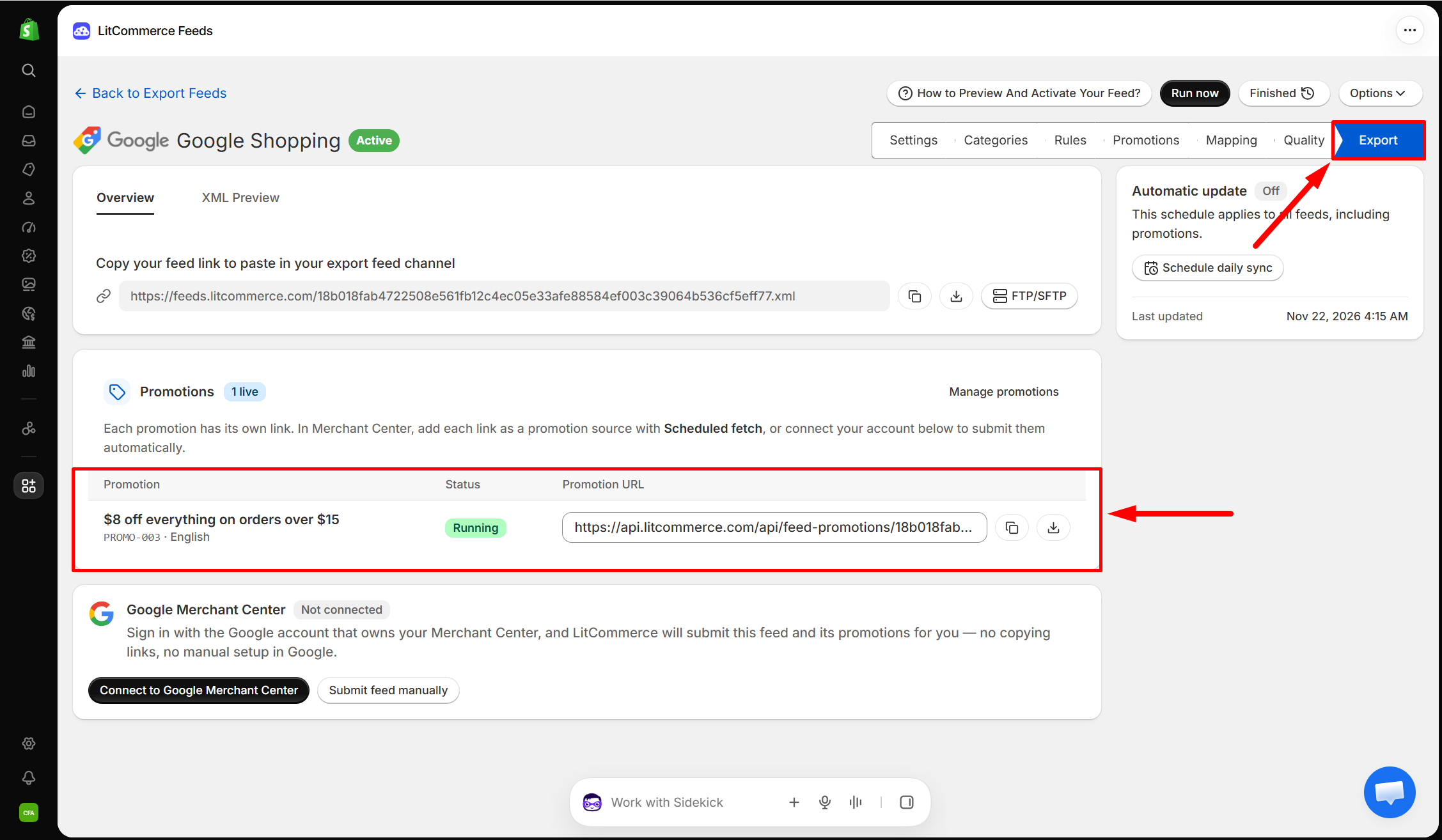
The promotion can then be used as a promotion source in your Google Merchant Center. Proceed with the following:
-
Copy the generated Promotion URL in LitCommerce.

-
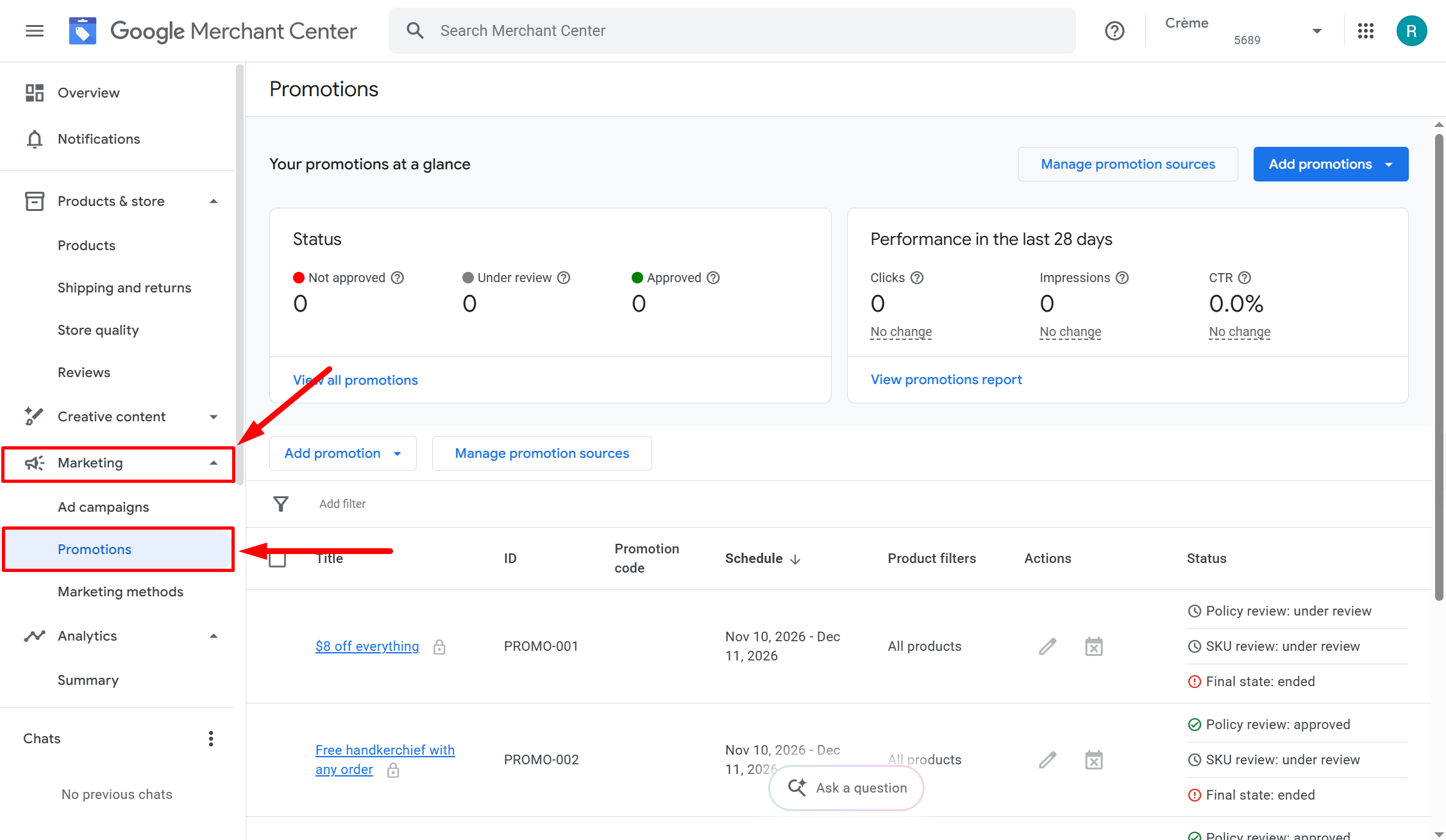
Access your Google Merchant Center, then locate and open the Promotions section under Marketing.
-
Click
Add promotionand selectAdd promotion source.
-
Choose
Add promotion from a file.
-
Paste the copied Promotion URL into
Enter a link to your fileand set up the update schedule and authentication if needed.
-
Click
Continueto submit the promotion.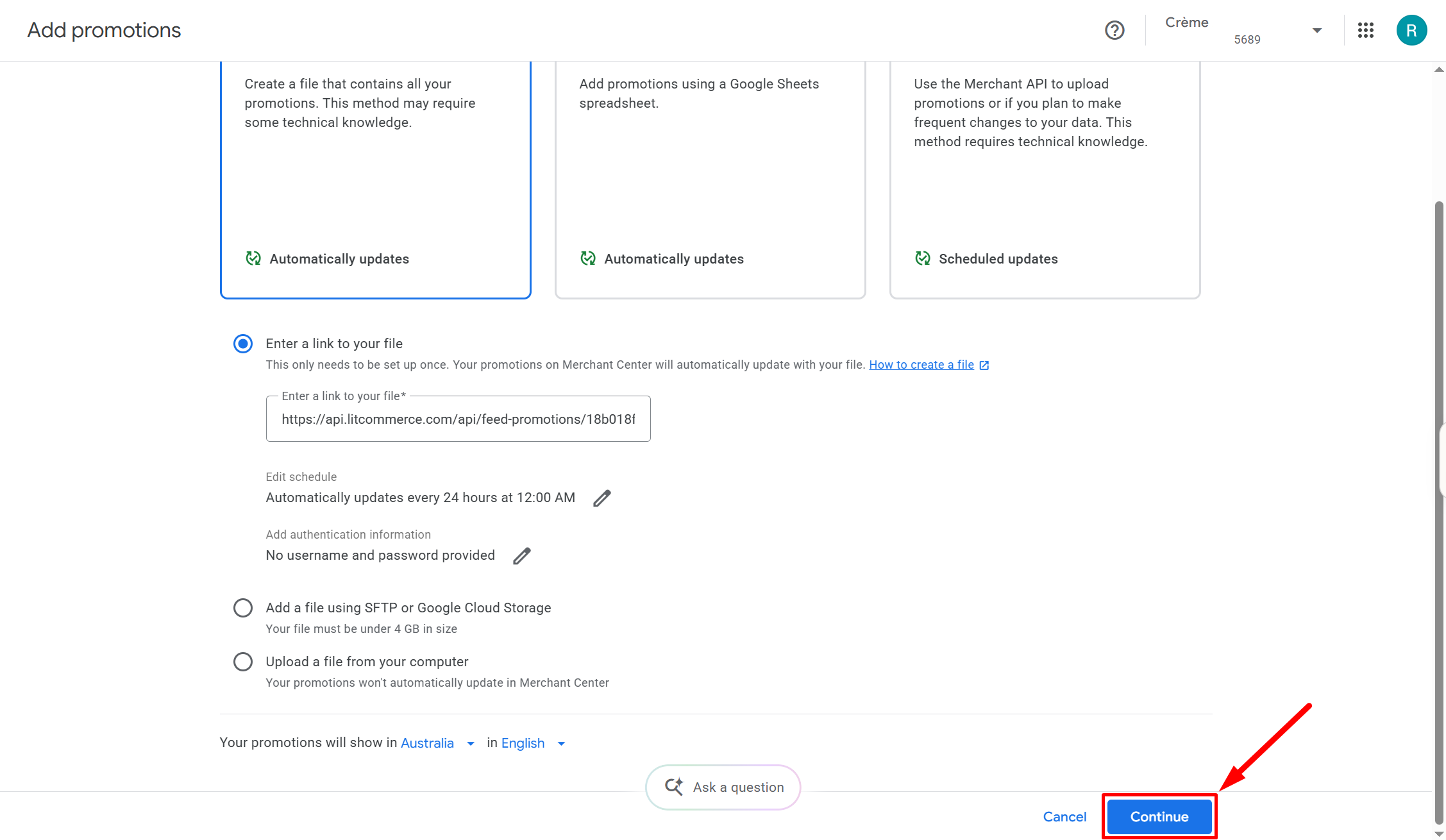
[!INFO] Promotions submitted via this method are updated per the schedule configured directly in your Google Merchant Center.
[!INFO] Google reviews each promotion, which may take up to 72 hours. Approval results are available in Google Merchant Center.
If Google does not approve your promotion, make the required changes and resubmit it:
- **Auto submission: **Update the promotion in LitCommerce. The changes will be sent automatically to Google Merchant Center after you save.
- Manual submission: Update and resubmit the promotion directly in Google Merchant Center.
[!INFO] Deleting an approved promotion or turning off the Promotions tab from the LitCommerce Feed Management app in your Shopify admin will not stop the offers.
You must end the promotion directly in your Google Merchant Center. More details can be found HERE.
If you have any questions, let us know via the Chat Box in the bottom-right corner of our Help Center.